
Quick Start - Create and Configure Project
Quick Start - Create and Configure Project
"QuickPlan for macOS" is a document-based app. A project is a file with the extension "QPP." QuickPlan follows the latest best practices and has the highest privacy standards because it is not server-based. QuickPlan is a very privacy-conscious app. We (Swift Apps) do not have a server where user-created project files are stored. User-created projects are stored directly on the user's device or in the user's cloud storage, at the user's discretion.
We can create a new project by creating a new QuickPlan Project Document (with a .qpp file extension) using the QuickPlan for the macOS app.
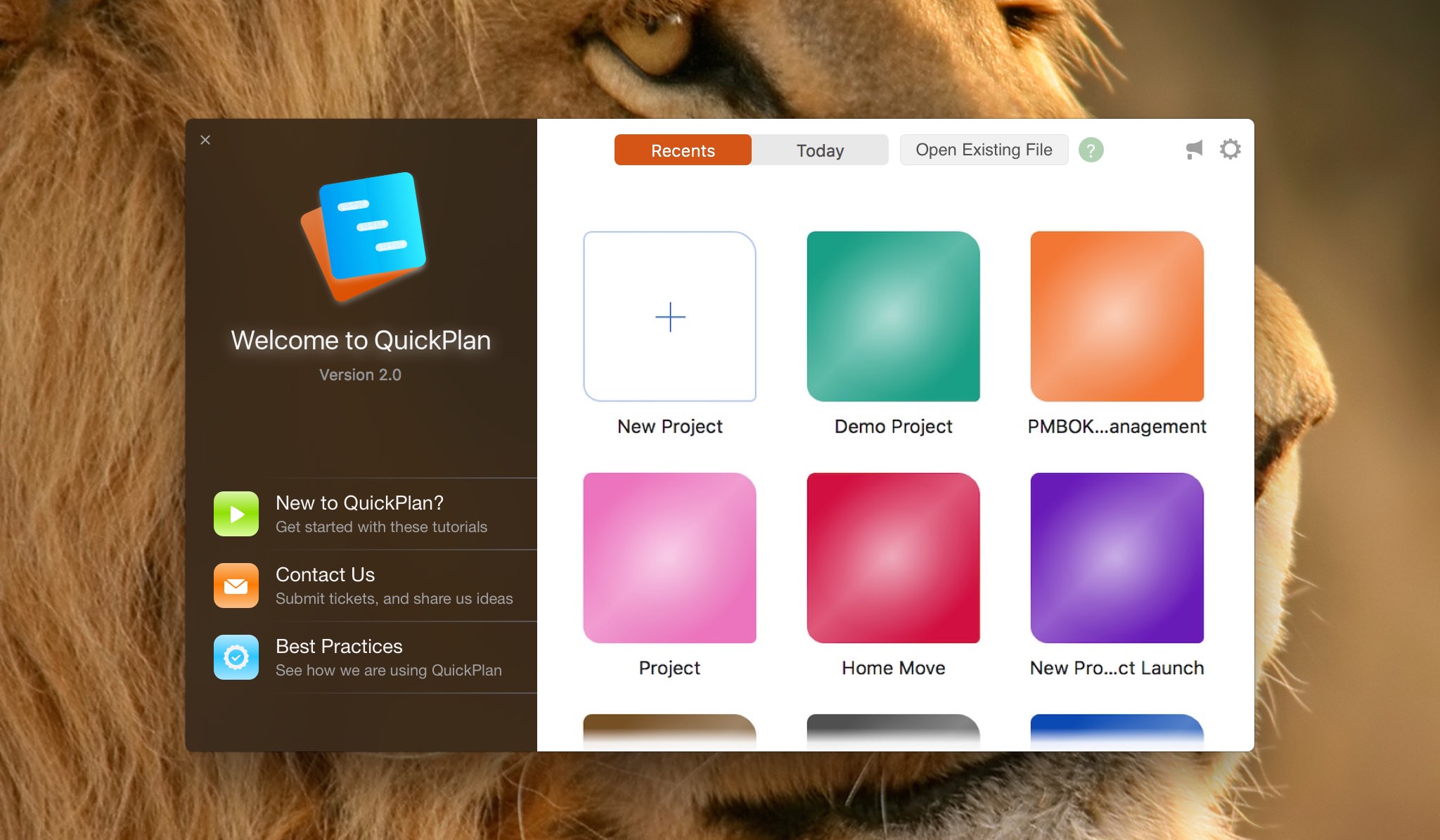
We recommend saving the project file immediately using the keyboard shortcut "Command + S" or the "Save" app menu. If you forget to save, you will be prompted to save or delete the unsaved document upon closing it or exiting the app. Once saved, changes to the open project are saved automatically.
1. QuickPlan attempts to save project contents to a temporary file before a save path is specified. While QuickPlan can usually restore the project from this temporary file after a restart, we recommend saving the project immediately upon creation to prevent data loss in the event of an unexpected macOS system crash.
2. The project name and file name are separate, allowing for flexible file management. For example, you can save the same project in multiple files with names like "Project Version 1.qpp" and "Project Version 2.qpp".
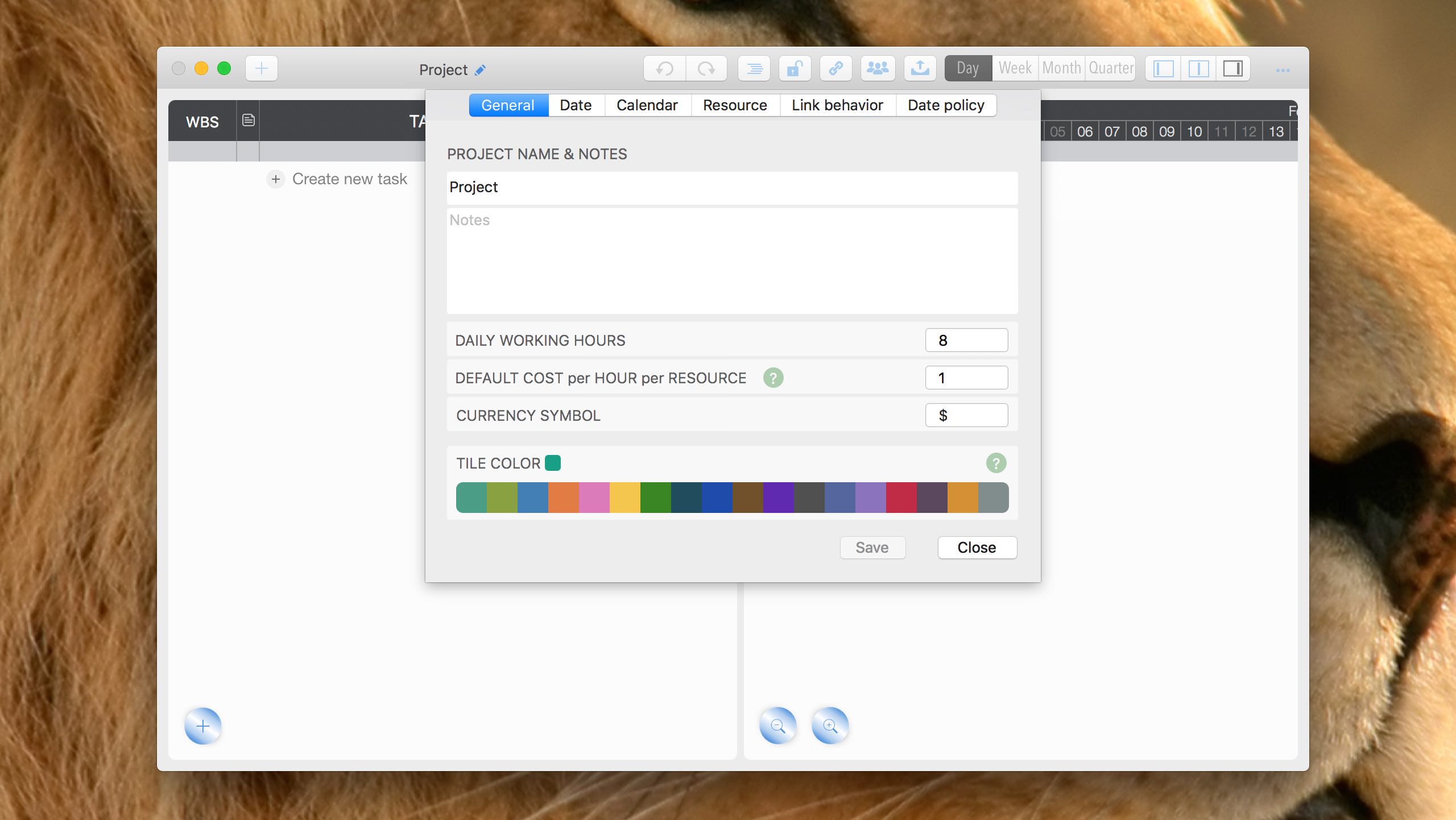
Click the project name in the toolbar to configure project settings

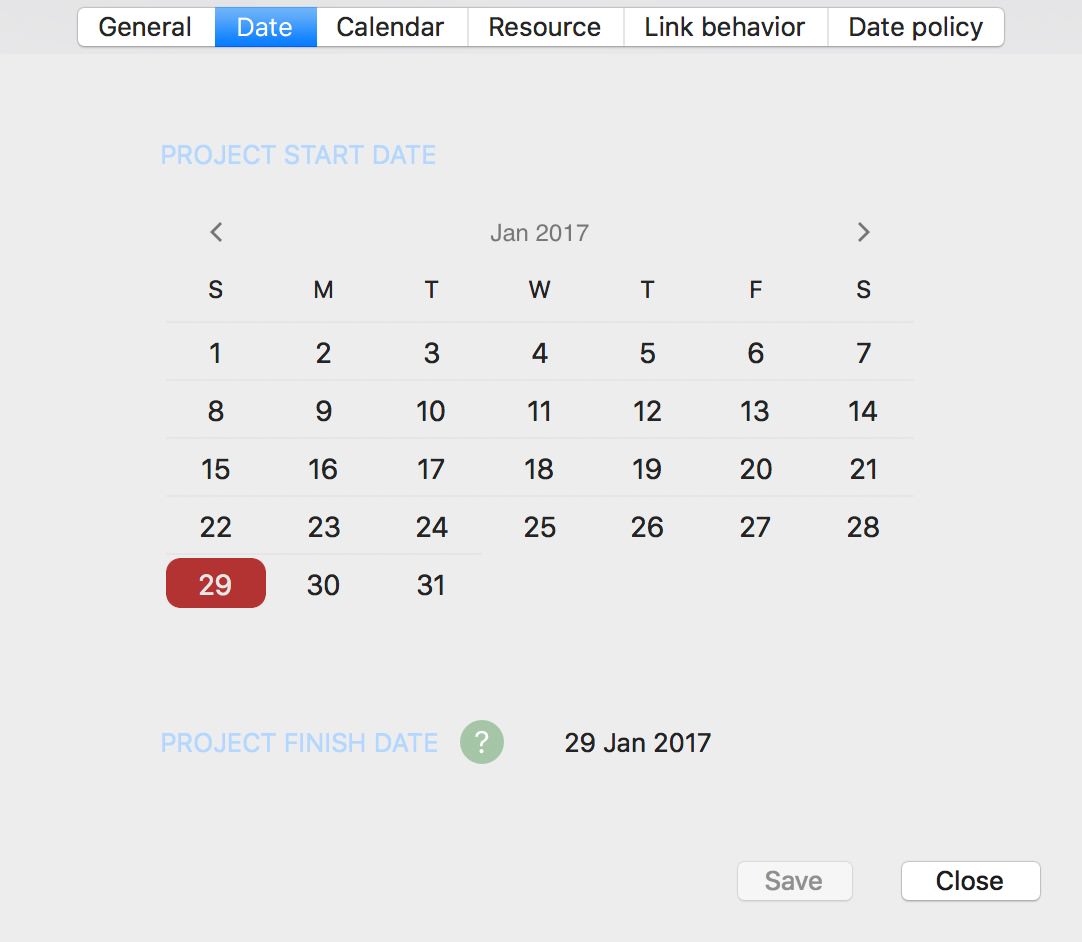
Change the start date for the entire project. This operation automatically adjusts the start dates of all tasks within the project.
This function is typically used when creating a new project by copying an existing one, similar to using a template. For example, if you need to create a project similar to a previous one, you can copy the old project file and then update the start date for the new project before adjusting individual tasks.
For a new empty project, we do not need to change the start date of the project.

Maintain the project calendar to designate days as "workdays" or "non-workdays".
Click a day block to toggle it between "workday" and "non-workday" status.

If additional project members are involved, you will need to maintain the project resources (members).
QuickPlan for macOS supports adding project members by dragging them from macOS Contacts.
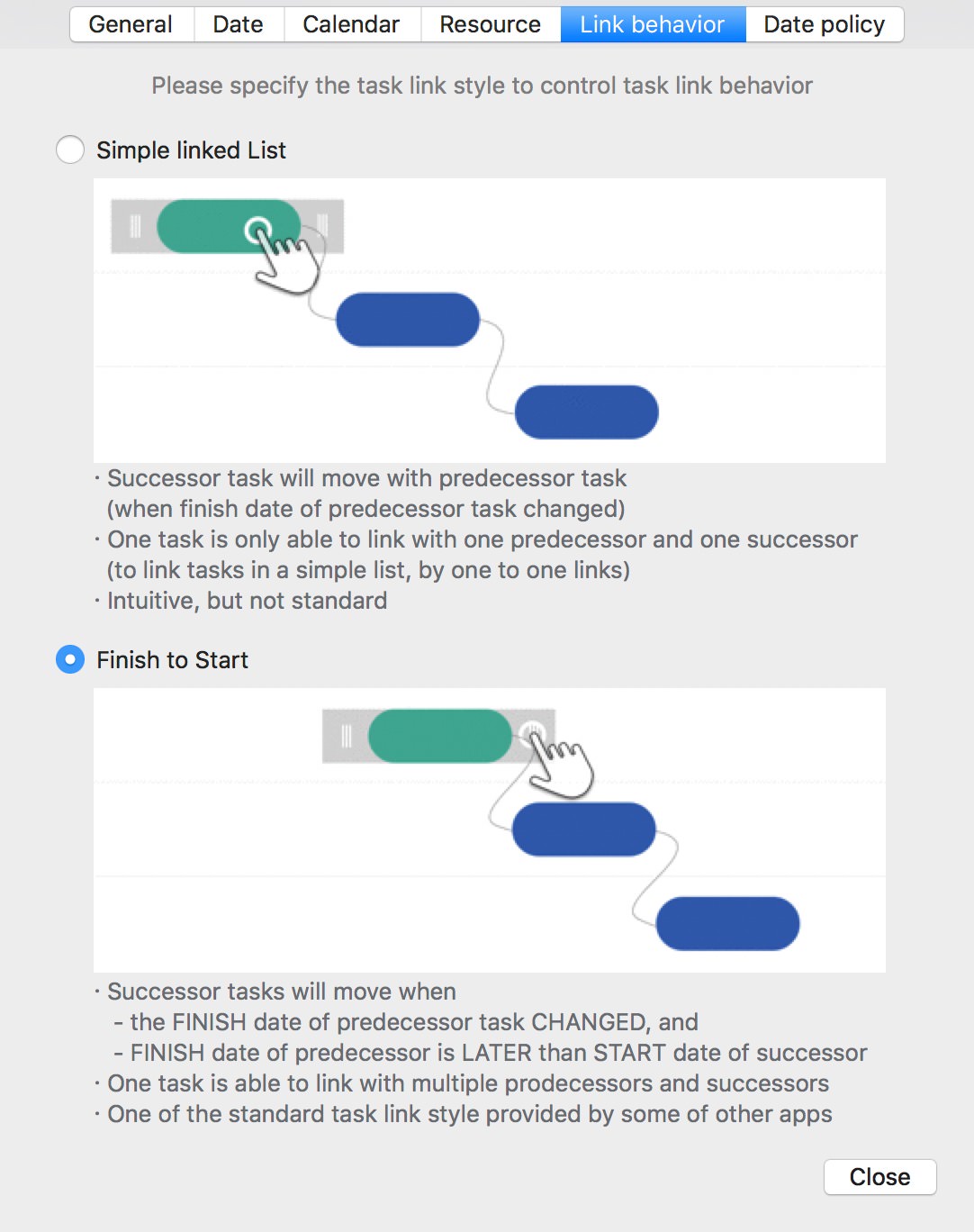
Configure how task links affect scheduling. Click here to learn more.
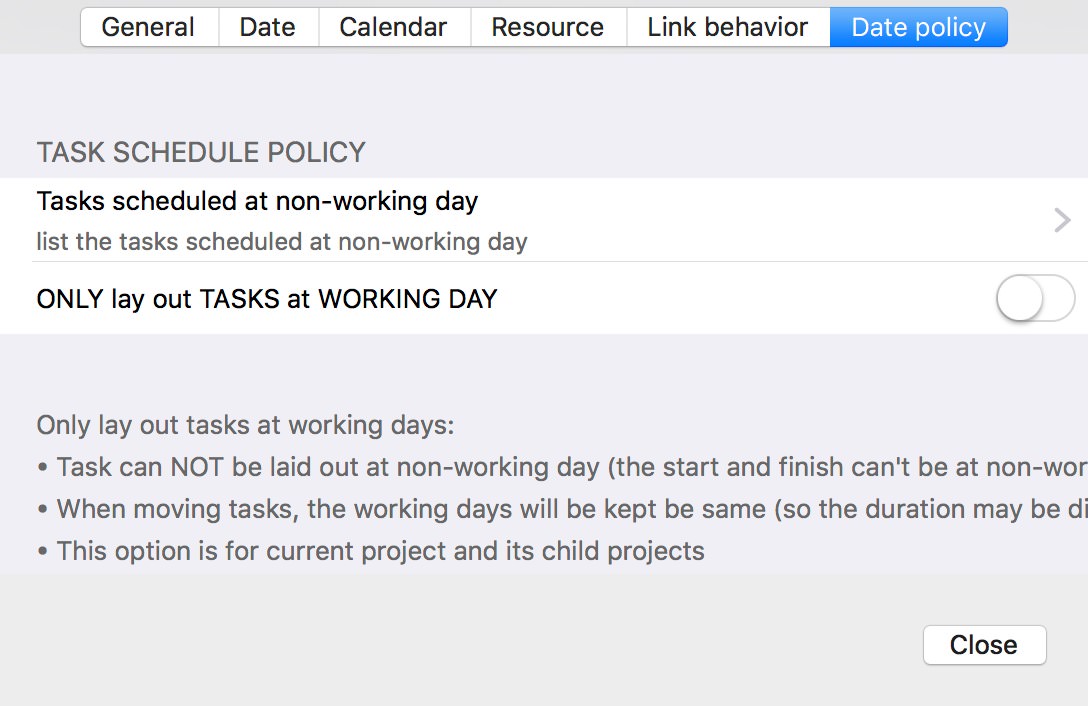
Configure whether to skip non-work days when moving tasks. Click here to learn more.
Best Practice
Managing multiple projects for a team and need a project template? You can use any project file as a template.
© 2013 ~ 2026 COPYRIGHT QUICKPLAN | All Rights Reserved
Swift Apps