
Quick Start - Schedule Tasks
There is no single best way to capture and structure tasks for everyone. The following two approaches are typical and effective.
Enter tasks one at a time.
Enter the task name, date, work, and other properties, then proceed to the next task.
Focus on one aspect at a time for all tasks.
Prepare the full task list → Build the tree structure → Enter dates for all tasks → Assign resources for all tasks → Address other aspects sequentially.
If you are very familiar with the project (e.g., years of experience managing similar projects), the first approach may be suitable.
We recommend the second approach, as it is generally more efficient and reduces rework. Follow these steps:
First, identify the tasks required for the project. While you can input tasks as you think of them, having a ready list is more efficient.
For small projects, a mental list may suffice; for large or complex projects, using a tool to create the list is advisable.
Mind maps are excellent for brainstorming and preparing lists, helping to develop task names in a tree structure. QuickPlan supports creating new projects by importing OPML mind map files.

You can also prepare the task list in an Excel file, a plain text file, or even on paper.
Enter tasks in order, then change their outline levels to create a tree structure. If needed, move tasks up or down to adjust their sequence.

An option controls the default date for new tasks: set it to match the previous task's date or start when the previous task ends.
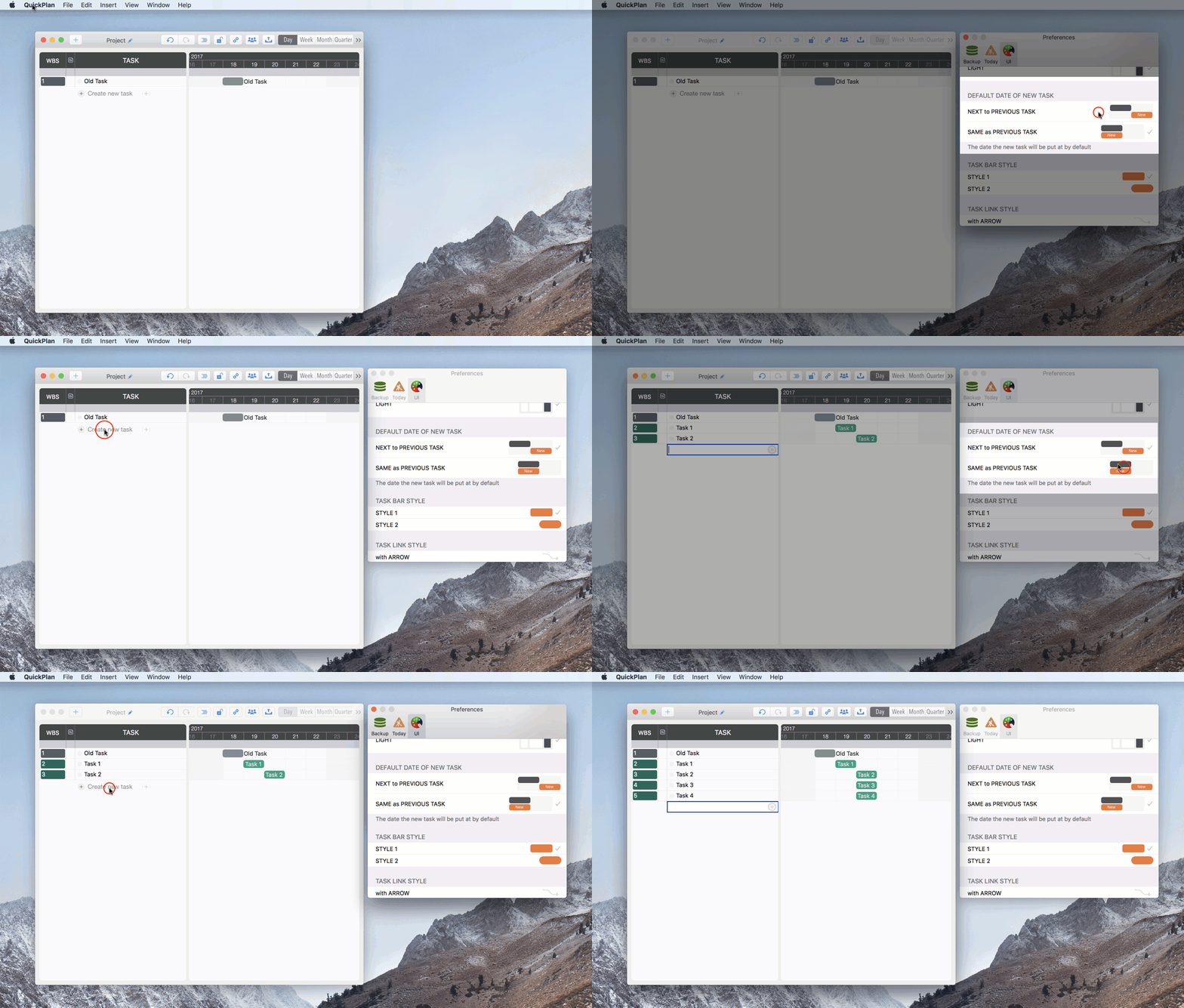
QuickPlan for macOS 5.1 introduces a new method to improve planning efficiency in certain cases.
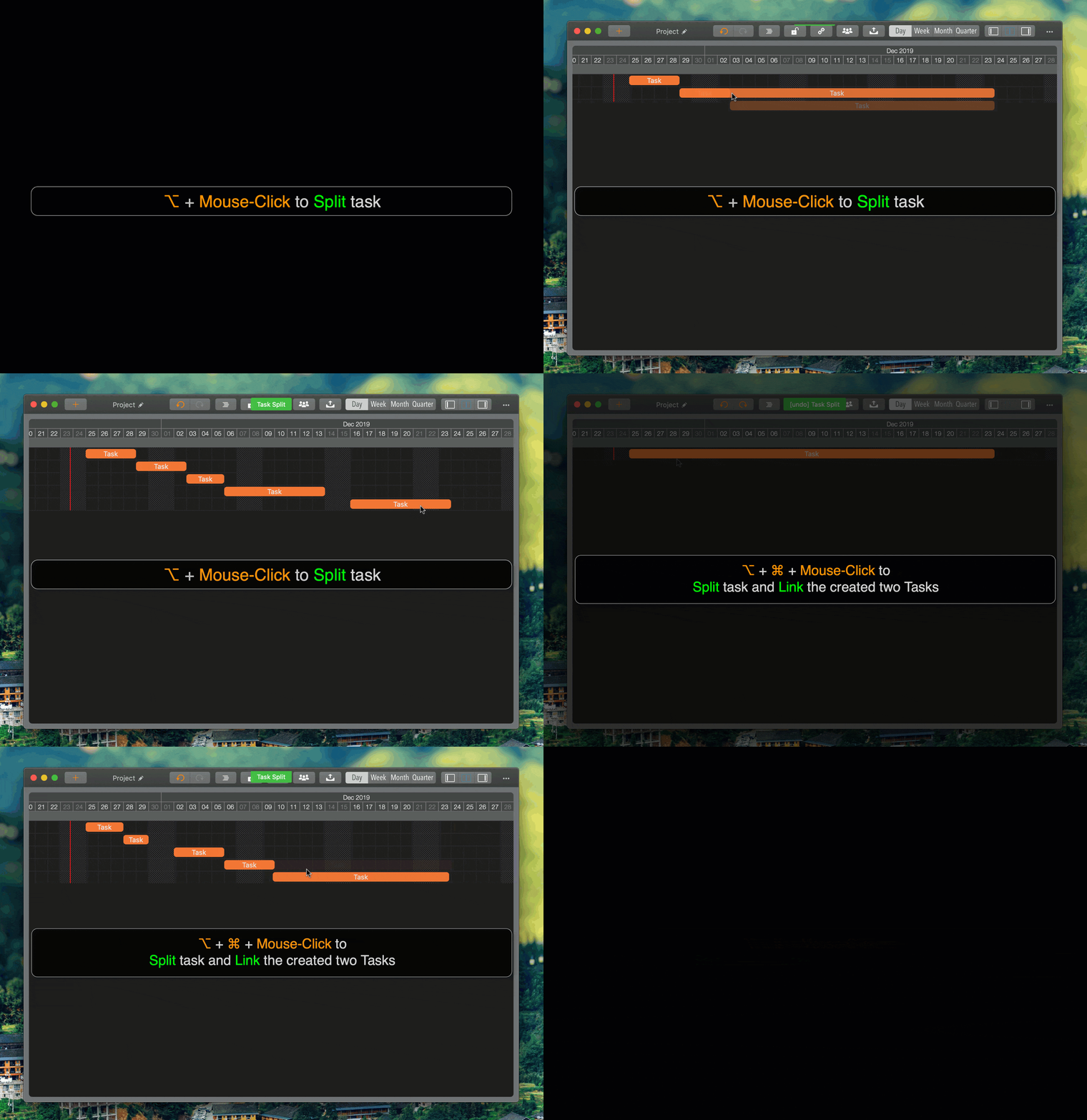
Select a Task
Click a task, or double-click the empty space in a task row on the Gantt Chart.
For efficiency, switch task selection using keyboard shortcuts: "d" or "↓" for the next task, "e" or "↑" for the previous task.
Alternatively, press the "Indent" and "Outdent" buttons on the Touch Bar

QuickPlan for macOS 5.2 introduces two new methods for indenting and outdenting tasks.
On iOS, QuickPlan supports changing task outline levels using intuitive "quick left/right" gestures. To adjust outline levels for all project tasks, we recommend syncing (or transferring) projects to an iPad and performing this step there.
You may need to adjust task sequences within a task group or across multiple groups
Or press the buttons on the Touch Bar

Click the "Task Link" button on the toolbar, then follow the floating tips to link tasks
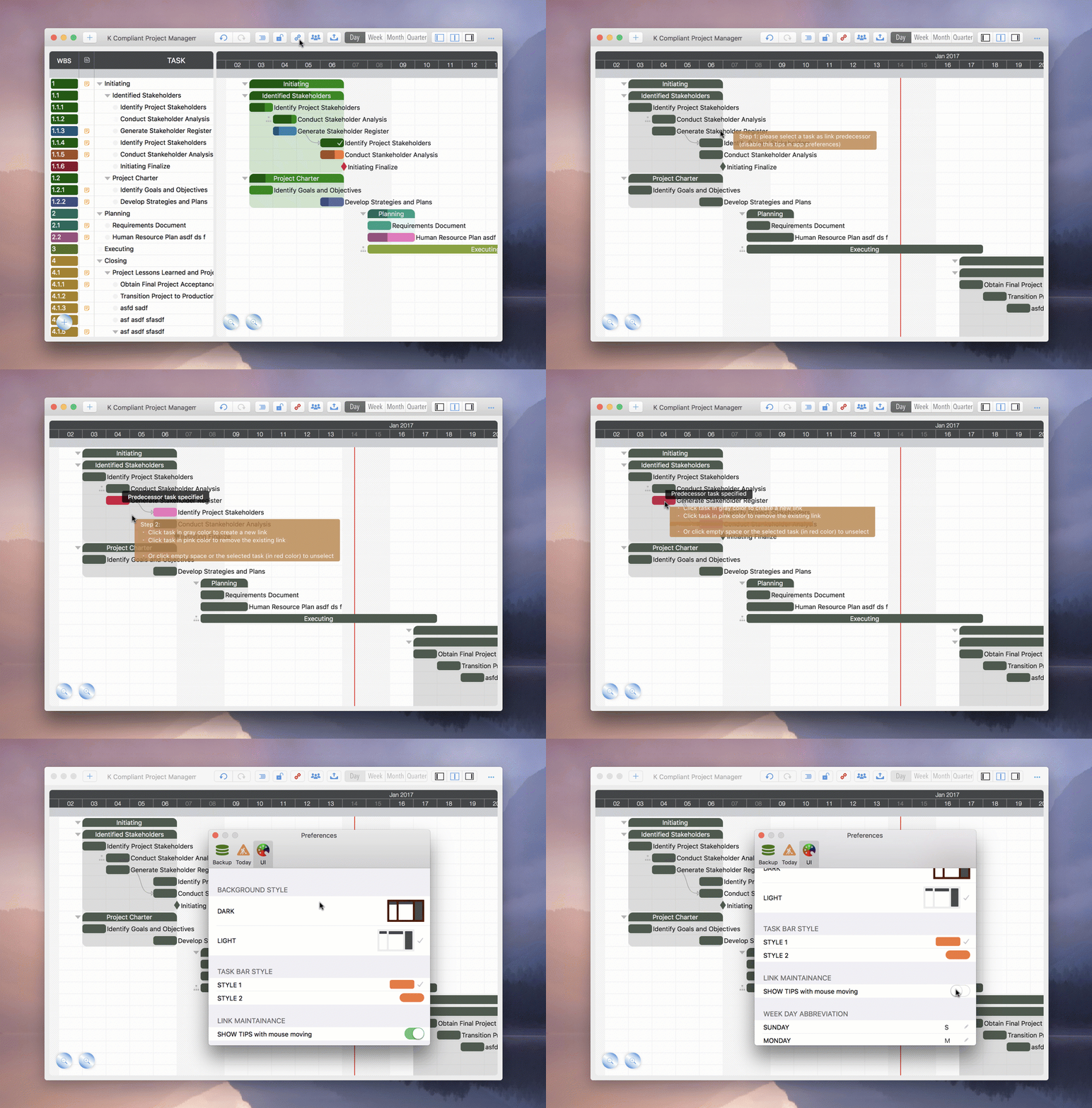
QuickPlan for macOS 3.3 introduces a new method to maintain tasks directly (eliminating the need to enter "Task Link State" as described previously).
QuickPlan for macOS provides several methods for changing task dates and durations; choose the one most efficient and appropriate for your situation. Familiarizing yourself with these methods will significantly improve work efficiency.
For example, how many ways are there to change a task's start date? Check the methods below.
Edit the "Start" column in the Outline List.

Use mouse gestures to change the task date on the Gantt Chart.

Change the start date in the Inspector.
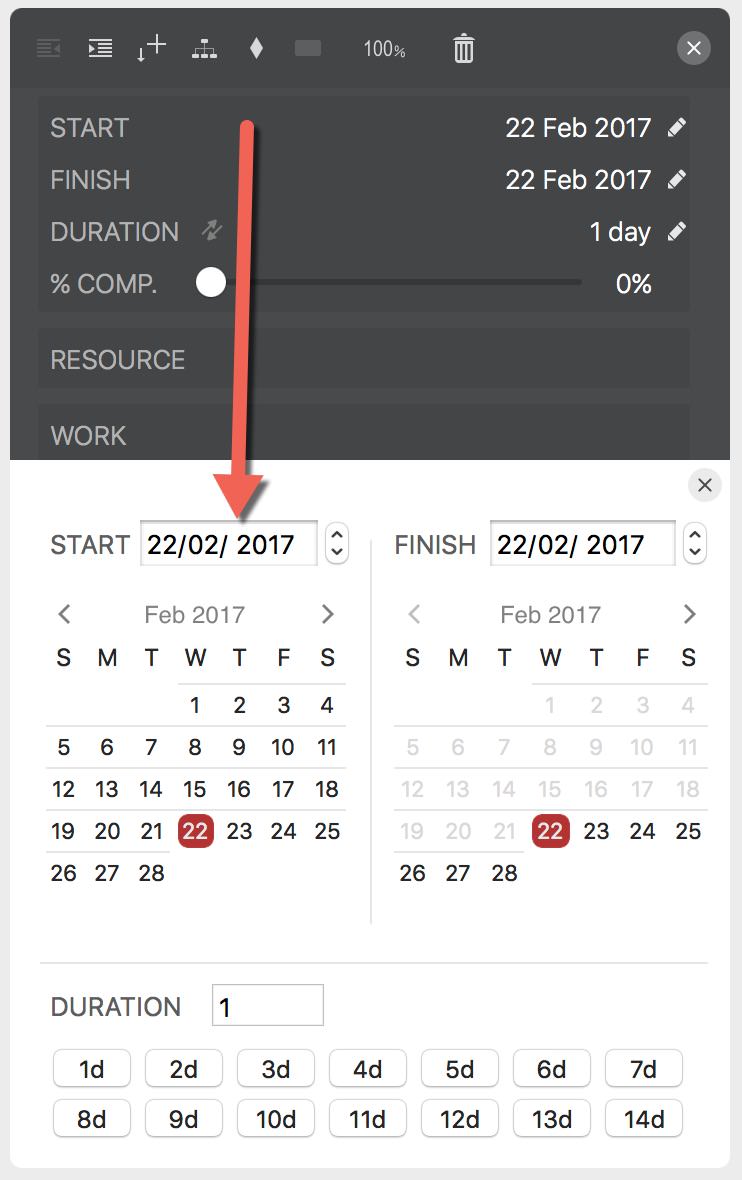
Select a task's "Start" cell and change the date using Touch Bar buttons.

How can we efficiently change the task start date? If the target date is close, tapping the Touch Bar is much faster than other methods. For example, to move the start date by two days, simply double-tap the "+ 1d" button; to move it by 11 days, tap "+ 10d" followed by "+ 1d".
Another question: how many methods can QuickPlan use to change task duration? Click here to check the answer.
By Changing Task Finish Date
By Changing Task Duration

QuickPlan provides as many methods as possible—some effective, some intuitive. There is no single best method; it depends on your experience and familiarity with the app.
For efficiency, a basic principle is to avoid keyboard typing. Using the mouse to select and keyboard shortcuts to execute is often more efficient. QuickPlan provides additional buttons and shortcuts where possible; for example, the duration input window includes buttons for quick adjustments.
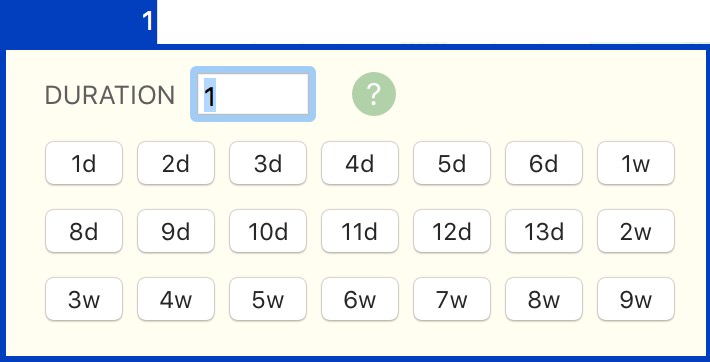
Change task duration AFTER changing the task's start date.
Since most tasks have short cycles, keyboard shortcuts "⌘1…9" and "⌘⌥1…9," along with Touch Bar duration buttons, are very efficient for changing task duration.
To move a task from a distant date to near the project start: Use "⇧⌘ ←" to move it to the start date, then "⇧→" to reach the target date.
When updating task dates and durations in the Inspector, we recommend using one hand to select tasks and the other to operate the mouse.

In some cases, copying task dates is highly efficient. For example, move a task group to January 1, change a task's start date to February 1, then copy that cell to other tasks targeting February. This is very fast using keyboard shortcuts.
Proceed to other aspects (e.g., resources, labor, cost) one at a time, using similar methods. With practice, you can become highly efficient.
© 2013 ~ 2026 COPYRIGHT QUICKPLAN | All Rights Reserved
Swift Apps