
Quick Start - Task Maintenance Basis
Quick Start - Task Maintenance Basis
Efficiency is key to success, and QuickPlan is designed as a productivity app for business.
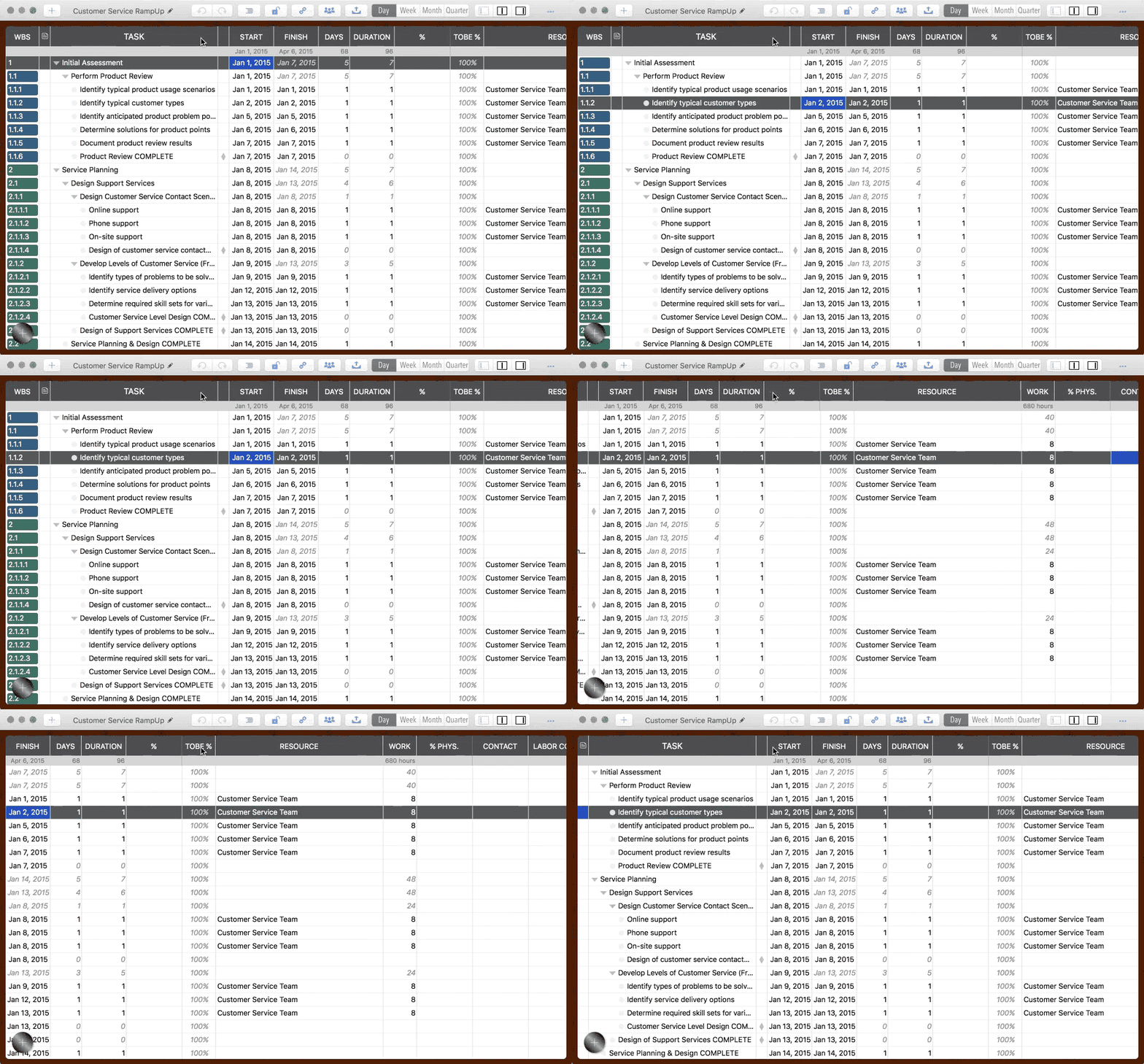
Copy/Paste task cell: ⌘C (Command + C) to Copy; ⌘V (Command + V) to Paste.
( Note: These shortcuts are for CELL operations. For the WHOLE TASK, use ⇧⌘C to Copy and ⇧⌘V to Paste.)
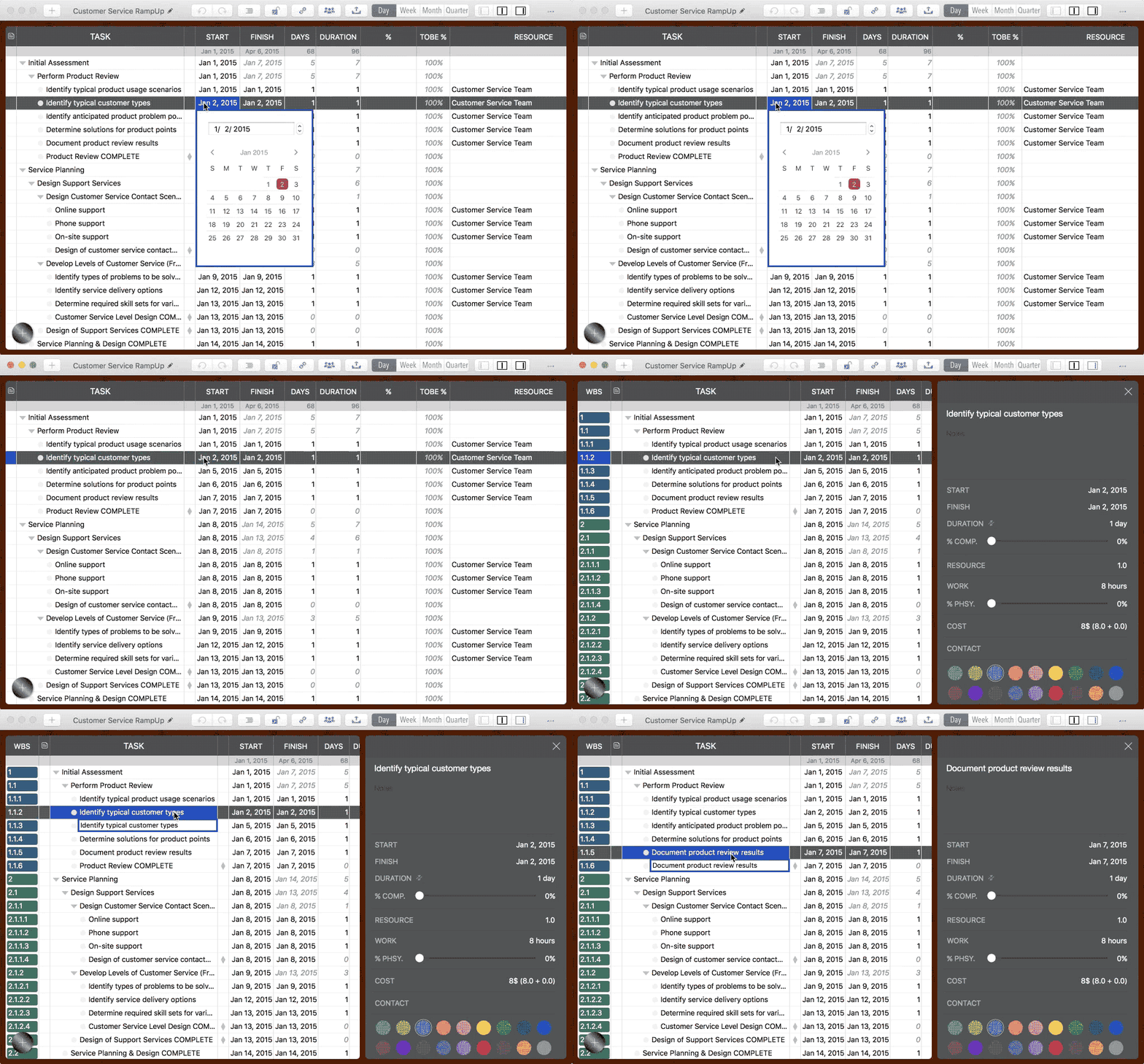
⇧ double-click(Shift + Double-Click) to edit the task name directly on the chart panel

Double-click the empty field in a row to select the task in the row.
Tip: Selecting a task automatically scrolls the Gantt Chart to make it visible. To save time, simply click the task in the outline list or double-click the task row instead of scrolling the Gantt Chart manually.
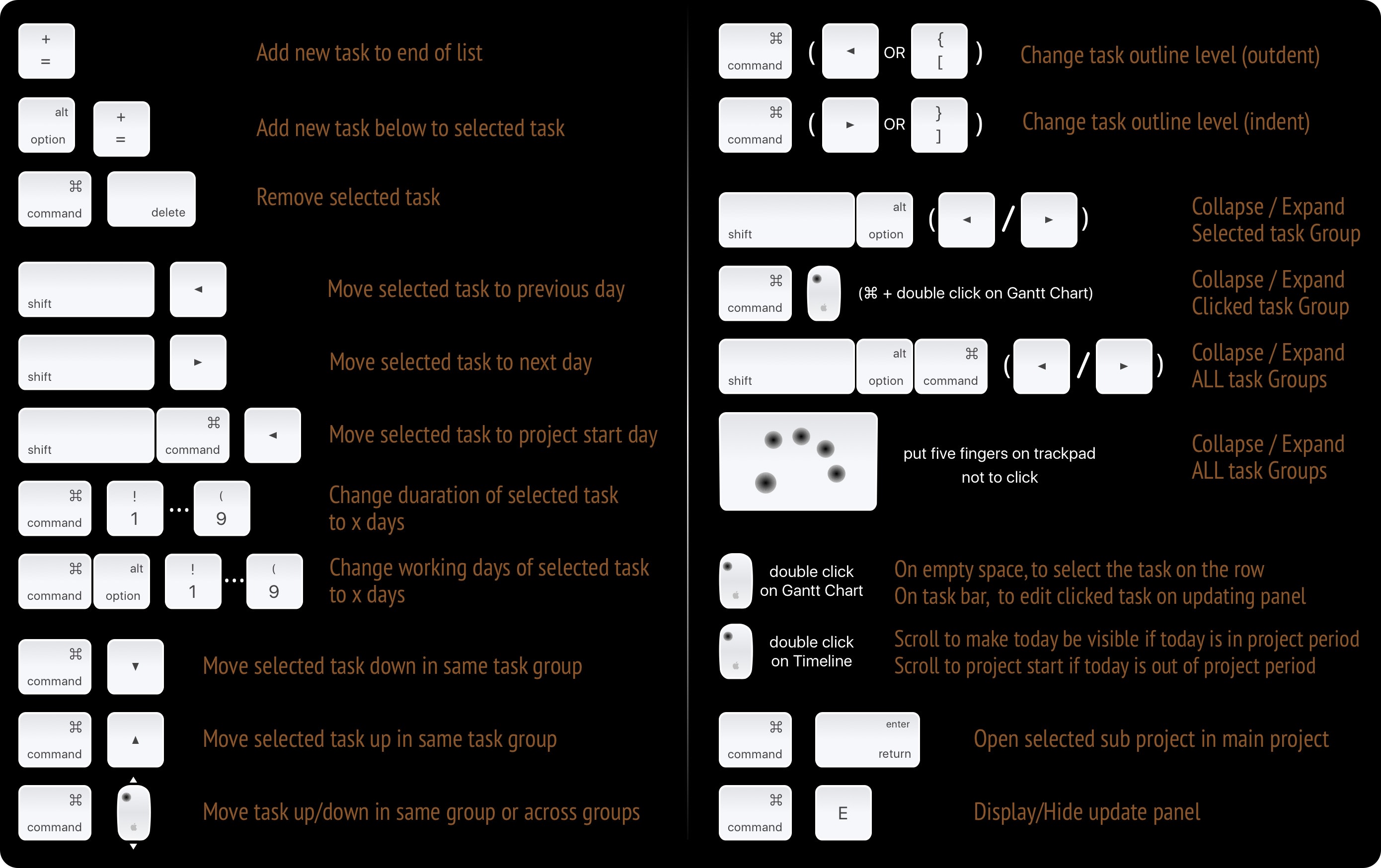
⌘ + Double-click ("Command" + "Double-click" on a task group) to collapse or expand it
Tip: While you can collapse/expand task groups using keyboard shortcuts or the triangle icon, this mouse gesture is often more efficient.
You can also change task dates in the Gantt Chart using intuitive mouse gestures.

Use the ⌘ + Mouse Move-up/Move-down gesture or ⌘ + ↑/↓ keyboard shortcuts to change task sequence.

Productivity Tip: Focus on one aspect of the project at a time. For example, when editing task dates: use your left hand ("s"/"d" keys) to switch tasks, and your right hand to operate the Inspector.

Press ⌘⌥^ (Command + Alt + Ctrl) to show shortcut tips in the active project window (explore more shortcuts in the App Menu)
Context-sensitive menu items on the Touch Bar replace slower typing operations, improving maintenance efficiency
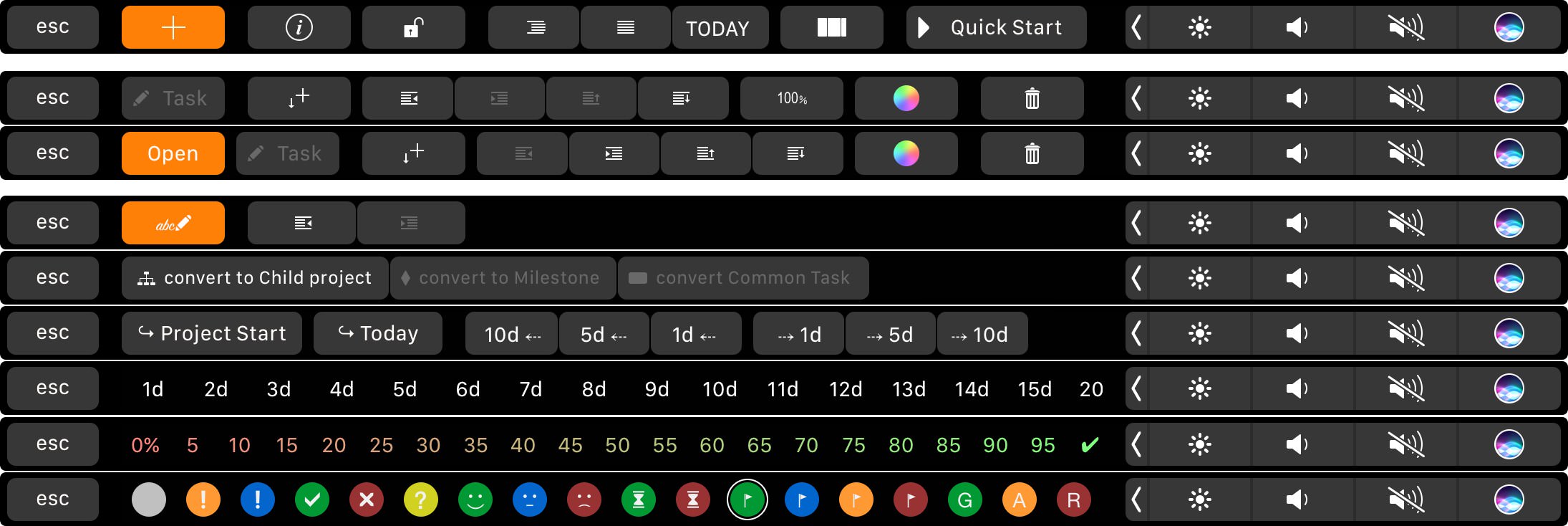
Check the details in the online user manual
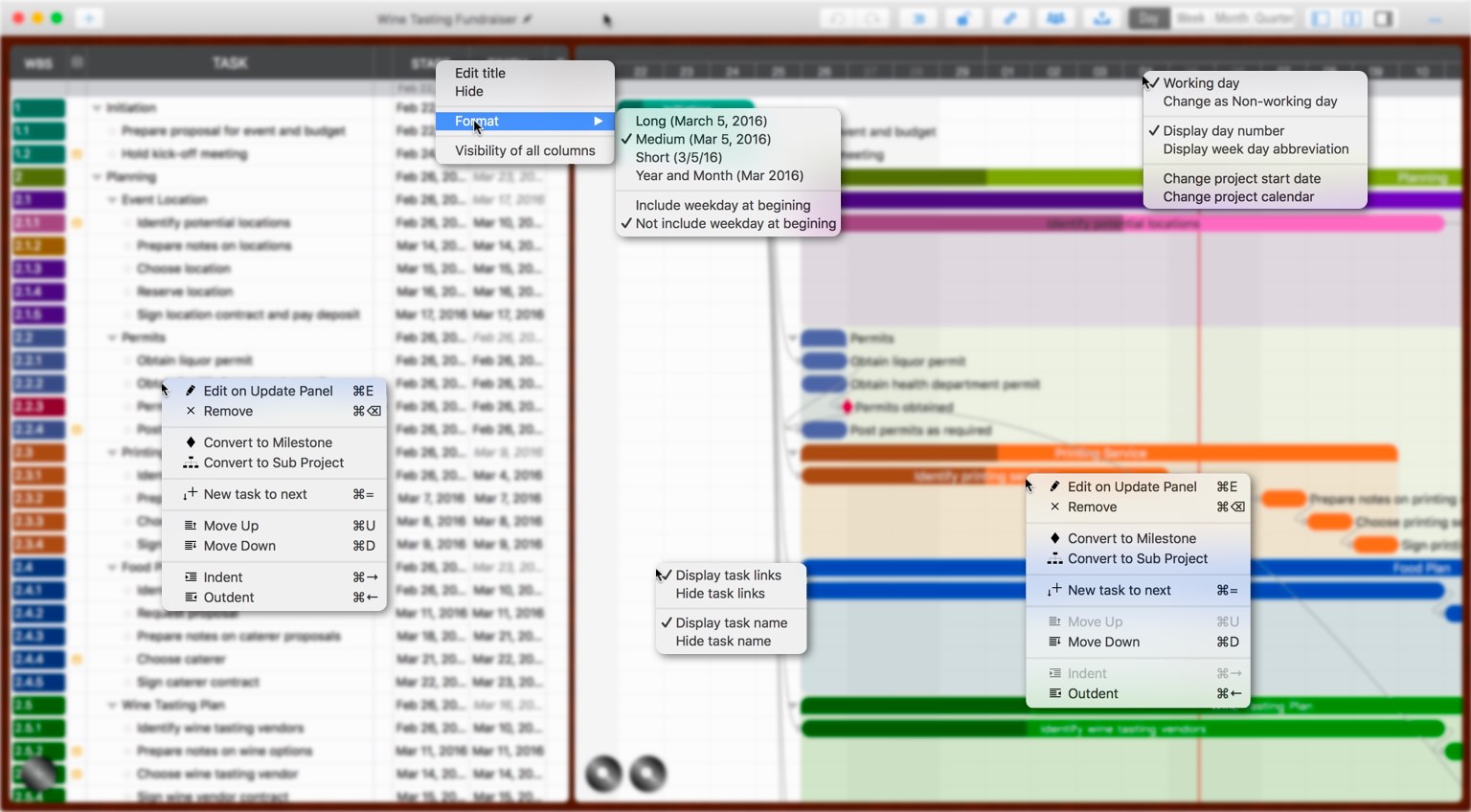
Contextual menus are available (access via Right-Click or Ctrl + Left-Click)
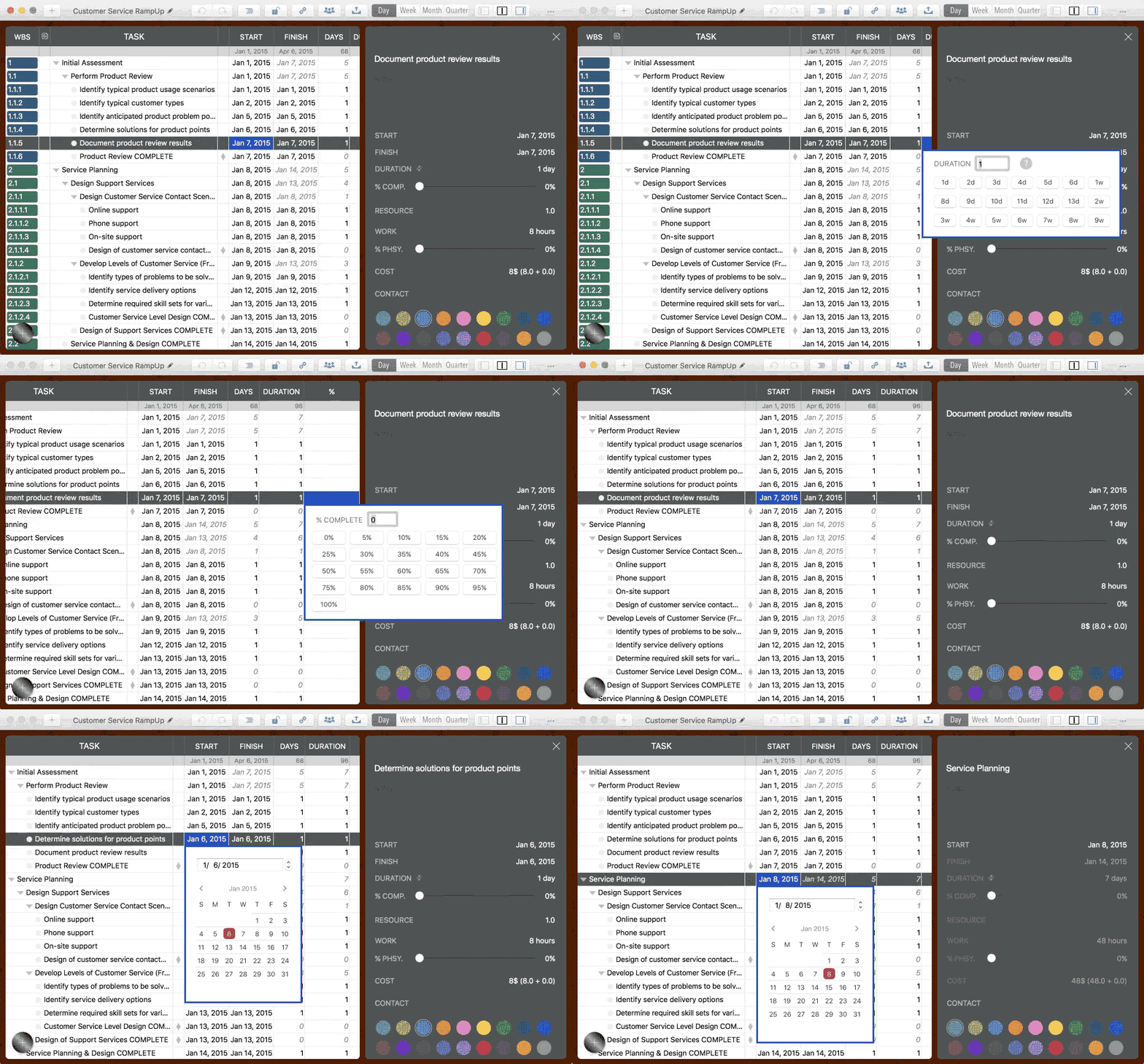
Numeric Text Field Operations
© 2013 ~ 2026 COPYRIGHT QUICKPLAN | All Rights Reserved
Swift Apps