
QuickPlan supports exporting projects as Microsoft Project files (XML format), which can be opened in MS Project. Conversely, MS Project files saved as XML on a PC can be imported into QuickPlan as new projects.
Exporting to MS Project
-
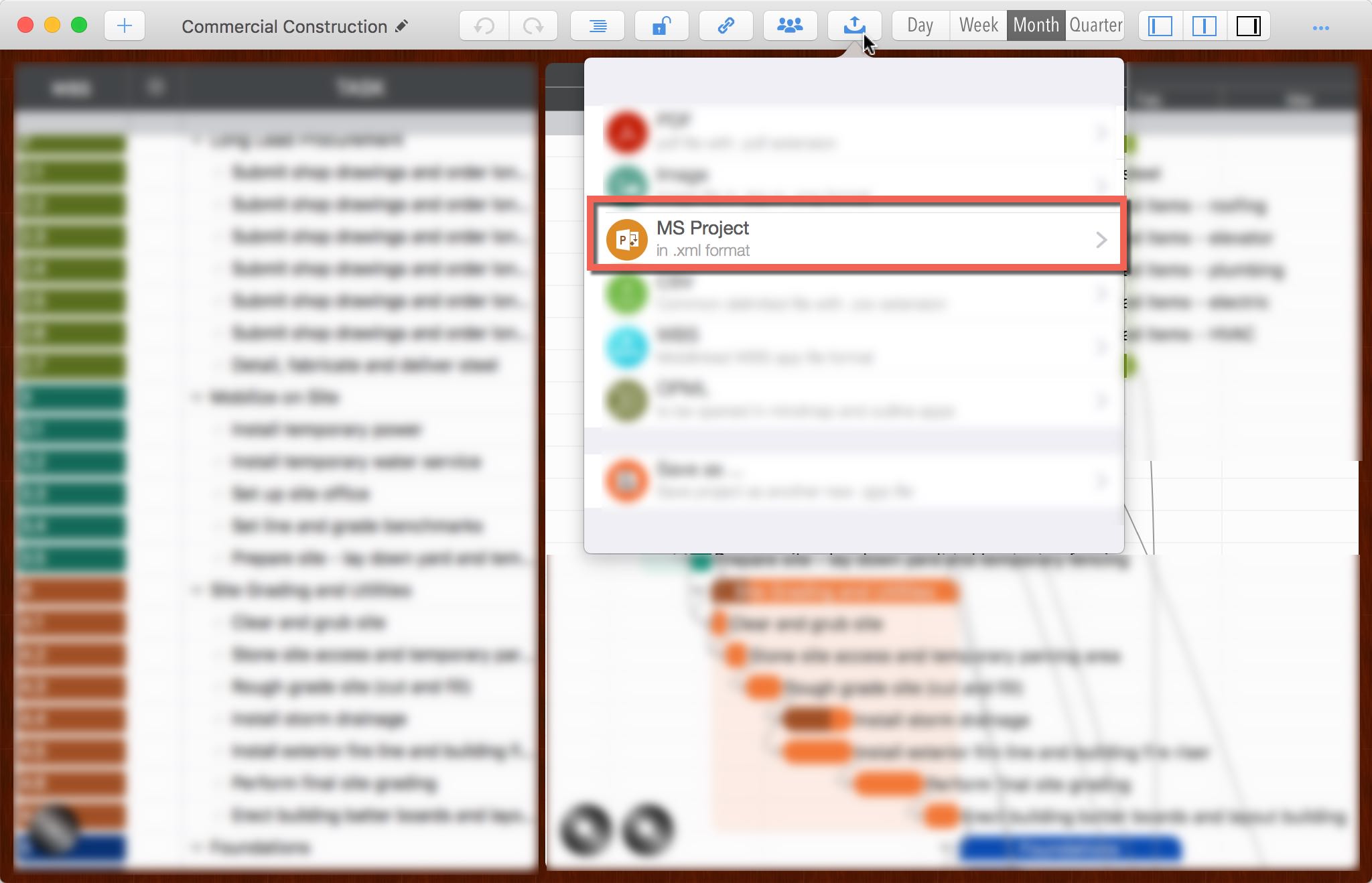
Export the project as a Microsoft Project file in XML format.
-
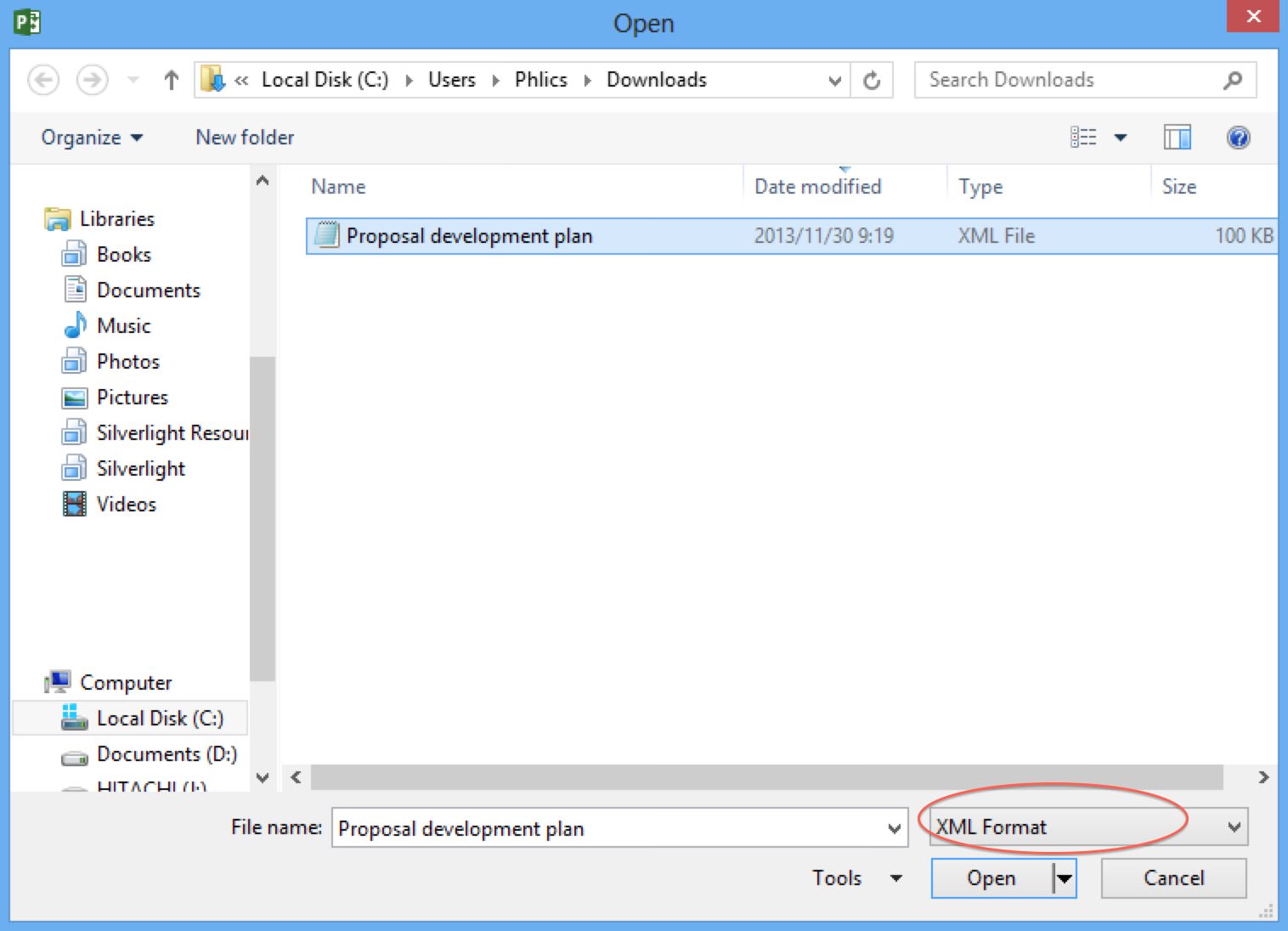
On a PC, open Microsoft Project and use the "Open" menu to load the XML file.
-
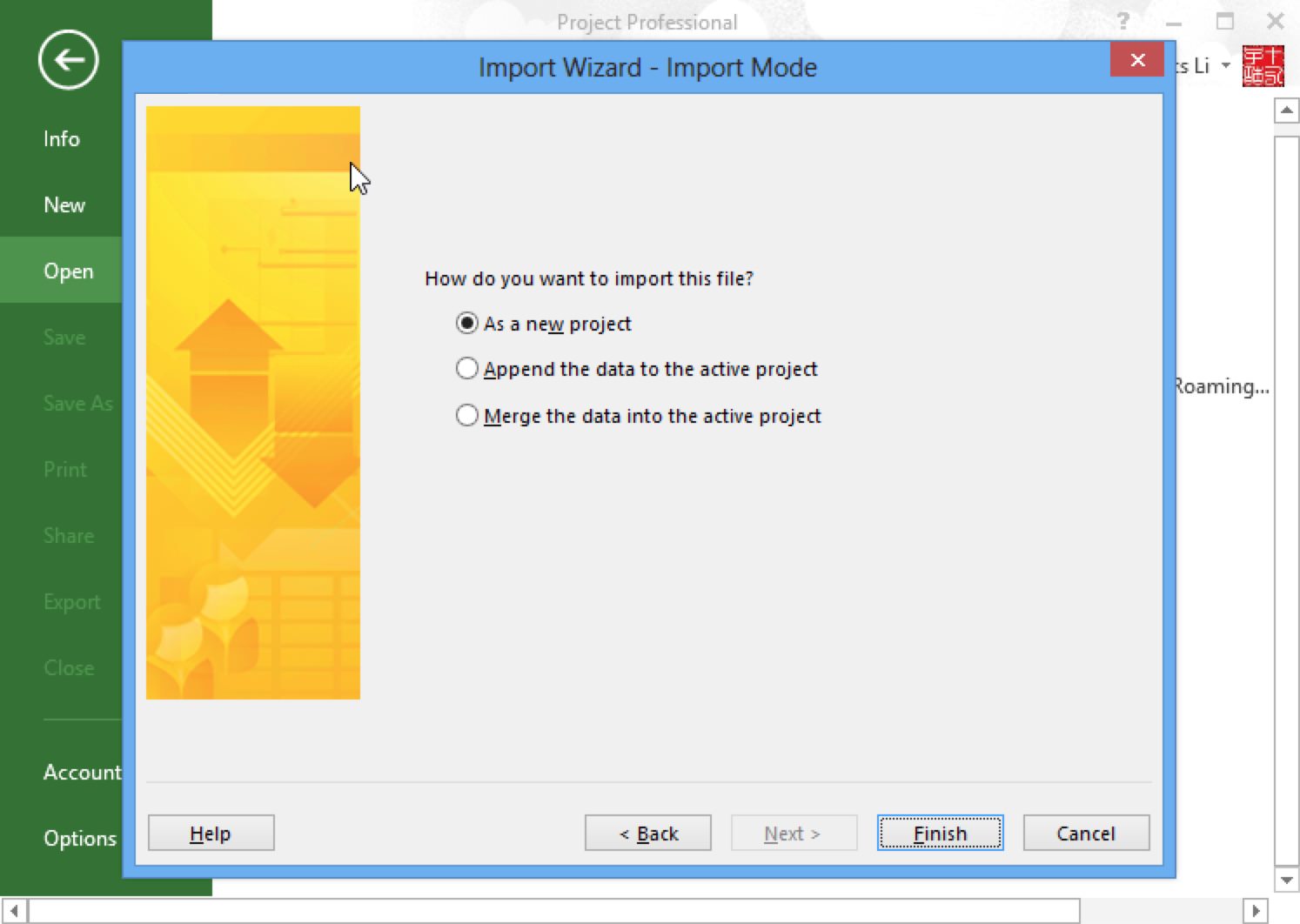
Select the "As a new project" option, then click "Finish".
-
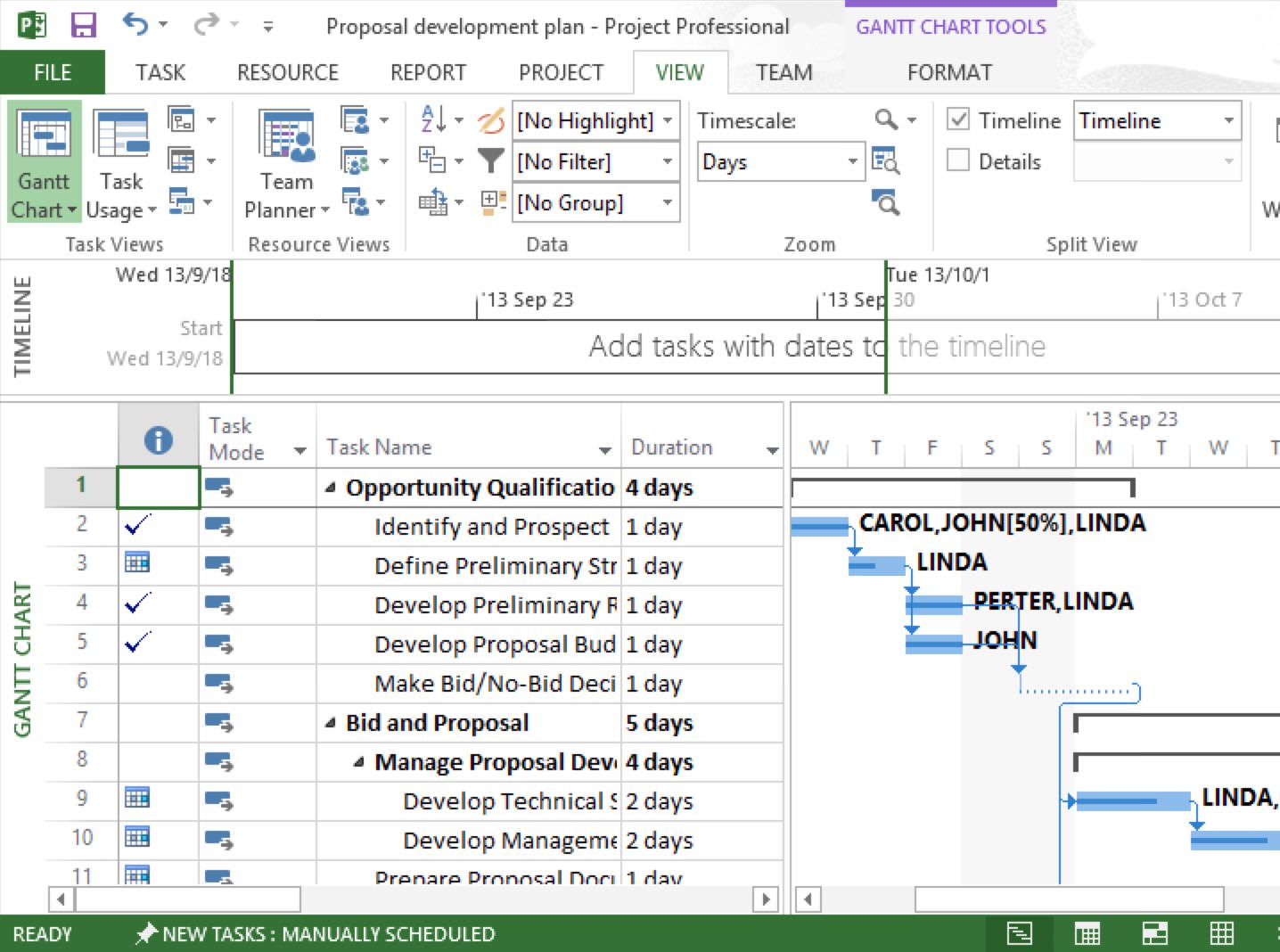
A new project will be created in MS Project.
Notes
MS project requires that the XML file encoding be Unicode, but sometimes when an XML file is emailed or transferred from a cloud service, the file encoding can be changed - this is beyond QuickPlan's control. Here's how to fix it:
- Open the XML file in Notepad on a Windows PC.
- Use "Save As" in Notepad and specify the encoding as Unicode.
Import from MS Project
Tasks from the first ten outline levels of the MS Project are imported. Utilization of outline levels: Levels 1-5 remain in the main project; Levels 6-10 are imported into subprojects.
-
On a PC, open a project in Microsoft Project and use "Save As" to save the file as XML.
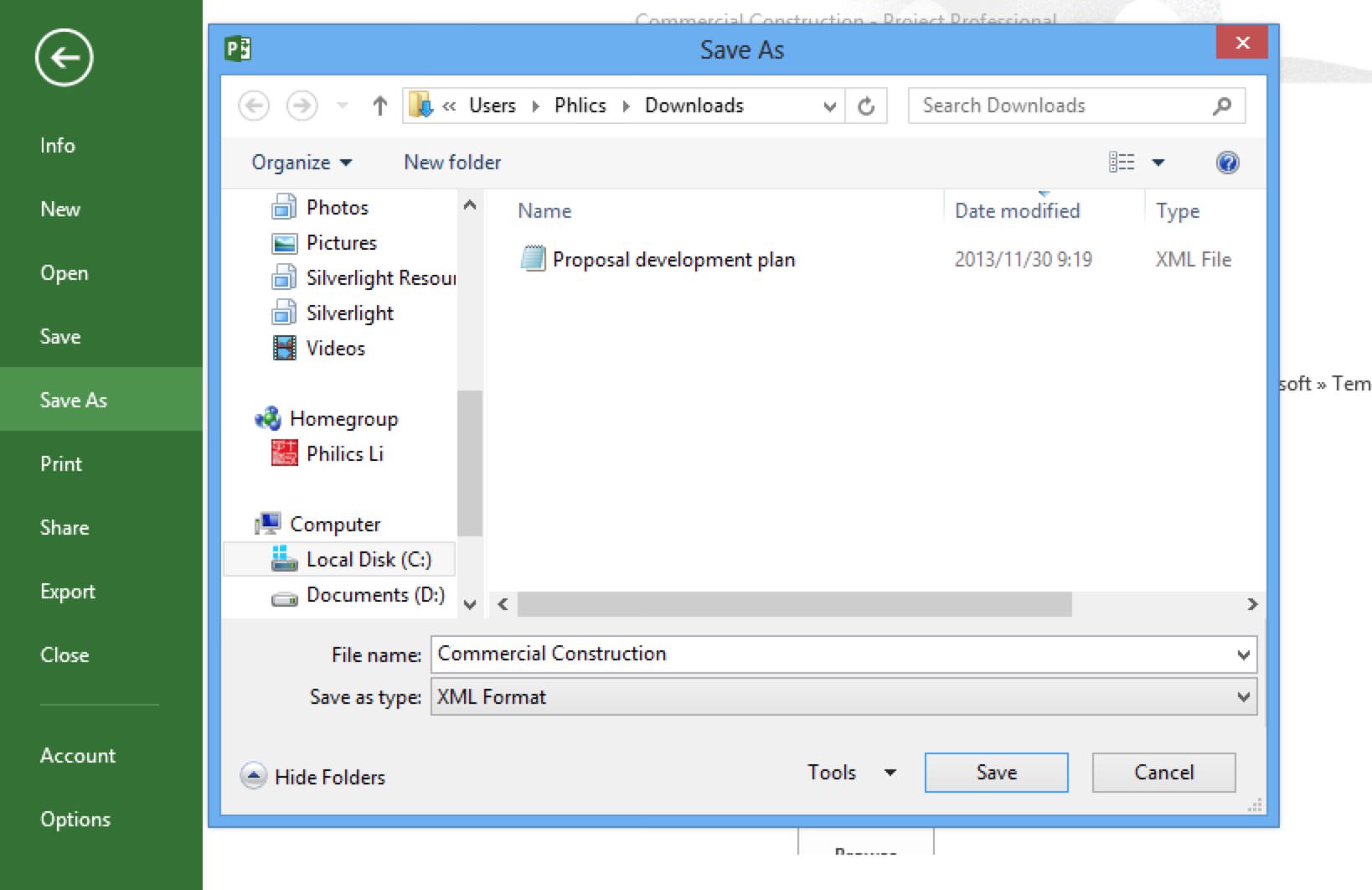
-
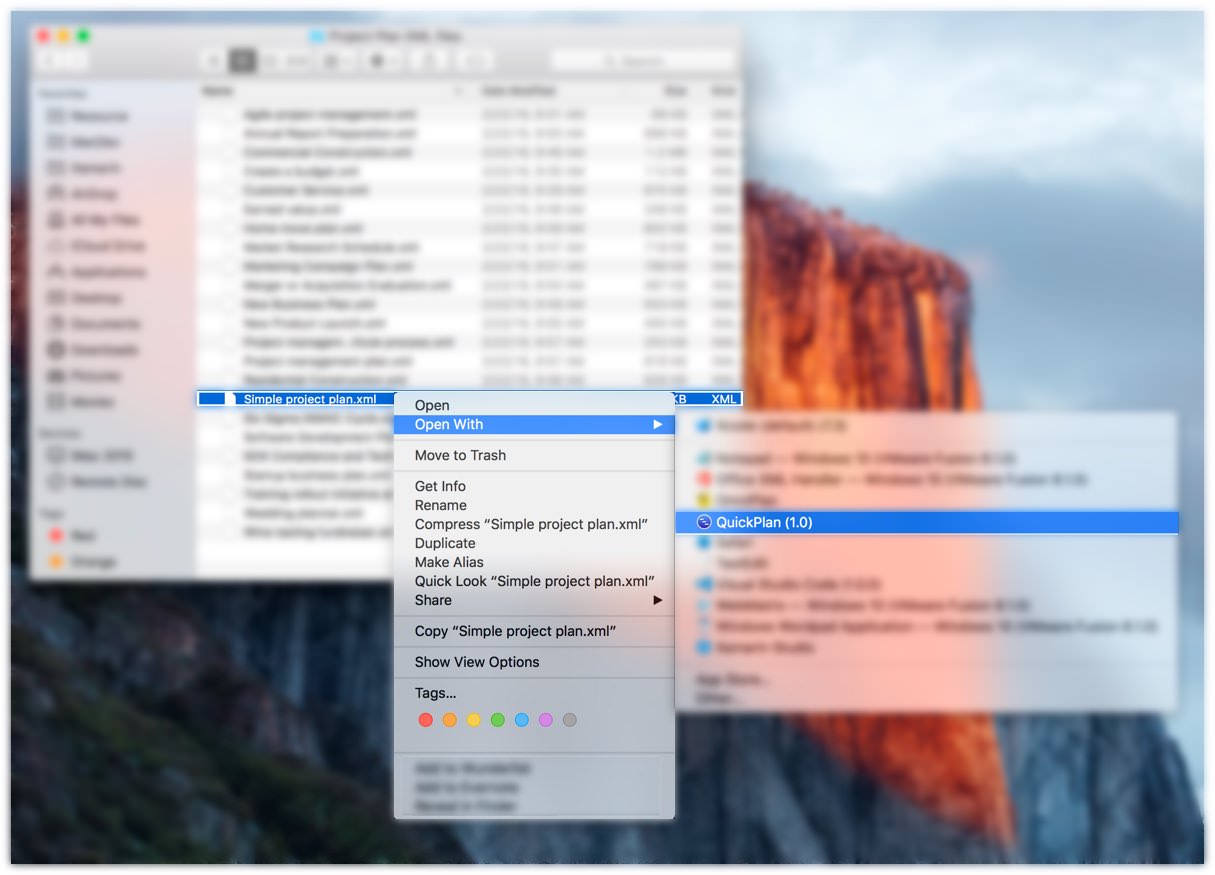
Open the .xml file in QuickPlan to create a new project.
Project Operations
Project Properties
Task Maintenance
- Task Structure
- Task Fields
- Create Task
- Insert Task
- Remove Task
- Indent and Outdent
- Copy / Paste Task
- Repeat Task
- Split Task
- Maintain Properties on Gantt
- Maintain Properties on Outline
- Property Updating Panel
- Task Link Maintenance
- Task URL Maintenance
- Date, Work and Costs Baseline
- Critical Path
- Seach & Replace
Efficent Maintenance
Task Display
Customizations
Alarm
Synchronization
Team Collaboration
Partical Exporting
Integrations
- MS Project Integration
- Mindmap (OPML) Integration
- Swift Apps WBS Integration