
Skip Non-Workdays?
Some projects require planning tasks only on workdays, while others (e.g., personal projects) may need to schedule tasks on any day, regardless of work status.
Click the project name on the toolbar in an open project window to edit properties, including the task date policy.
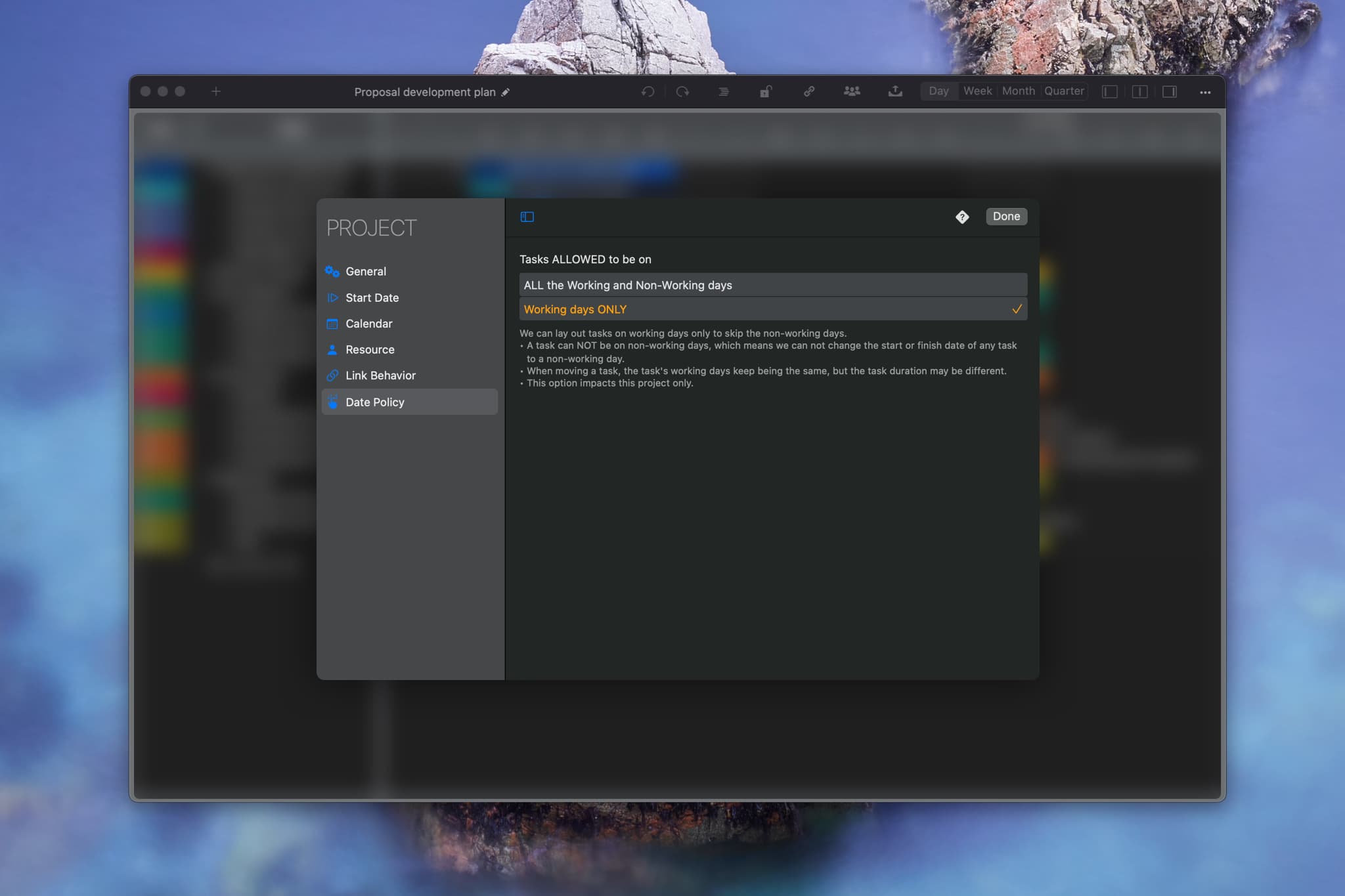
ONLY schedule tasks on Workdays.
- You cannot schedule tasks on non-workdays; start and finish dates must fall on workdays.
- When moving a task, the number of workdays remains constant, but the total duration (including non-workdays) may change.
- Workdays for linked tasks also remain unchanged.
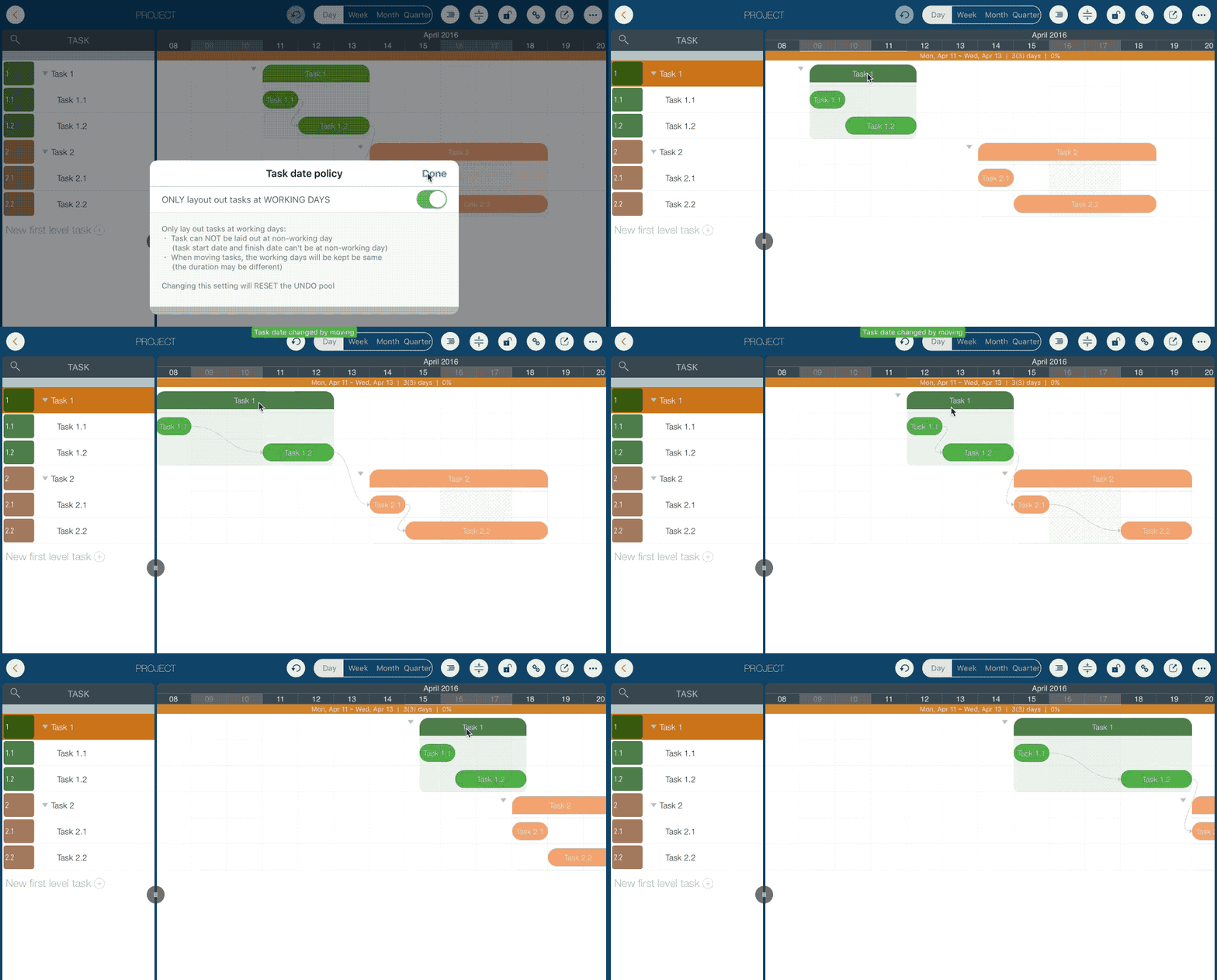
Impacts & Practice
-
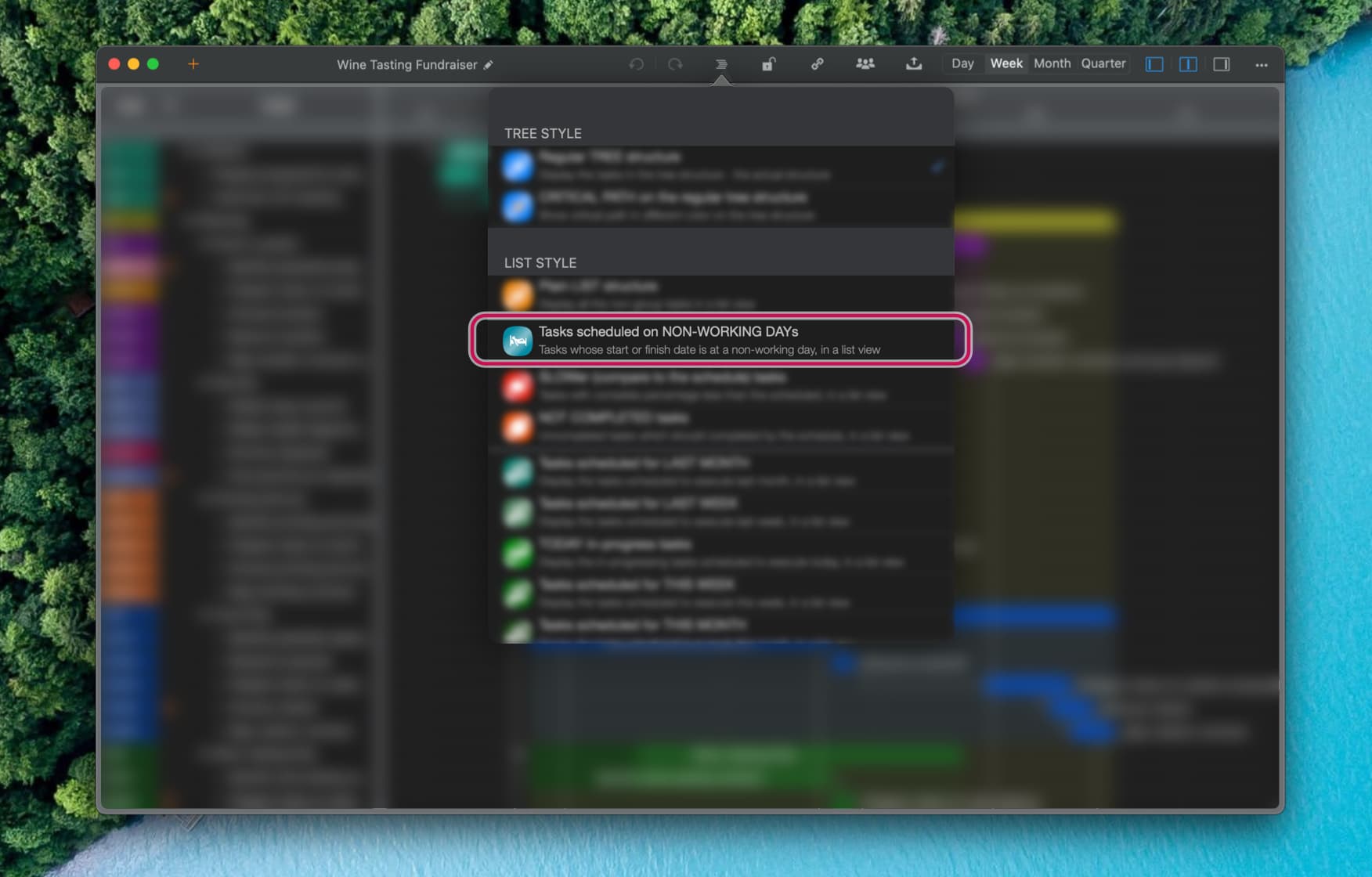
To enable the "ONLY schedule tasks on Workdays." option, all the existing tasks should be on the workdays. If there are some tasks in the project on non-workdays, we need to fix them first. The efficient way is to show all the "tasks scheduled on NON-Workday." You can find the menu by clicking the display style button on the toolbar.
- Suppose the "ONLY schedule tasks on Workdays." is enabled. For a working-day, if any task whose start or finish date is on the day, we can't switch it to a non-workday when changing the project calendar.
- The undo history will reset; operations performed before changing this option cannot be undone.
Project Operations
Project Properties
Task Maintenance
- Task Structure
- Task Fields
- Create Task
- Insert Task
- Remove Task
- Indent and Outdent
- Copy / Paste Task
- Repeat Task
- Split Task
- Maintain Properties on Gantt
- Maintain Properties on Outline
- Property Updating Panel
- Task Link Maintenance
- Task URL Maintenance
- Date, Work and Costs Baseline
- Critical Path
- Seach & Replace
Efficent Maintenance
Task Display
Customizations
Alarm
Synchronization
Team Collaboration
Partical Exporting