
Basic and Advanced Methods for Maintaining Task Links
Task linking creates dependencies between tasks, showing logical relationships like completion requirements. This helps in effective project planning and management.
QuickPlan for macOS offers two methods for task linking: Linked State and Direct Maintenance. This section explains how and when to use each.
1. Enter Task Linking State
The Task Linking State is user-friendly and ideal for beginners. QuickPlan guides you through the process with tips. Activate it by clicking the Link icon on the toolbar.
To create a link, select a predecessor (must finish first) and a successor (dependent task). For example, link "Design Logo" (predecessor) to "Create Website" (successor) to ensure the design is done before website creation starts.
In Task Linking State, select a predecessor then a successor. QuickPlan creates a default link if none exists, or deletes an existing one.
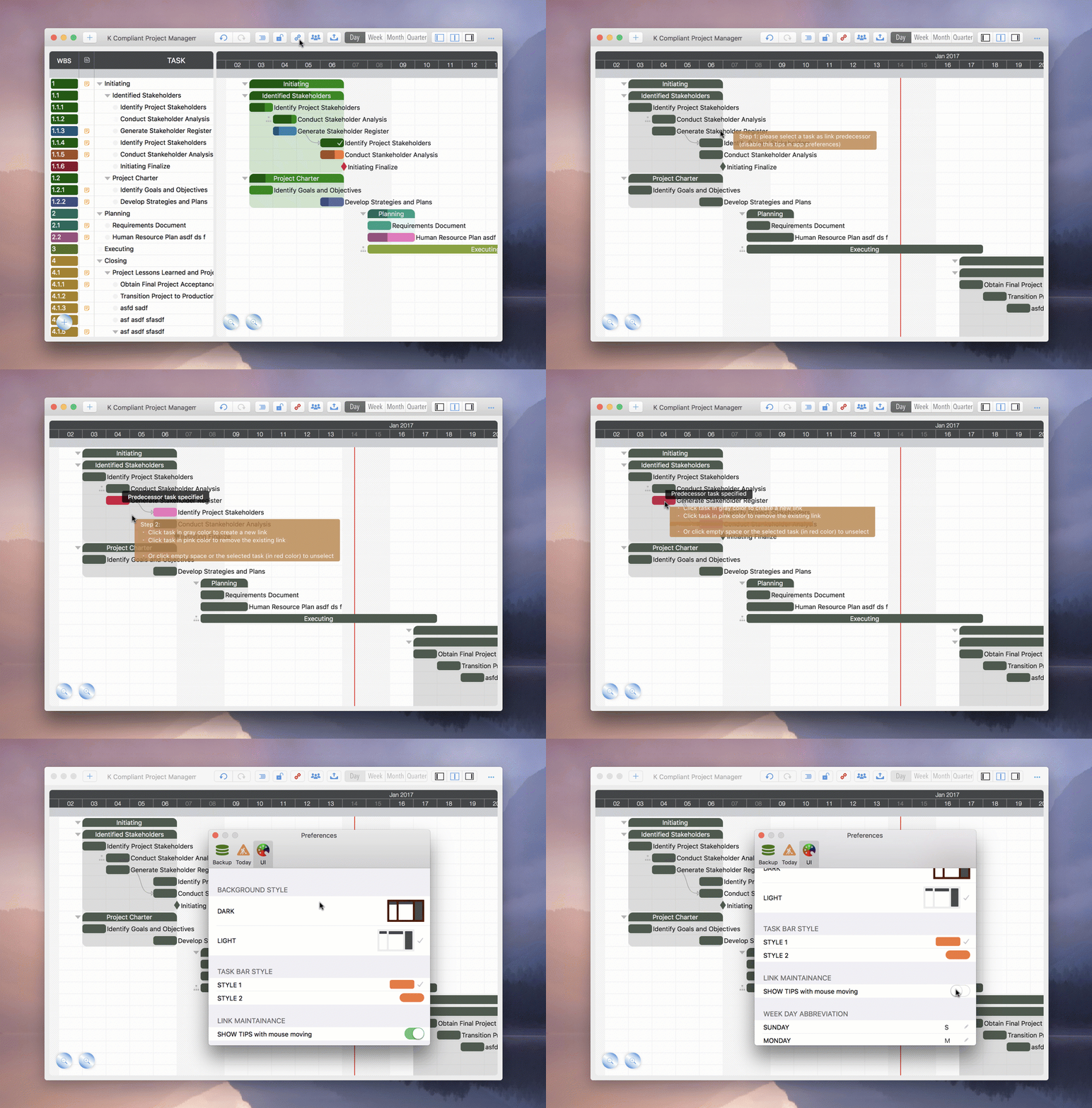
QuickPlan displays mouse-pointer tips by default. You can disable these in App Settings.

2. Direct Task Link Maintenance
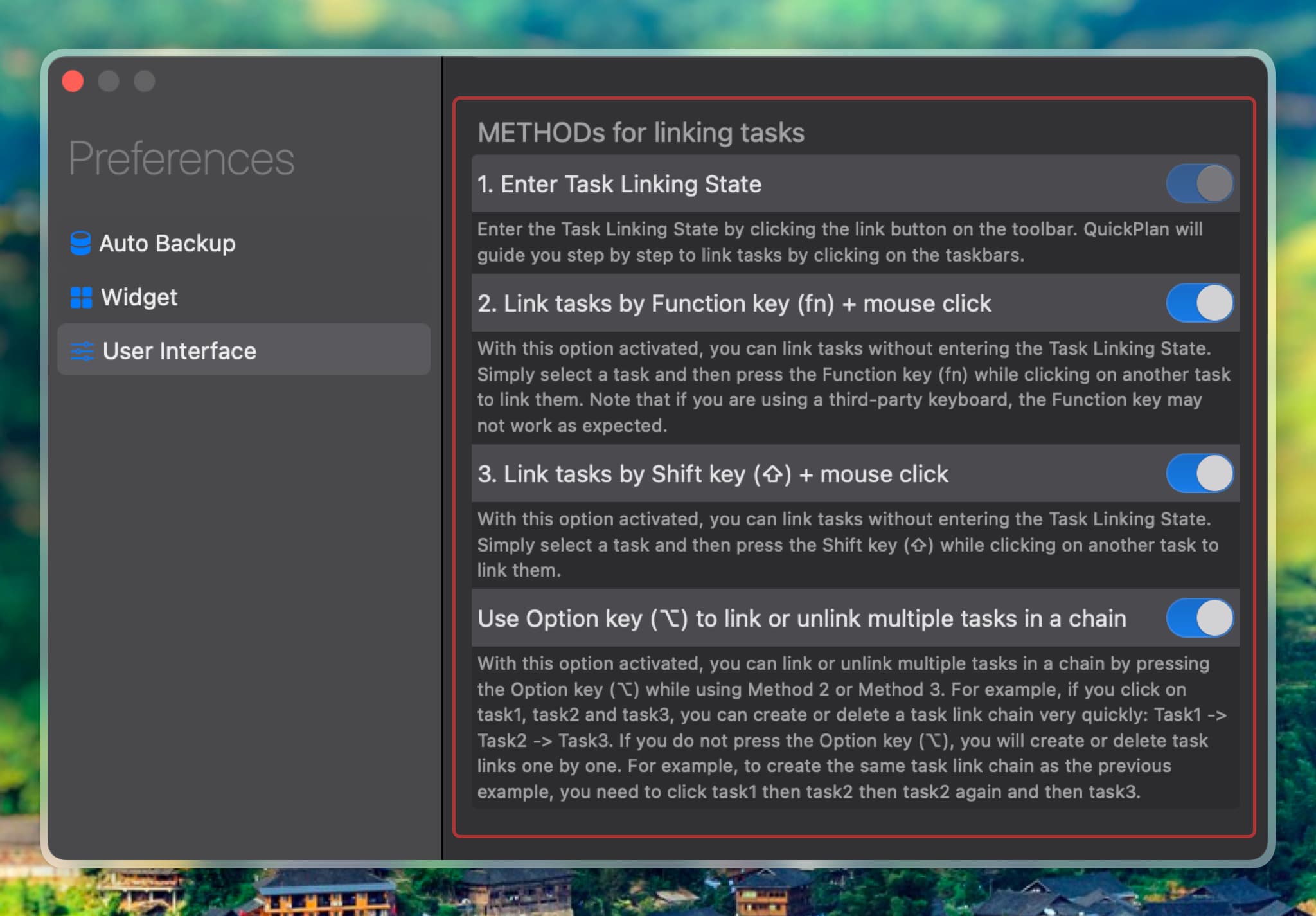
You can also create/edit links without entering Link State, using keyboard/mouse shortcuts. This is more efficient for experienced users.
To create a link, select a predecessor, then hold 'Fn' or 'Shift' (⇧) while clicking the successor. This toggles the link.
To task chains, hold 'Option' (⌥) + 'Fn'/'Shift' (⇧) and click multiple tasks. QuickPlan links consecutive pairs.
This feature is disabled by default; enable it in App Preferences.
The video below demonstrates efficient linking. We recommend watching and practicing to improve productivity.
Control: Respect Newly Created Task Links?
QuickPlan doesn't automatically adjust successor dates upon linking, as intentions vary:
-
You may have already manually scheduled tasks and are linking them for future rescheduling.
-
You may want QuickPlan to automatically adjust successor dates to respect new links immediately.
You can choose whether to respect new links by pressing "Command (⌘)" while linking. This applies to both linking methods.
-
Pressing "Command (⌘)": Successor dates adjust automatically to respect the new link (starting/finishing after or with predecessors).

-
Not pressing "Command (⌘)": Successor dates remain unchanged.

This option gives you control over planning assistance. Choose manual control or automatic adjustment based on your workflow.
Best Practice
Task links enforce constraints based on logic. While mathematically sound, is extensive linking practical? Read our guide on organizing tasks without over-reliance on links: How to Organize Tasks Well.
Project Operations
Project Properties
Task Maintenance
- Task Structure
- Task Fields
- Create Task
- Insert Task
- Remove Task
- Indent and Outdent
- Copy / Paste Task
- Repeat Task
- Split Task
- Maintain Properties on Gantt
- Maintain Properties on Outline
- Property Updating Panel
- Task Link Maintenance
- Task URL Maintenance
- Date, Work and Costs Baseline
- Critical Path
- Seach & Replace
Efficent Maintenance
Task Display
Customizations
Alarm
Synchronization
Team Collaboration
Partical Exporting