
QuickPlan organizes tasks into groups and sub-projects. Dates, work, and costs for these are calculated automatically based on their children.
Task Group
Task groups in QuickPlan are functional entities. They appear as group boxes on the Gantt Chart, allowing you to move the group and its children simultaneously to adjust dates.

Two key shortcuts to change outline levels (organizing tasks into groups):
- ⌘ ← ("Command" + "Left Arrow") or ⌘ [ ("Command" + "]") to outdent.
- ⌘ → ("Command" + "Right Arrow") or ⌘ [ ("Command" + "[") to indent.
Sub-Project
Well-organized plans improve communication, tracking, and replanning. Sub-projects are excellent for structuring large projects or coordinating multiple teams. For personal planning, organizing several small projects as sub-projects within a main project is often effective.
1. Create a Sub-Project
Right-click a task and select "Convert to Sub-Project".

2. Convert a Sub-Project to a Task Group
A sub-project can be converted to a task group (provided this doesn't exceed the main project's maximum outline levels).
-
Right-click a sub-project task and select "Convert Sub-Project to Task Group".
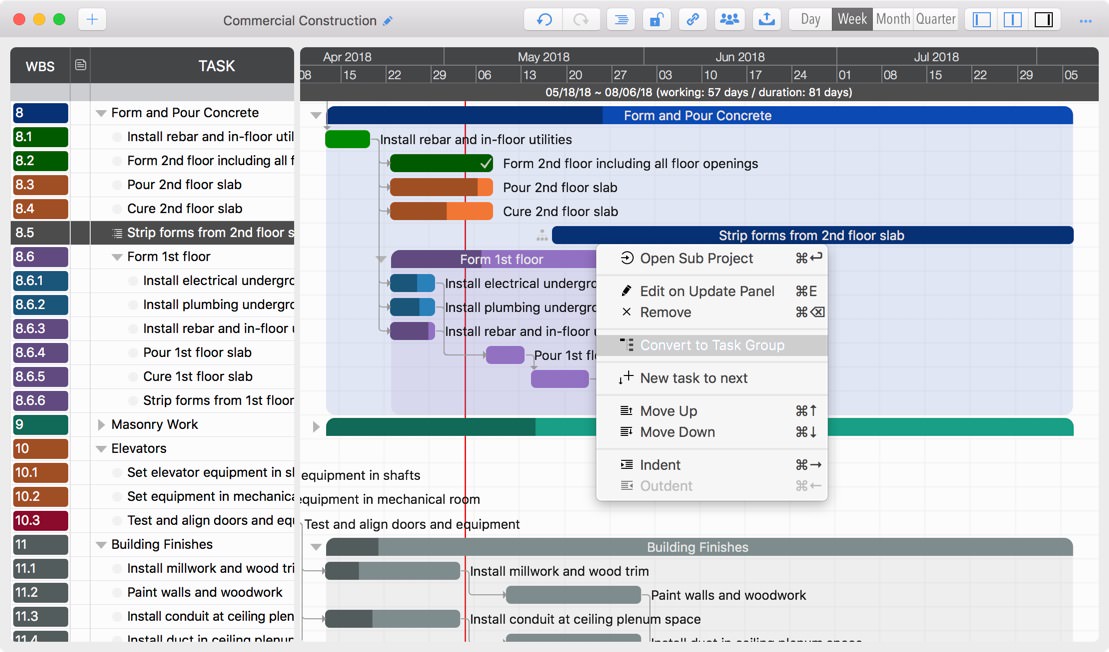
-
You can also perform this action in the Updating Panel.

3. Open a Sub-Project
-
Via context menu.
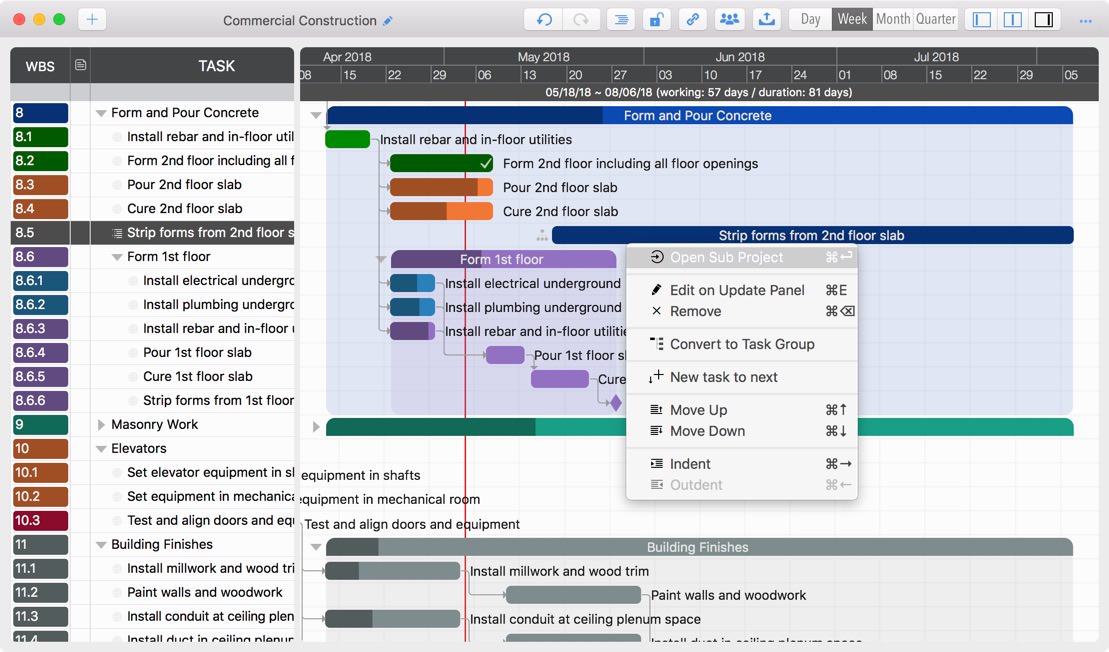
- Or use the keyboard shortcut "Command + Return" to open the selected sub-project.
- Or "Command" + "Double-click" the sub-project task.
Best Practice
See our best practice article on organizing tasks effectively.
Project Operations
Project Properties
Task Maintenance
- Task Structure
- Task Fields
- Create Task
- Insert Task
- Remove Task
- Indent and Outdent
- Copy / Paste Task
- Repeat Task
- Split Task
- Maintain Properties on Gantt
- Maintain Properties on Outline
- Property Updating Panel
- Task Link Maintenance
- Task URL Maintenance
- Date, Work and Costs Baseline
- Critical Path
- Seach & Replace
Efficent Maintenance
Task Display
Customizations
Alarm
Synchronization
Team Collaboration
Partical Exporting