
Task Fields
-
No.
- Sequence No - The task's sequence number in the overall list, starting from 1.
- WBS No - The task's WBS number (e.g., "1.2.1").
- Name
- Start
- Finish
-
Duration
- Total calendar days from start to finish. Default field title: "Duration".
- Total workdays from start to finish. Default field title: "Days".
-
Archived Start, Finish, Workdays and Duration
Archived task start date.- QuickPlan supports simultaneous archiving of start, finish, and duration for all tasks.
- Archived data for individual tasks cannot be updated manually.
- Active task data in the outline list can be color-coded based on comparison with archived data.
- Archived fields serve as a simple baseline solution.
-
% Complete
See the definition in the MS Project. -
Target % Complete
Calculated by QuickPlan, this column shows the target % complete up to the end of yesterday (scheduled progress). -
Resources
Task resource assignment. -
Work
Input manually, or calculated by the task duration and assigned resources ( = "Workdays" * "Daily Working Hours" * "Daily Assigned Resource"). Task work is not the same as task duration. For example, the work of a one-day task may be just one hour. -
Physical % Complete
See the definition in the MS Project. -
Contact
Specify the task owner or contact for reviews and updates.
(Distinct from task resources). -
Labor Cost
Input manually or calculated automatically (Sum of each resource's cost: Work * Resource Cost Rate). -
Materials Cost
Input manually. -
Total Cost
Automatically calculated: Labor Cost + Materials Cost. -
Predecessor
Lists WBS numbers of all linked predecessors. -
Successor
Lists WBS numbers of all linked successors. -
URL #1, URL #2
Two URL fields for general use.- QuickPlan imposes no restrictions on URL string input.
- URLs may become invalid after syncing/sharing to other devices (e.g., a local Mac file URL won't work on an iPad).
QuickPlan for macOS supports adding task URLs by dragging from other apps
-
Icon
The Icon field can specify task status. Usage is user-defined.
Customization
QuickPlan supports customization of task field titles, visibility, width, and display format.
(The following animation may take a moment to load.)

Version 5.0 introduces support for reordering task fields.
-
Right-click a header in the outline list to reveal the context menu.
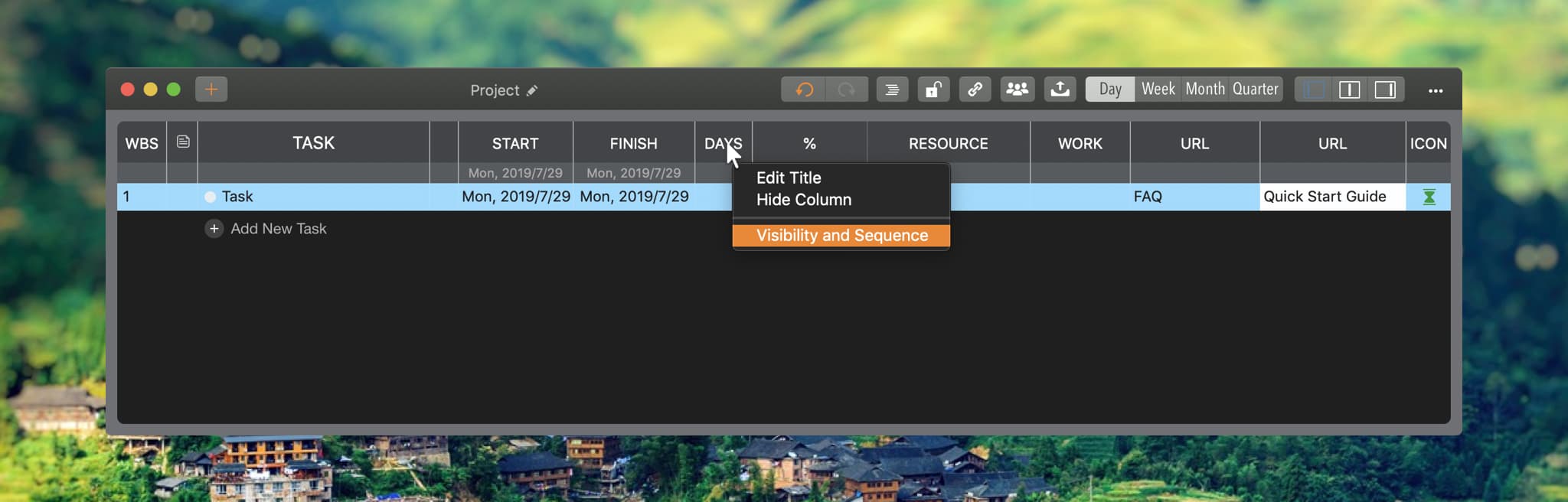
-
Drag the field row's left icon up/down to reorder.
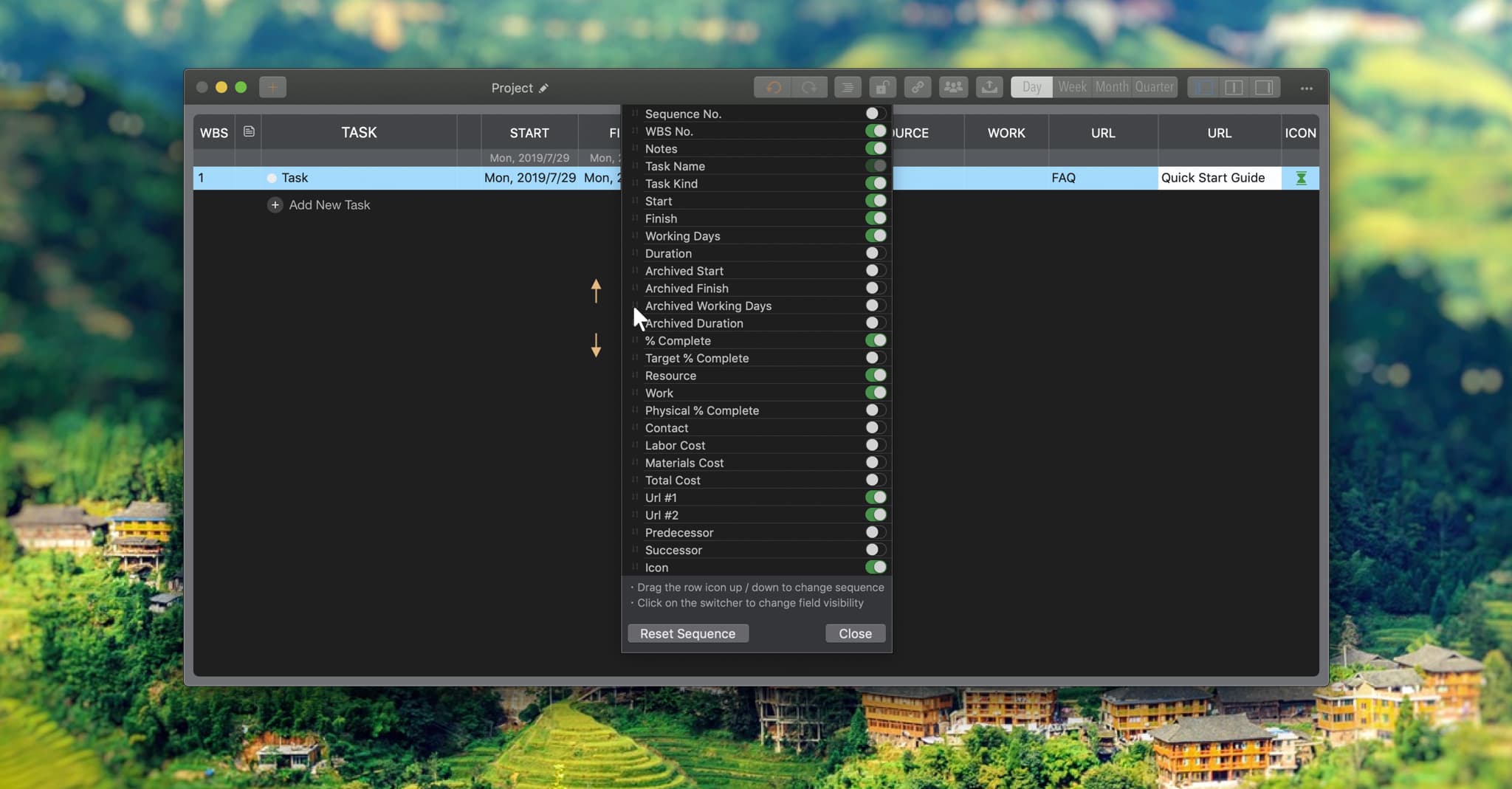
Project Operations
Project Properties
Task Maintenance
- Task Structure
- Task Fields
- Create Task
- Insert Task
- Remove Task
- Indent and Outdent
- Copy / Paste Task
- Repeat Task
- Split Task
- Maintain Properties on Gantt
- Maintain Properties on Outline
- Property Updating Panel
- Task Link Maintenance
- Task URL Maintenance
- Date, Work and Costs Baseline
- Critical Path
- Seach & Replace
Efficent Maintenance
Task Display
Customizations
Alarm
Synchronization
Team Collaboration
Partical Exporting