
QuickPlan for macOS supports copying entire tasks as well as individual task fields (single cells in the outline panel).
Whole Task Copy / Paste
-
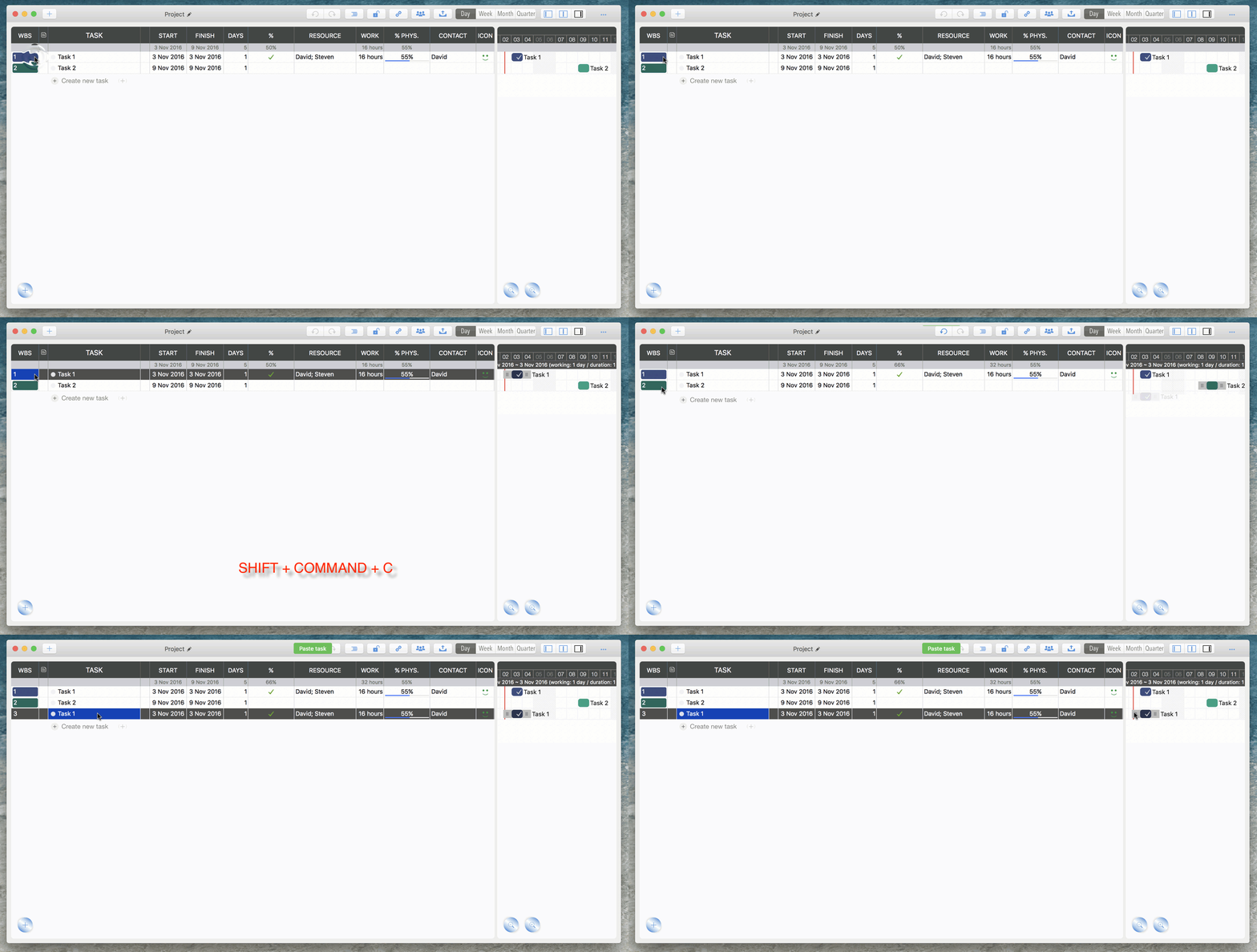
Select a task and press ⇧⌘C ("SHIFT" + "COMMAND" + "C") to copy.
-
Select another task and press ⇧⌘V ("SHIFT" + "COMMAND" + "V") to paste as a new task below the selection.
Notes
-
QuickPlan supports copying entire tasks to other project windows. Note that task resources will not be pasted, as project calendars and resources may differ between projects.
-
The pasted task will be positioned NEXT to the selected task, not as a child of it.
Task Cell Copy / Paste
-
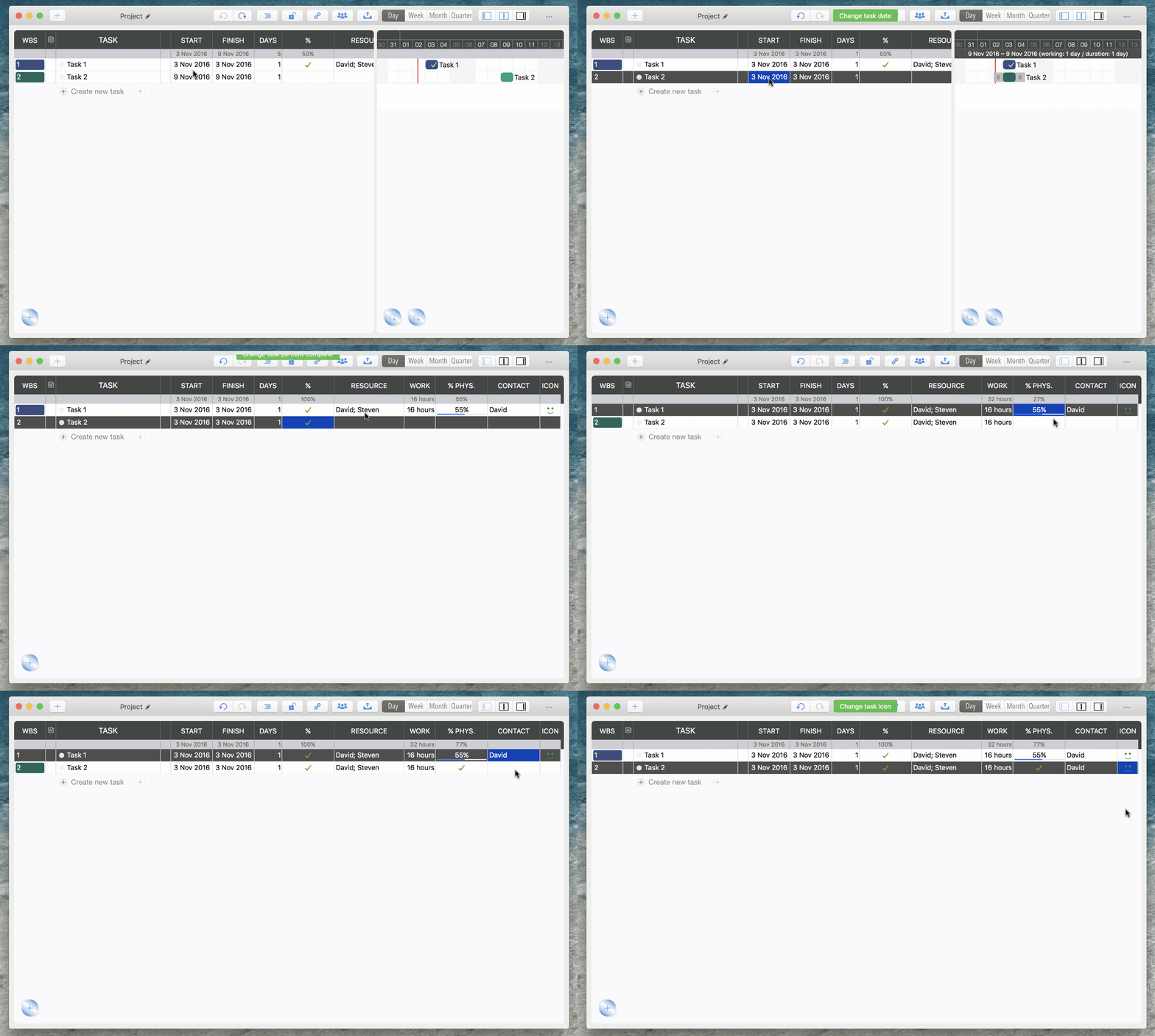
In the outline panel, select a task cell (no need to double-click) and press ⌘C ("COMMAND" + "C") to copy.
-
Select another cell in the SAME COLUMN and press ⌘V ("COMMAND" + "V") to paste the content.
Notes
-
Cell copy/paste works only within the same project window.
(Copying cells across projects is restricted due to potential differences in date policies, team members, and calendars.)
-
"Copy and Paste" works only for the same task field.
(For example, you cannot copy a task resource to a start date field.)
-
Name, Notes, Start Date, % Comp, % Work Comp, Resource, Contact, and Icon fields support copying.
(Other fields are excluded. For example, labor cost is calculated automatically. Pasting a fixed value like $30 would be ambiguous—should it override the calculation or become a fixed cost?)
-
Copying does not work while a cell is being edited.
(If a cell is active or you press "Enter," it enters editing mode, where copy/paste is controlled by the text input box.)
Project Operations
Project Properties
Task Maintenance
- Task Structure
- Task Fields
- Create Task
- Insert Task
- Remove Task
- Indent and Outdent
- Copy / Paste Task
- Repeat Task
- Split Task
- Maintain Properties on Gantt
- Maintain Properties on Outline
- Property Updating Panel
- Task Link Maintenance
- Task URL Maintenance
- Date, Work and Costs Baseline
- Critical Path
- Seach & Replace
Efficent Maintenance
Task Display
Customizations
Alarm
Synchronization
Team Collaboration
Partical Exporting