
Access your project files on iCloud Drive with iOS Files integration. QuickPlan lets you manage files seamlessly across devices.
Enable iOS Files integration on older versions. If using QuickPlan prior to version 17.1 on iOS, enable integration manually as shown in the video.
If using QuickPlan prior to version 17.1 with iOS Files integration disabled, you can still access iCloud Drive project files directly within the app.
If you cannot access the Youtube website, please download the video to watch.
- We recommend copying projects from iCloud Drive to a local device for backup.
- On Mac, the "QuickPlan" iCloud Drive folder is managed by macOS. QuickPlan runs in a sandbox and cannot create this folder directly. If missing, create a project on iCloud Drive using QuickPlan on an iOS device.
- Do NOT edit the same project on multiple devices simultaneously.
Troubleshooting
File transfer is managed by iOS, macOS, and iCloud servers. The app does not control transfer timing or methods.
QuickPlan does not control syncing because that is inherent to iCloud Drive's design.
Most of the time, iCloud Drive works fine, and file syncing is fast. However, if you find that the sync doesn't complete on time as expected.
- Ensure you use the SAME iCloud account and have iCloud Drive enabled on all devices.
- verify on iCloud.com that project files have synced to the server.
-
Verify sync completion by checking project files in the Apple "Files" app on your iOS device.
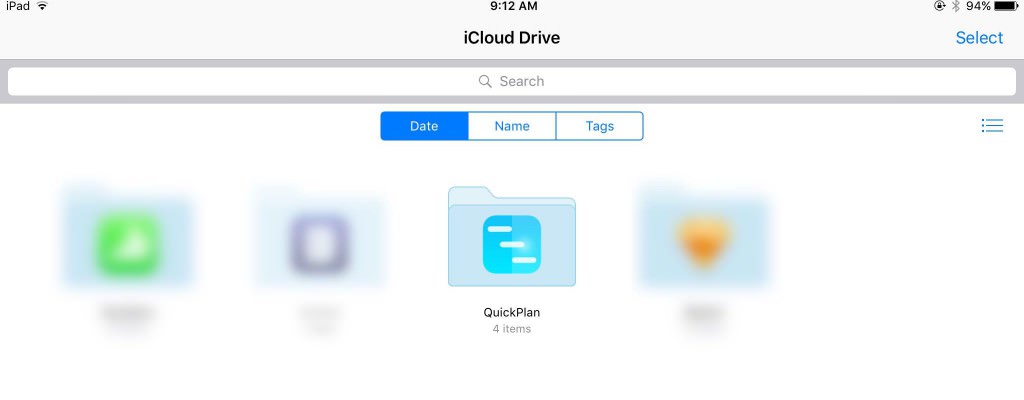
- Check the last modification of the project file on the device to ensure that the synchronization is complete.
Notes:
Simultaneous editing of the same project on multiple devices via iCloud Drive is not supported. Changes will not automatically merge.
Project tasks exist in a dependency TREE structure, linked by date constraints and parent-child group hierarchies.
Simultaneous editing on multiple devices causes significant logical conflicts. Examples include:
- (On device A), add a task to a task group; (On device B), remove the same task group.
- (On device A), assign a project member to a task; (On device B), remove the project member from project resources.
- (On device A) move a task to the modification date; (On device B) move another task that is the successor to the moving task on device A.
- (On device A) we find that the project data has been changed unexpectedly. For example, the task work is "automatically" updated to an unexpected value. We are confused and think it is an error; (On device B) someone else has actually changed the task work on device B.
Sync across team members?
Please read the article on team collaboration.
Project Operations
Project Properties
Task Maintenance
- Task Structure
- Task Fields
- Create Task
- Insert Task
- Remove Task
- Indent and Outdent
- Copy / Paste Task
- Repeat Task
- Split Task
- Maintain Properties on Gantt
- Maintain Properties on Outline
- Property Updating Panel
- Task Link Maintenance
- Task URL Maintenance
- Date, Work and Costs Baseline
- Critical Path
- Seach & Replace
Efficent Maintenance
Task Display
Customizations
Alarm
Synchronization
- Sync via iCloud Drive
- Sync via OneDrive
Team Collaboration
Partical Exporting