
QuickPlan supports creating a new project by importing tasks from an MS Excel file.
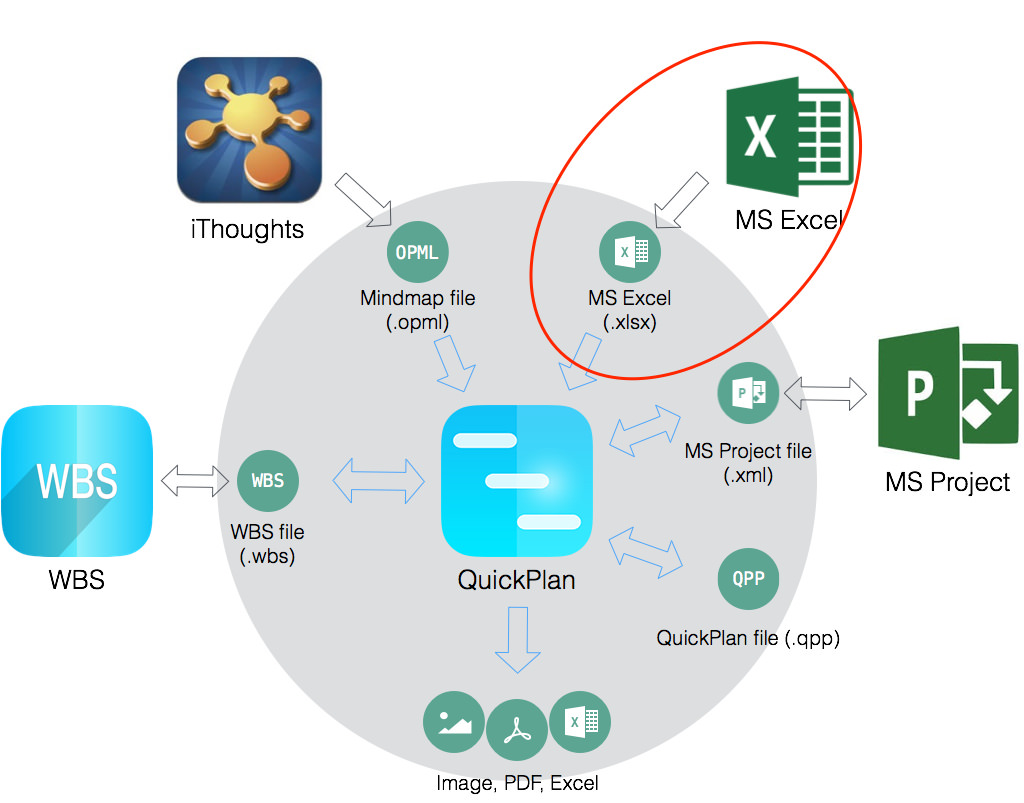
Follow the steps below:
- Download the MS Excel template file.
-
On a PC or Mac, open the template file using Microsoft Excel (do not use Apple Numbers) and enter the task content. Add one or more spaces before the task name to adjust the task's outline level.
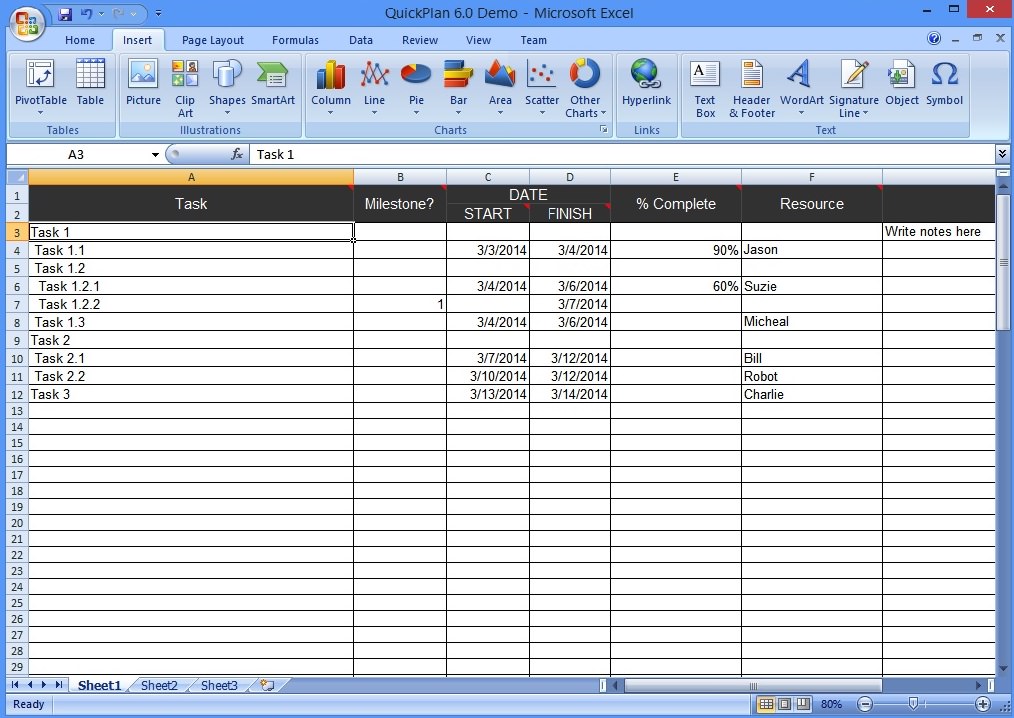
- Save the file with an "XLSX" extension.
- Send the Excel file to an iOS device with QuickPlan installed (via AirDrop, email, Dropbox, Google Drive, or other third-party apps).
- On the iOS device, open the Excel file in QuickPlan to import it as a new project. More details about importing.
Tips:
- This feature improves task entry efficiency on iOS devices. While QuickPlan significantly enhances productivity compared to other Gantt apps, typing on iOS can still be a bottleneck. This feature allows you to perform most data entry on a Mac or PC, further boosting productivity.
- If you also use "QuickPlan for macOS," it is highly recommended to create the project in QuickPlan and then sync it to your iOS devices.
- There are several ways to transfer the Excel file from a PC or Mac to an iOS device:
- Send the file as an attachment in an email.
- Share the file from a Mac to an iOS device via Airdrop.
- Share the file to an iOS device using the iTunes app on your Mac or PC.
- Sync to the iOS device using iCloud Drive.
- Share to the iOS device via a 3rd cloud storage, such as the Dropbox service.
- QuickPlan also supports exporting projects to MS Excel for REPORTING. However, the exported file format differs from this template. Bidirectional workflow (exporting, editing, and re-importing) is not supported, as QuickPlan cannot validate external edits, which may introduce errors.
Projects Maintenance
Project Properties
Task Maintenance
Gestures & Keyboard Shortcuts
Customization
Synchronization
Team Collaboration
Project Sharing
- Sharing Project from iPad
- Import Project on iPad
- Sharing Project from iPhone
- Import Project on iPhone
- Sharing Project via AirDrop
- Sharing Project via Email
- Sharing Project via Dropbox
- Sharing Project via Google Drive
- Sharing Project via OneDrive
- Sharing Project via Box Cloud
- Sharing Project via 3rd Apps
Integrations
- MS Project Integration
- MS Excel Integration
- Mindmap (OPML) Integration
- Swift Apps WBS Integration
- Files Integration
Others