
Sharing involves copying project files to other devices.
A project is a file with the "QPP" extension. QuickPlan adheres to the highest privacy standards by avoiding server-based storage. We (Swift Apps) do not store user-generated project files on our servers. Projects are stored directly on your device or your personal cloud storage at your discretion.
In this document, sharing a project is to copy a project file (with .qpp extension) from the QuickPlan app on one device to the QuickPlan app on another device, the project files on different devices are separated. If what you are requesting is different, please check out the details about the conceptual differences in our documents
- There are many methods to transfer project files from the iPad to other devices, such as via Email, AirDrop, Dropbox, Google Drive, and many other cloud apps.
- As iOS has become more open, sharing files across Apple devices is straightforward. The old in-app Dropbox and Box cloud supports are deprecated.
If you wish to send a read-only copy to team members, please export the project to a PDF, Excel, or Image file, and then share it.
- Export the project to a .qpp file.
- Transfer the .qpp file to other devices.
- Import into QuickPlan on other devices.
Export the project to a .qpp file
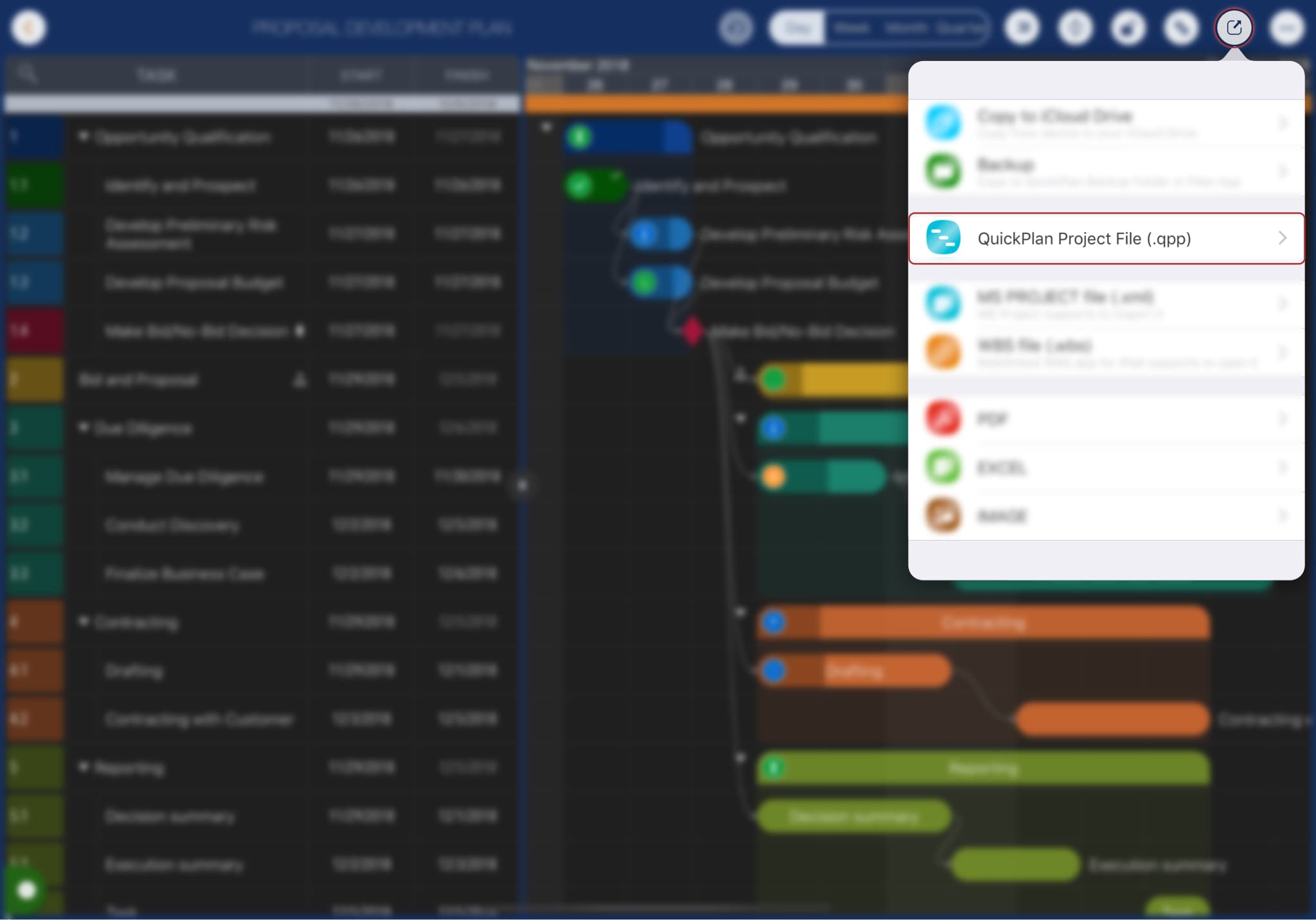
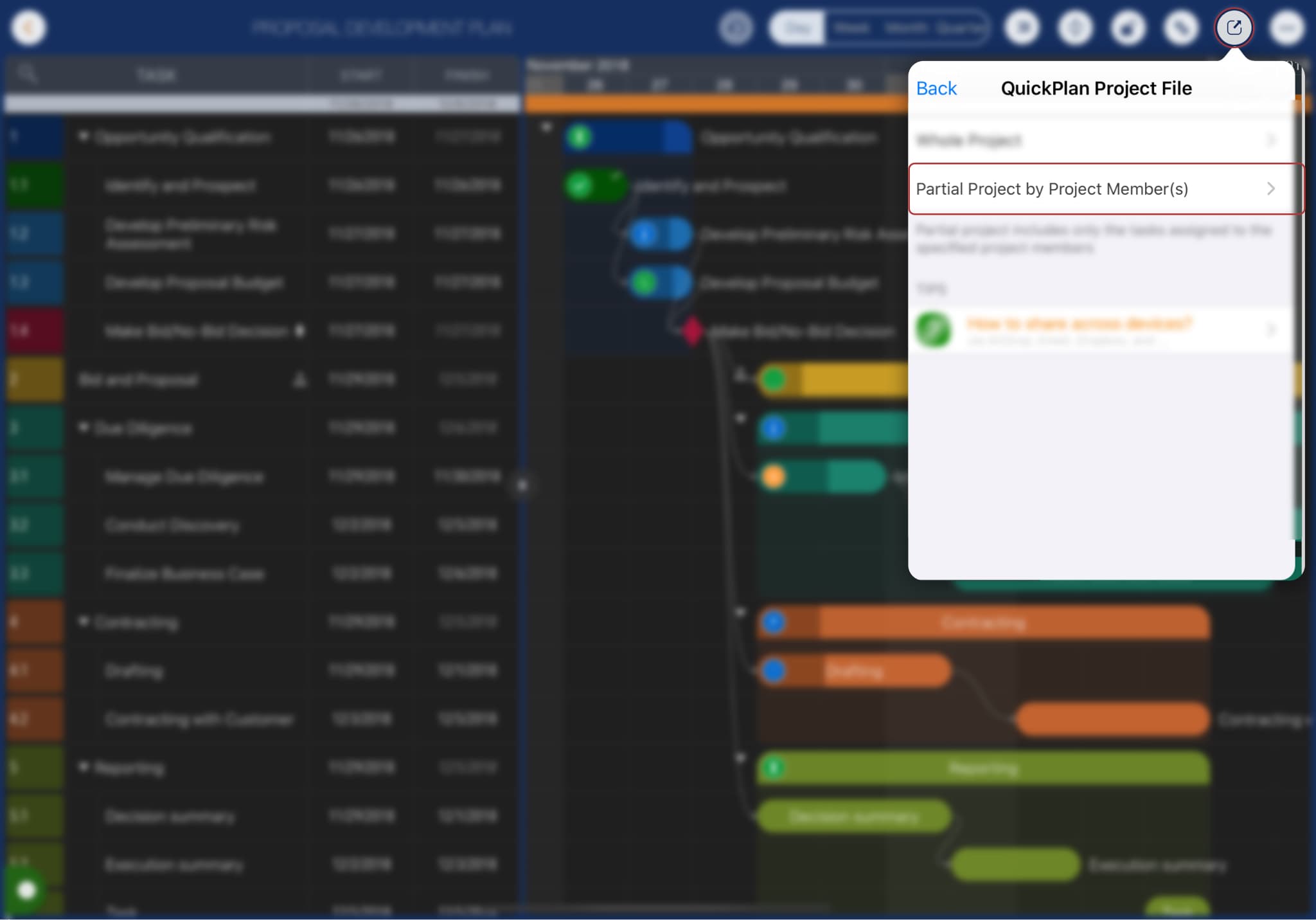
QuickPlan offers options to export the entire project or a partial project. A partial project includes only tasks assigned to specific members, which is ideal for team collaboration.
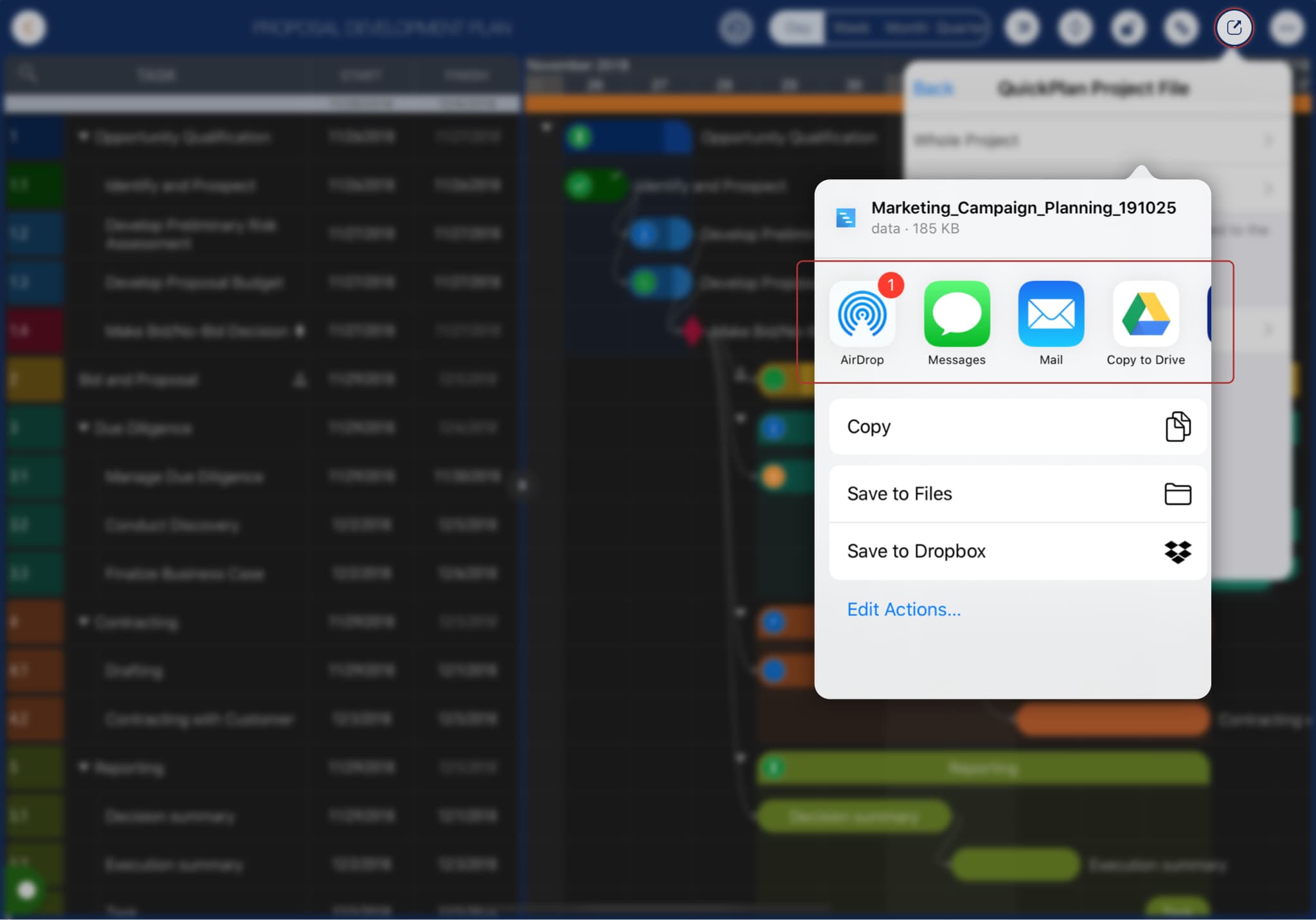
Transfer to other devices
After generating the .qpp file, the system document interaction panel appears. Several "actions" are available to transfer the file, such as via AirDrop, Email, and the Files app. Depending on installed apps, actions for Dropbox, Google Drive, OneDrive, and others may also be available.
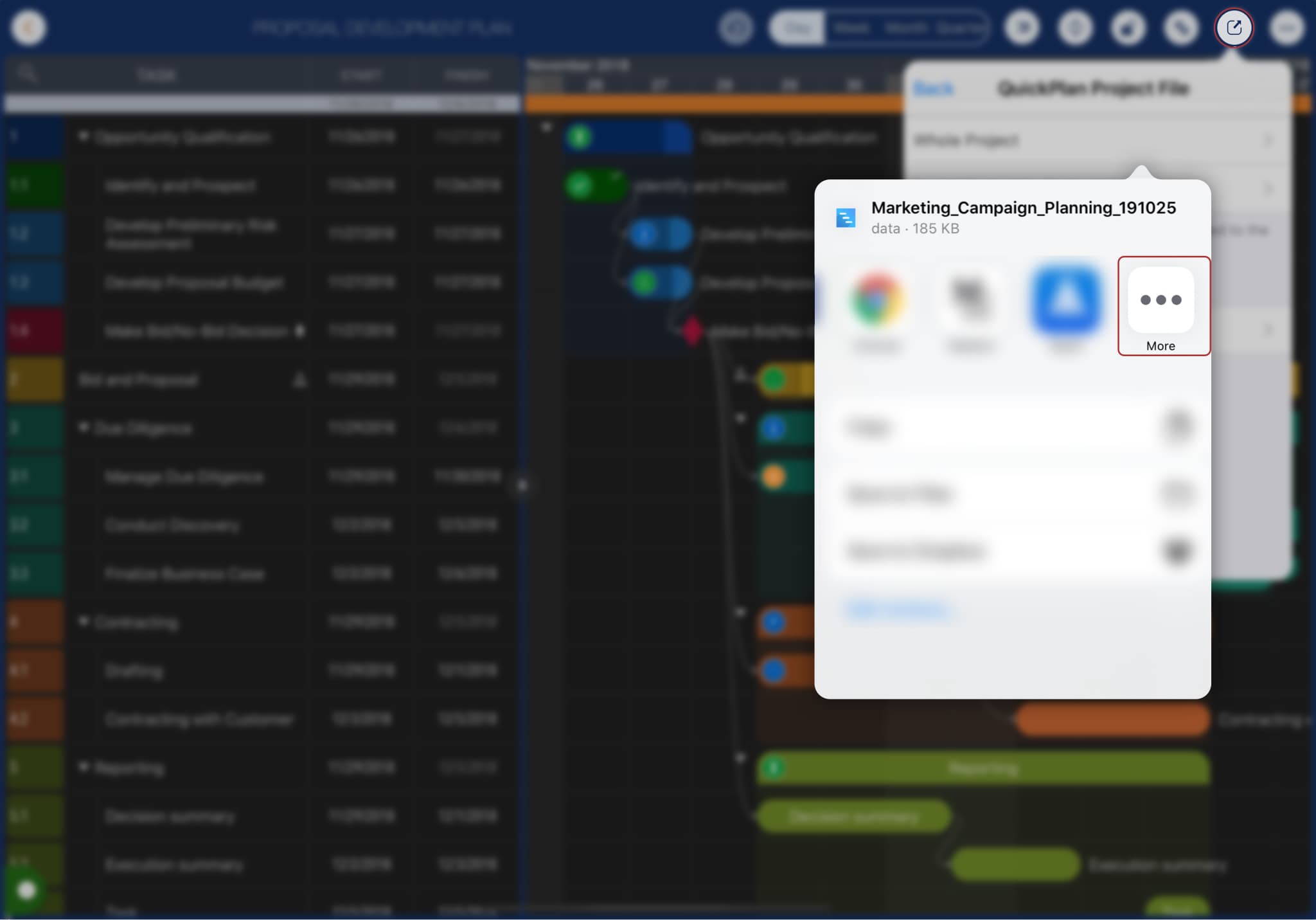
If the installed app you wish to use is not in the actions list, please enable it.
Select a suitable action to transfer the .qpp file to other devices.
Import into QuickPlan on other devices
Once the .qpp file is transferred to another device, you can import it into QuickPlan for use.
-
If transferred via AirDrop, the destination device will show an action sheet. Select "Copy to QuickPlan".
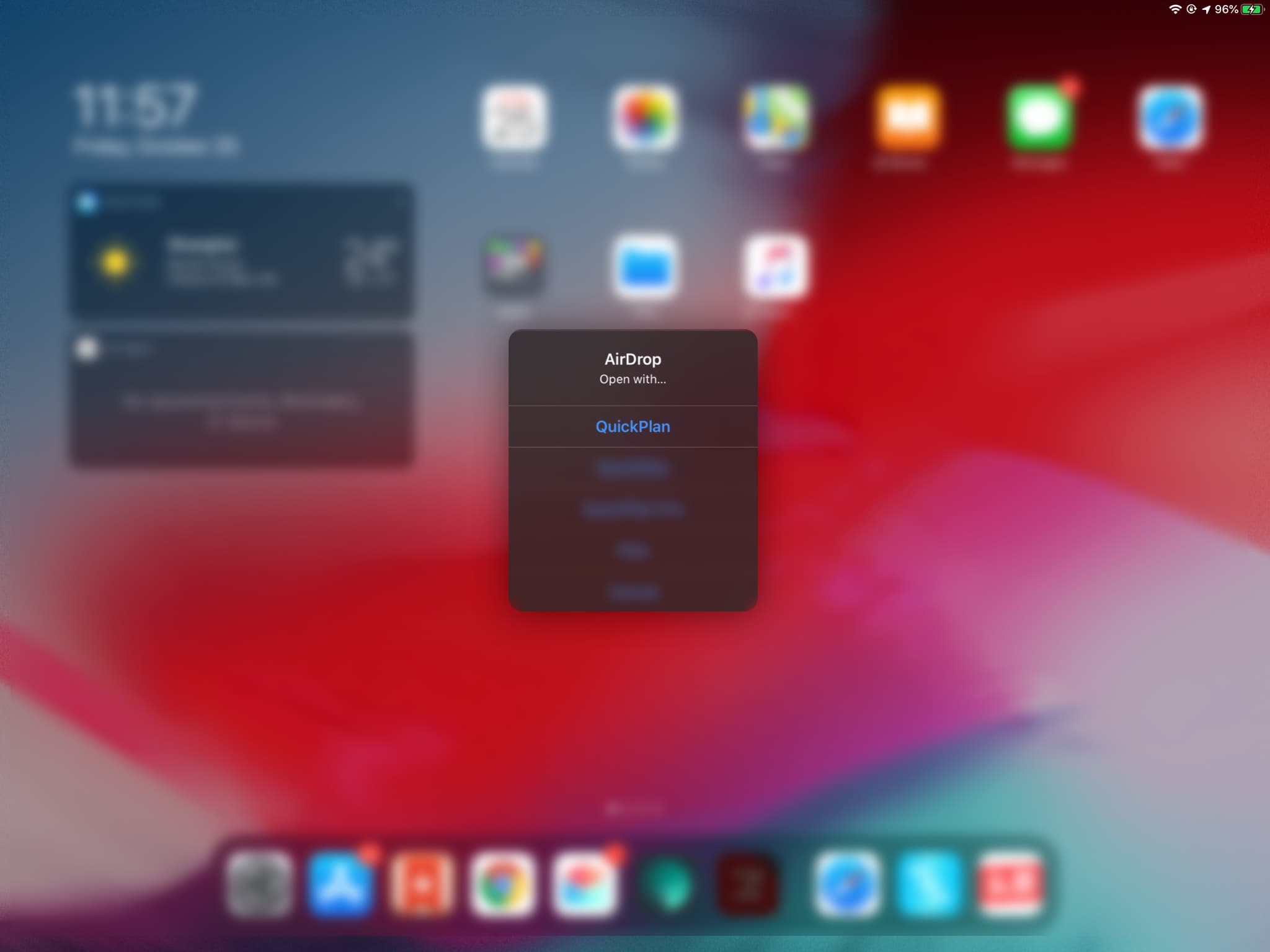
-
If transferred via Email or third-party cloud apps (e.g., Dropbox, Google Drive), you can copy the .qpp file
from that app to QuickPlan. For example, to copy from Google Drive:


-
If transferred via third-party cloud apps, you can also import it using the iOS Files app. QuickPlan supports importing directly from the Files app in the Home View.
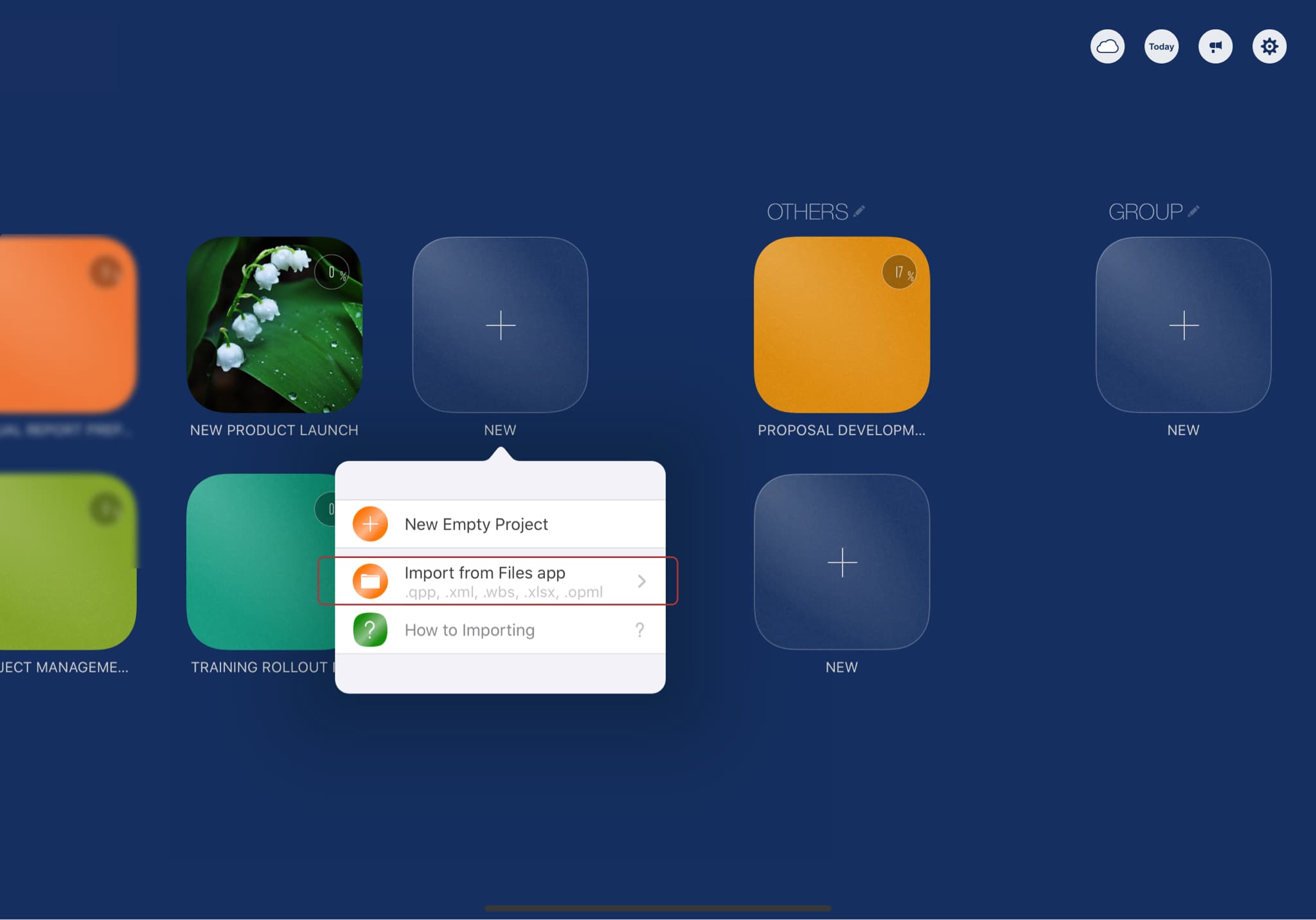
Navigate to and select a .qpp file; the project will be imported into QuickPlan.
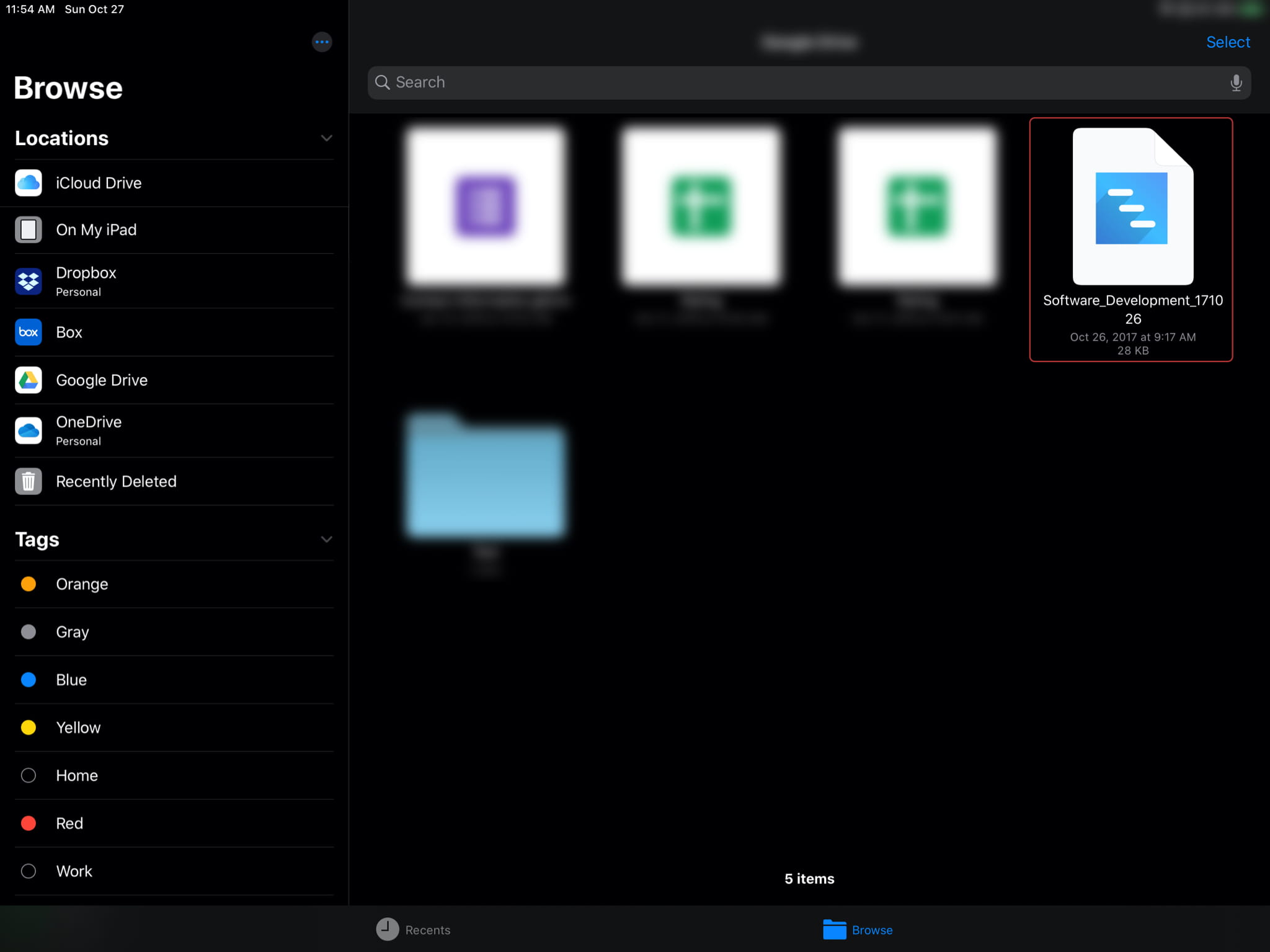
QuickPlan also supports importing MS Project XML (.xml), Swift Apps WBS (.wbs), MS Excel (.xlsx), and Mindmap (.opml) files via the Files app. Please check out the details.
- Although sharing via iCloud Drive is possible, we recommend using it to sync projects across multiple devices for the same user (same Apple ID). Note that "sharing" differs from "synchronization".
Projects Maintenance
Project Properties
Task Maintenance
Gestures & Keyboard Shortcuts
Customization
Synchronization
Team Collaboration
Project Sharing
- Sharing Project from iPad
- Import Project on iPad
- Sharing Project from iPhone
- Import Project on iPhone
- Sharing Project via AirDrop
- Sharing Project via Email
- Sharing Project via Dropbox
- Sharing Project via Google Drive
- Sharing Project via OneDrive
- Sharing Project via Box Cloud
- Sharing Project via 3rd Apps
Integrations
Others