
QuickPlan supports exporting projects as Microsoft Project files (XML format), which can be opened in Microsoft Project. Conversely, Microsoft Project files saved as XML on a PC can be imported into QuickPlan as new projects.
Export to MS Project
-
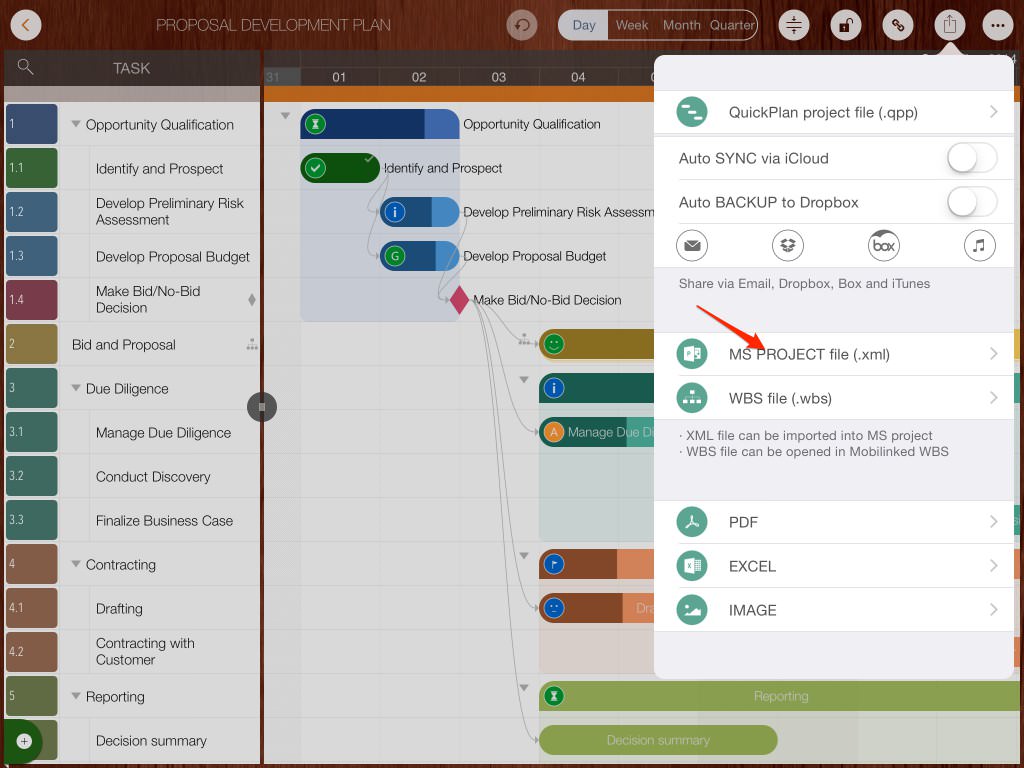
Export the project as a Microsoft Project file in XML format.
-
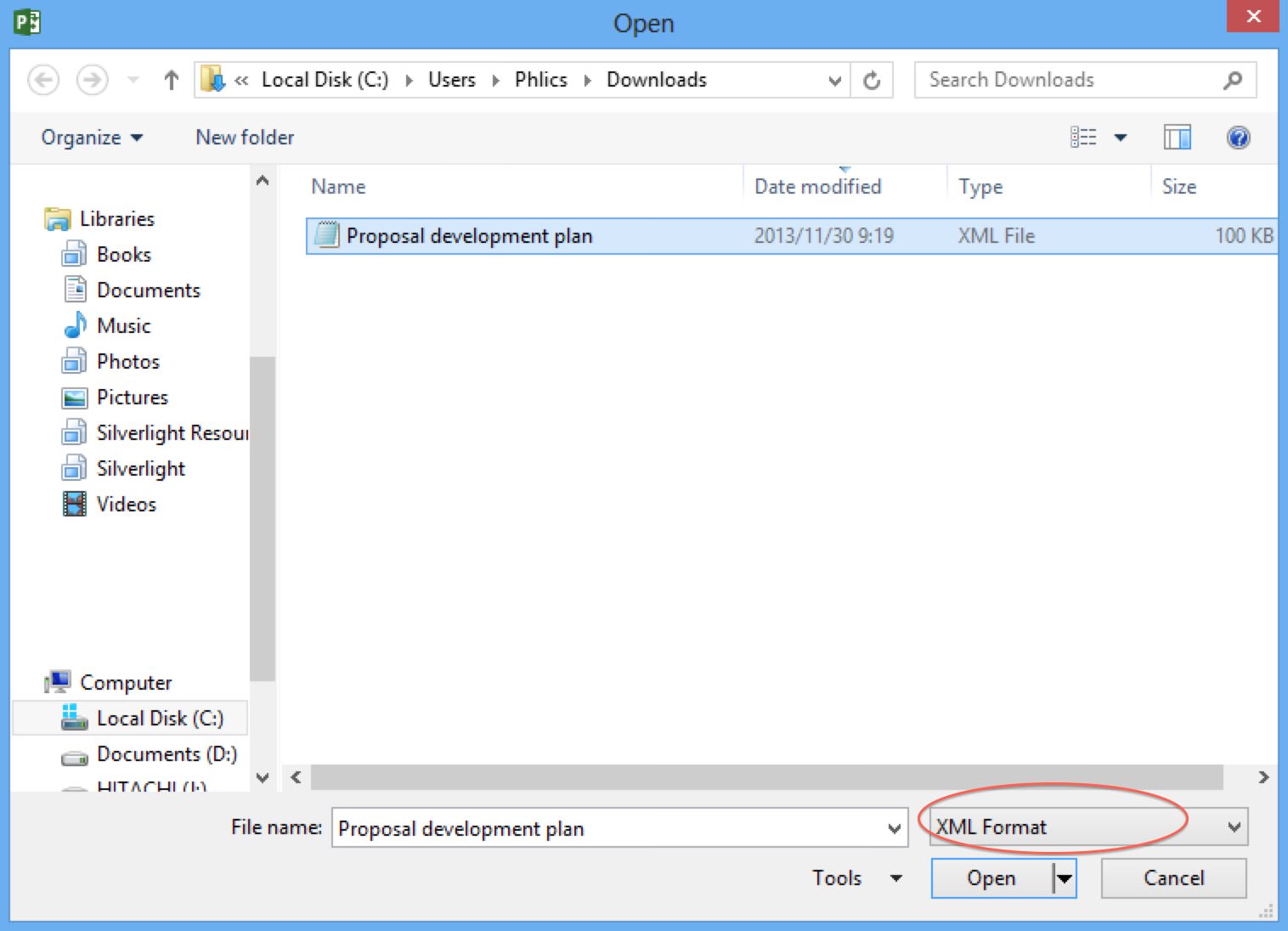
On a PC, open Microsoft Project and select "Open" to load the XML file.
-
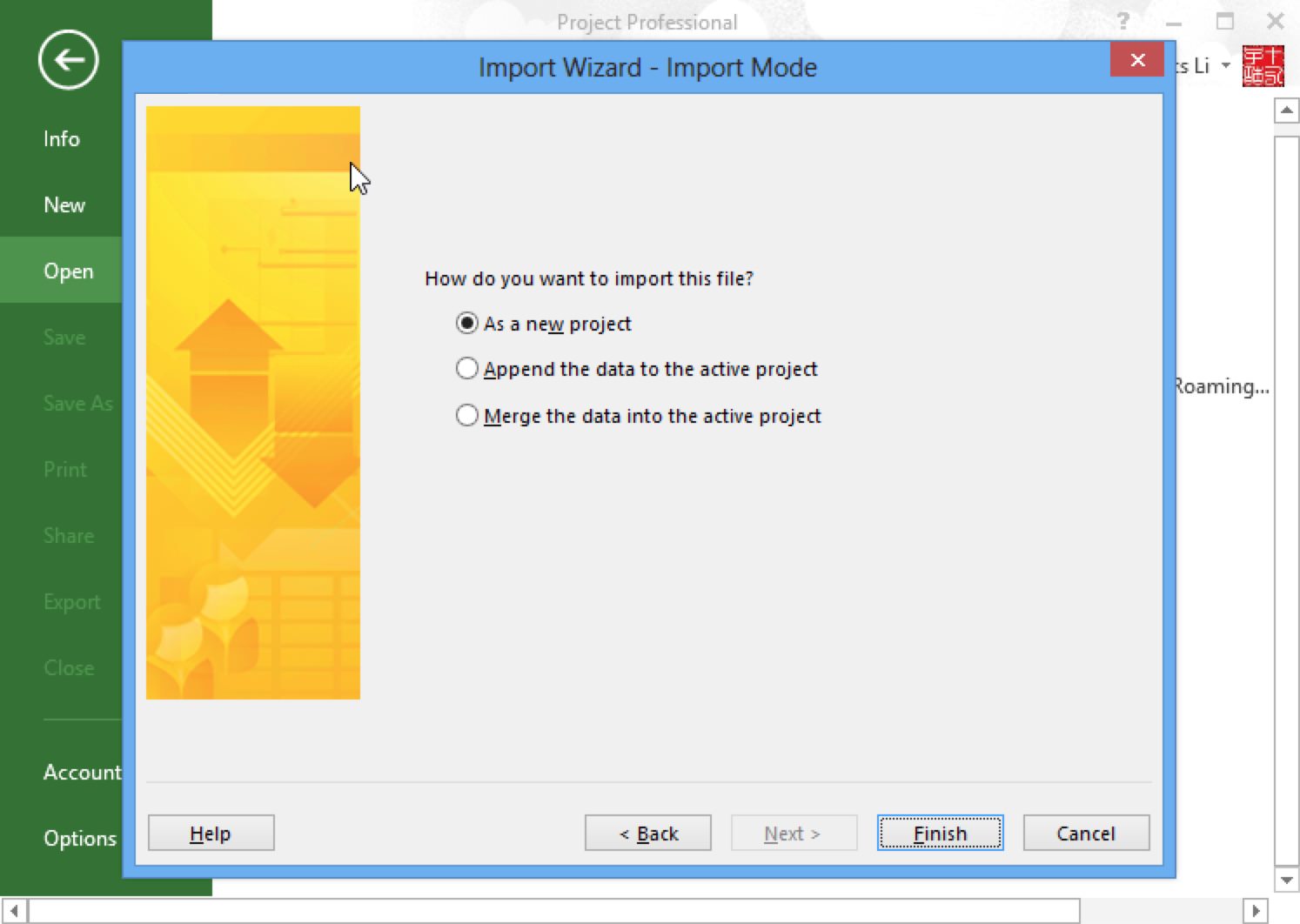
Select "As a new project" and click "Finish".
-
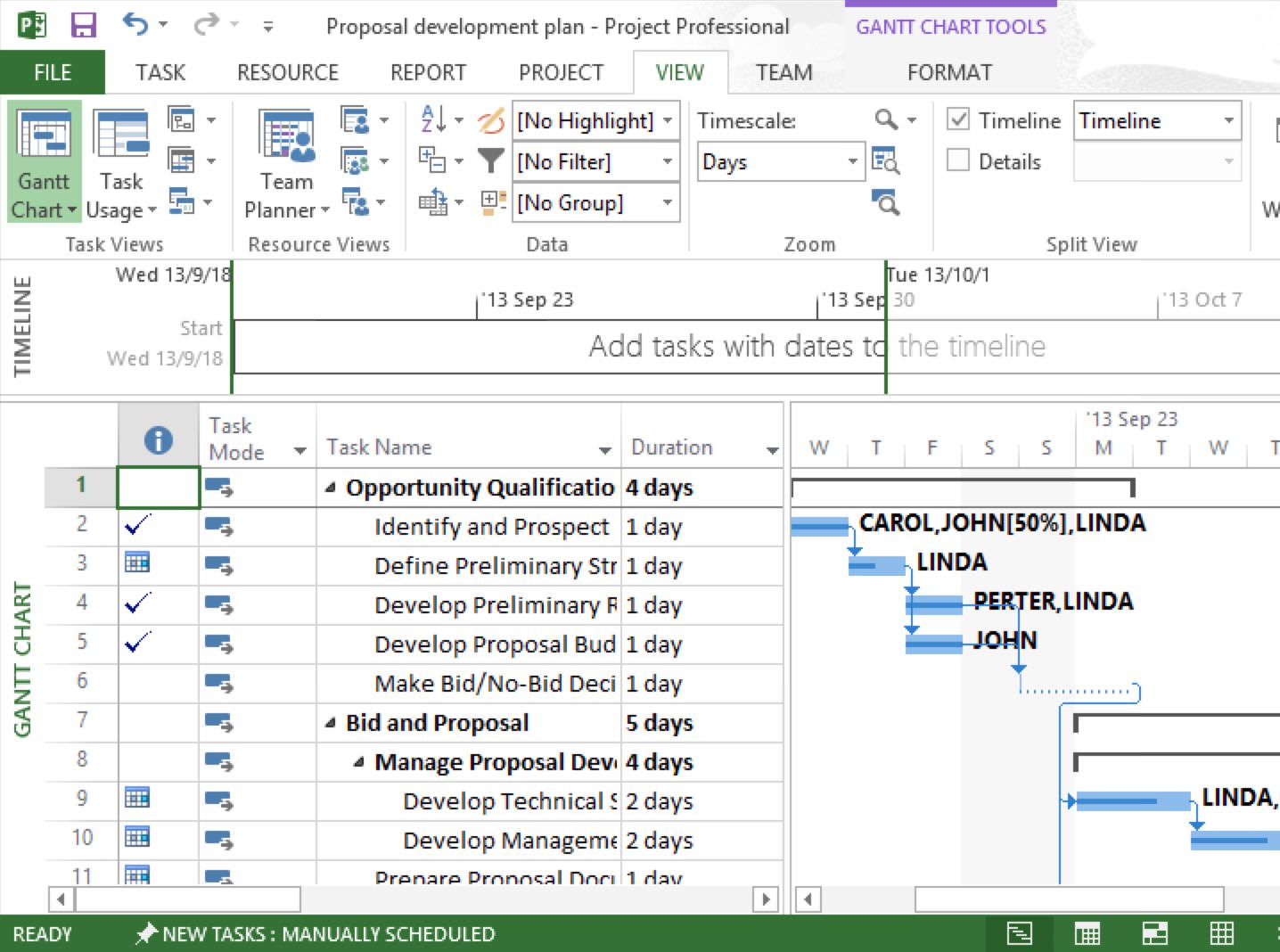
A new project will be created in MS Project.
Notes
MS Project requires XML files to be Unicode encoded. However, email or cloud transfer may alter file encoding, which is beyond QuickPlan's control. To fix this:
- Open the XML file in Notepad on a Windows PC.
- Select "Save As" in Notepad and specify the encoding as Unicode.
Import from MS project
Tasks from the first ten outline levels of Microsoft Project are imported. The first five levels are included in the main project, while levels six through ten are imported into subprojects.
-
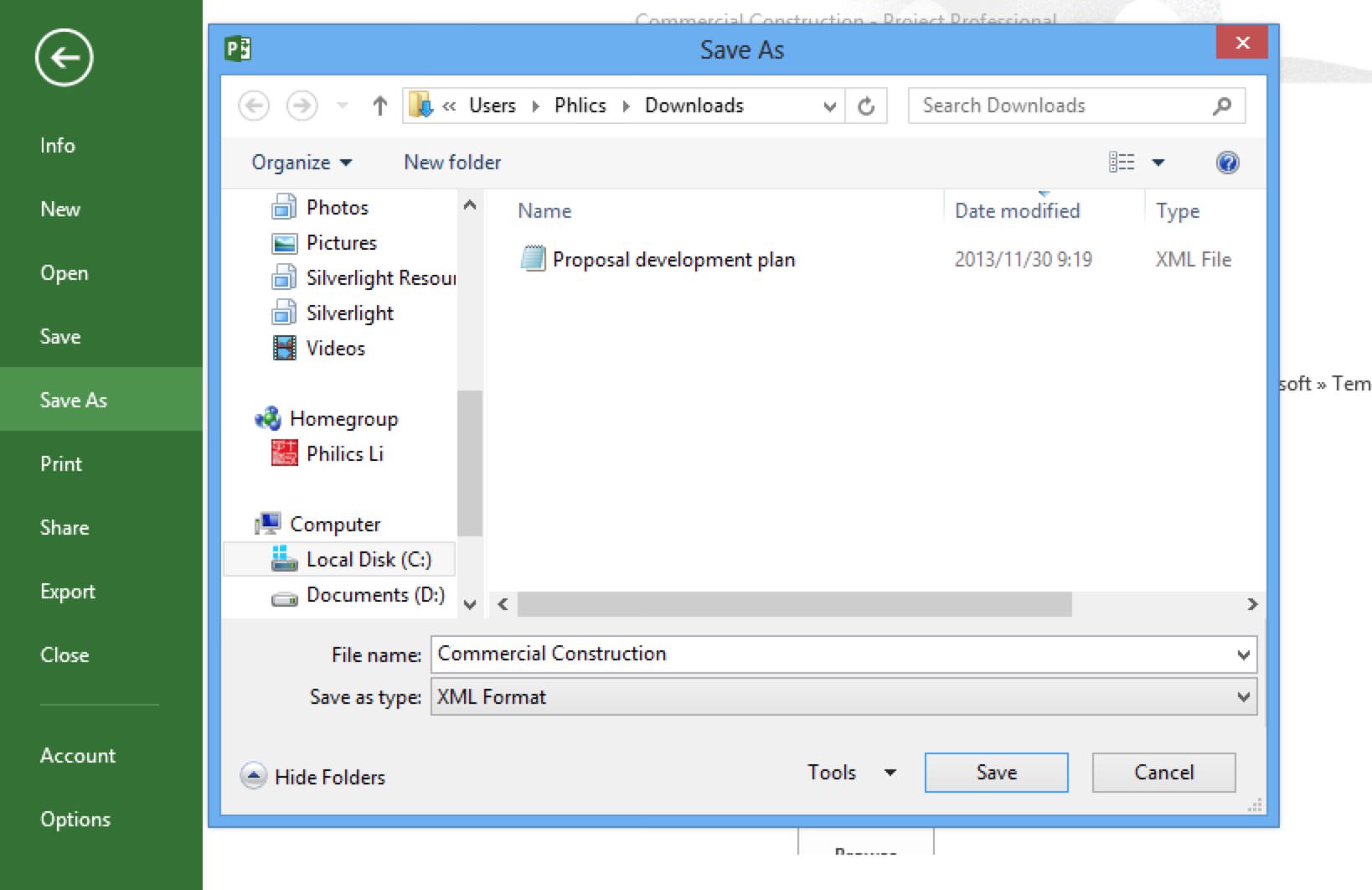
Open an MS Project file on a PC, then click "Save As" to save it as an XML file.
-
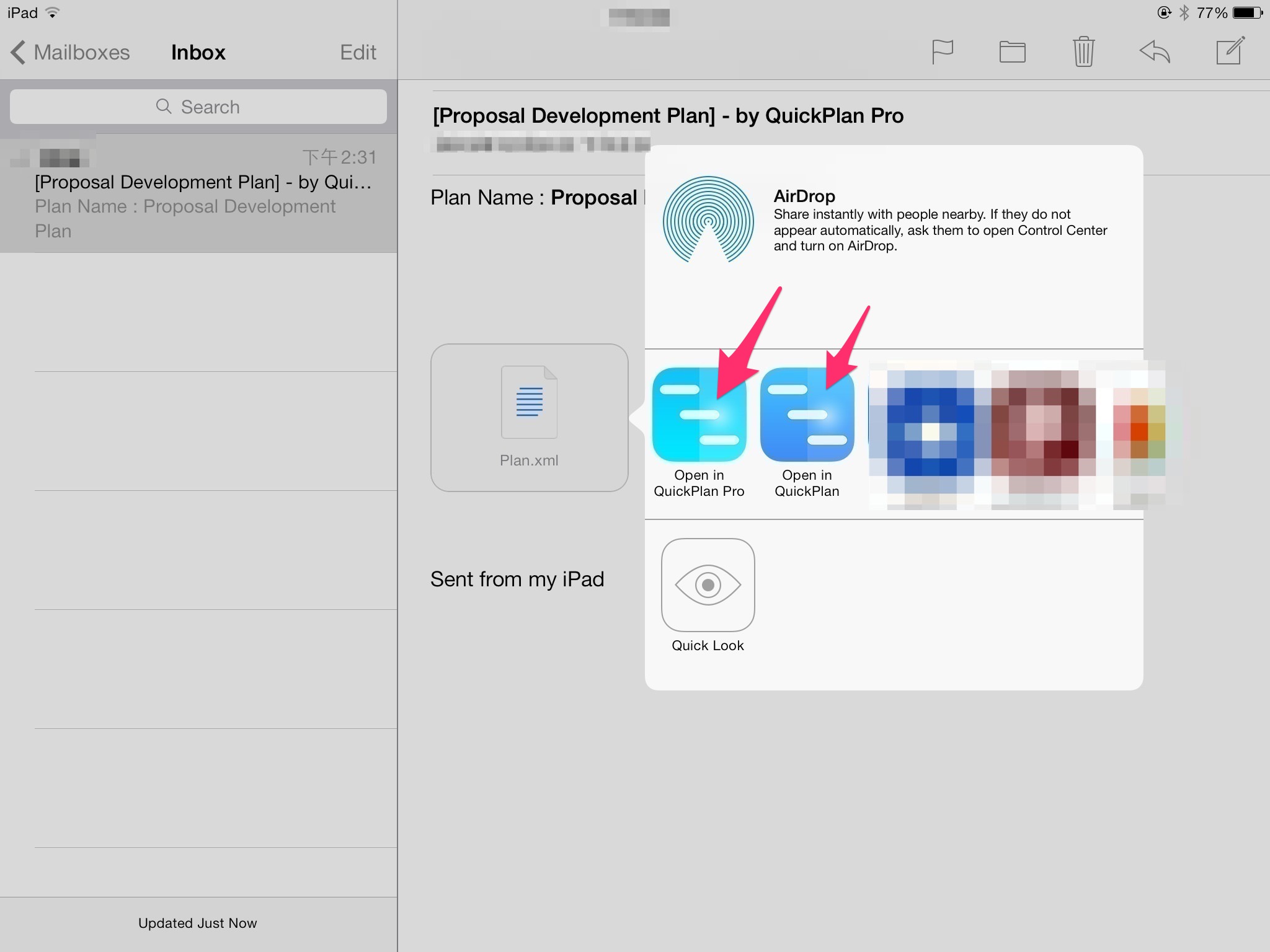
Import the XML file into QuickPlan on the iOS device. For example, open an XML file sent as an email attachment.
-
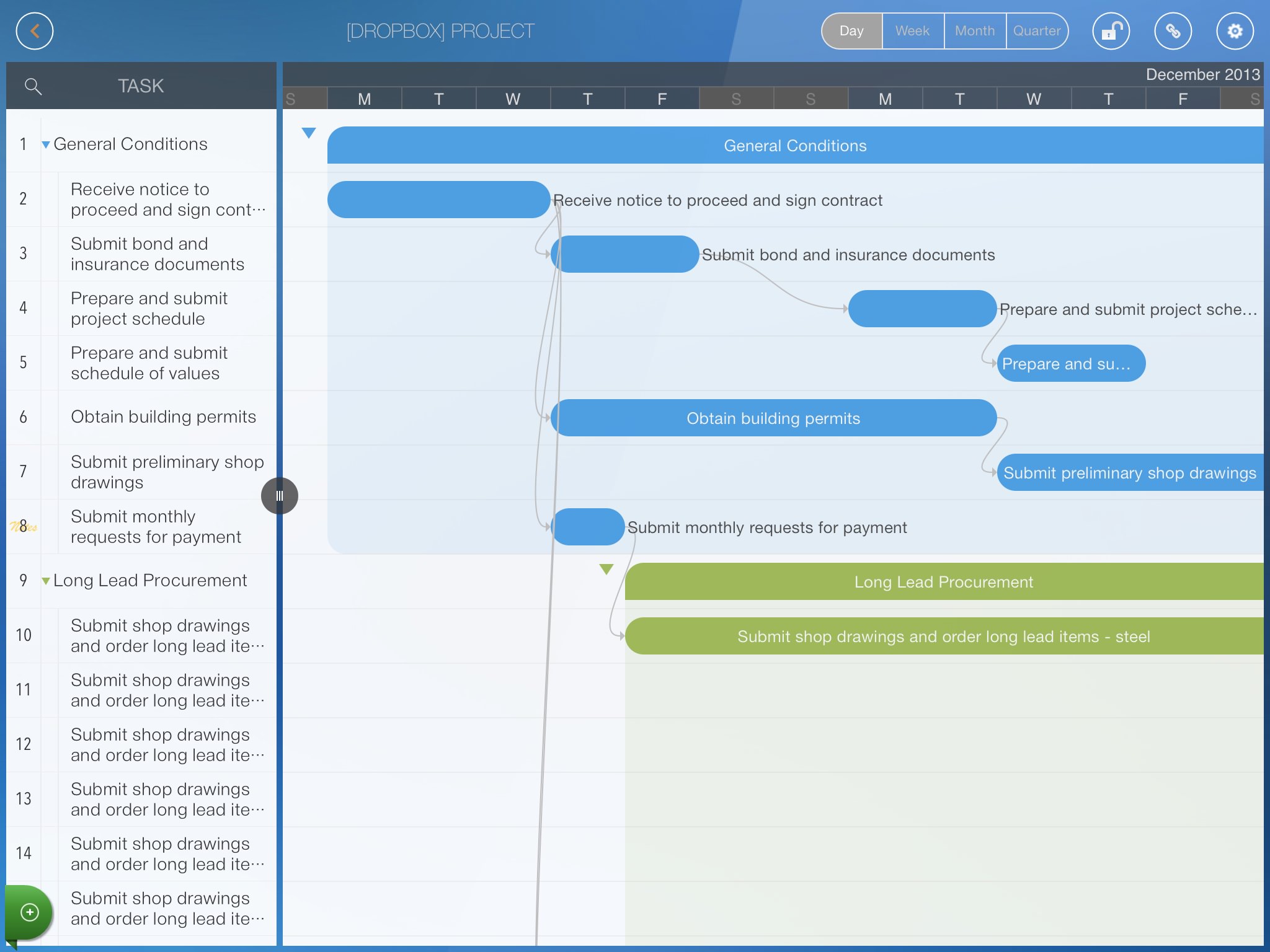
A new project is created in QuickPlan.
Projects Maintenance
Project Properties
Task Maintenance
Gestures & Keyboard Shortcuts
Customization
Synchronization
Team Collaboration
Project Sharing
- Sharing Project from iPad
- Import Project on iPad
- Sharing Project from iPhone
- Import Project on iPhone
- Sharing Project via AirDrop
- Sharing Project via Email
- Sharing Project via Dropbox
- Sharing Project via Google Drive
- Sharing Project via OneDrive
- Sharing Project via Box Cloud
- Sharing Project via 3rd Apps
Integrations
- MS Project Integration
- MS Excel Integration
- Mindmap (OPML) Integration
- Swift Apps WBS Integration
- Files Integration
Others