
QuickPlan provides three methods to maintain task links.
- Switch to "Task Linking State" to maintain task links on the Gantt Chart.
- Directly maintain task links on the Gantt Chart.
- Maintain task links in the Outline List.
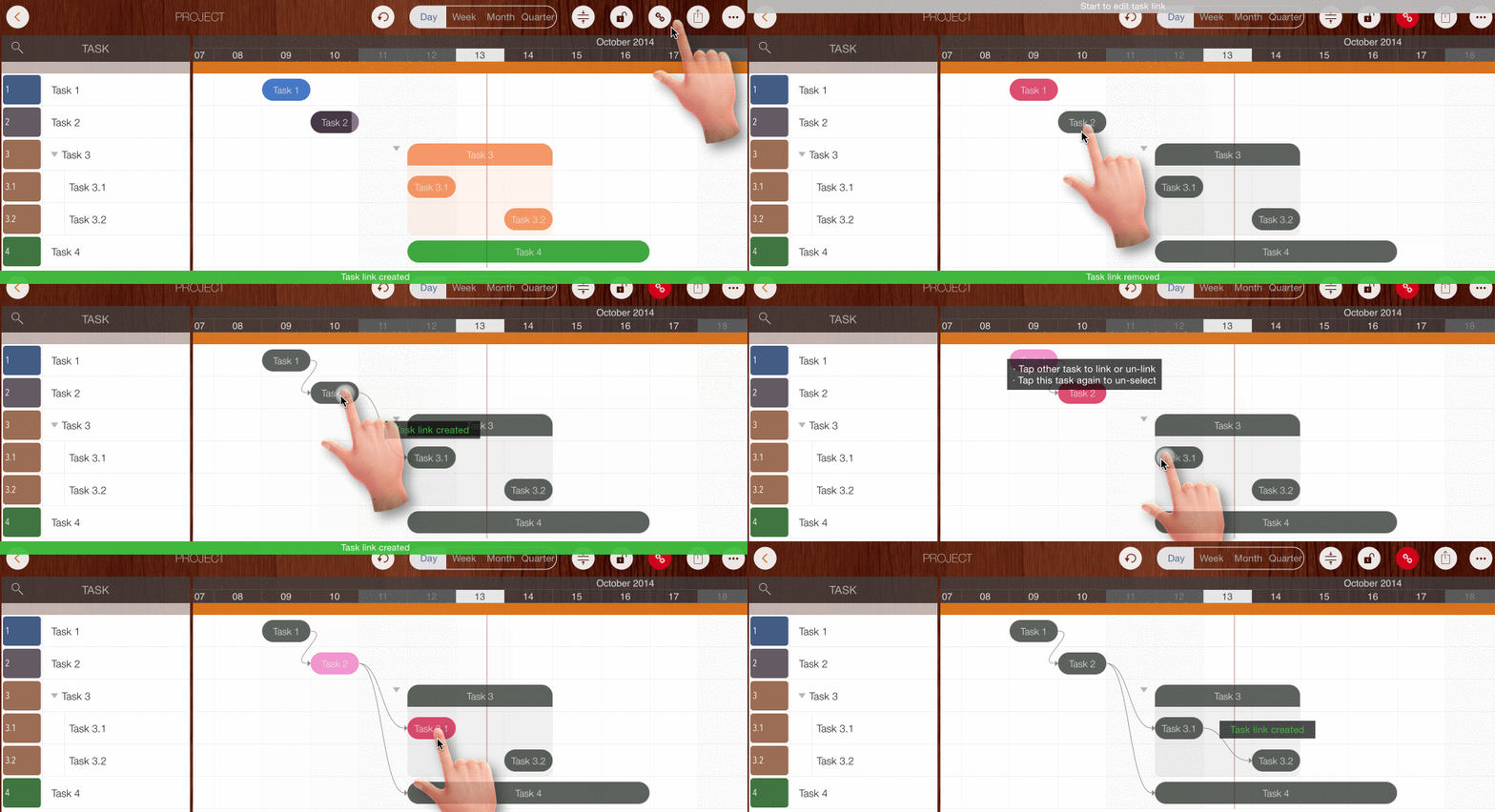
Maintain task links on the Gantt Chart by entering "Task Linking State".
- Tap the "Task Linking" button on the toolbar, then follow the onscreen tips to link tasks.
- Tap to select a task, then choose another task to create a link or remove an existing one.
Auto-Schedule
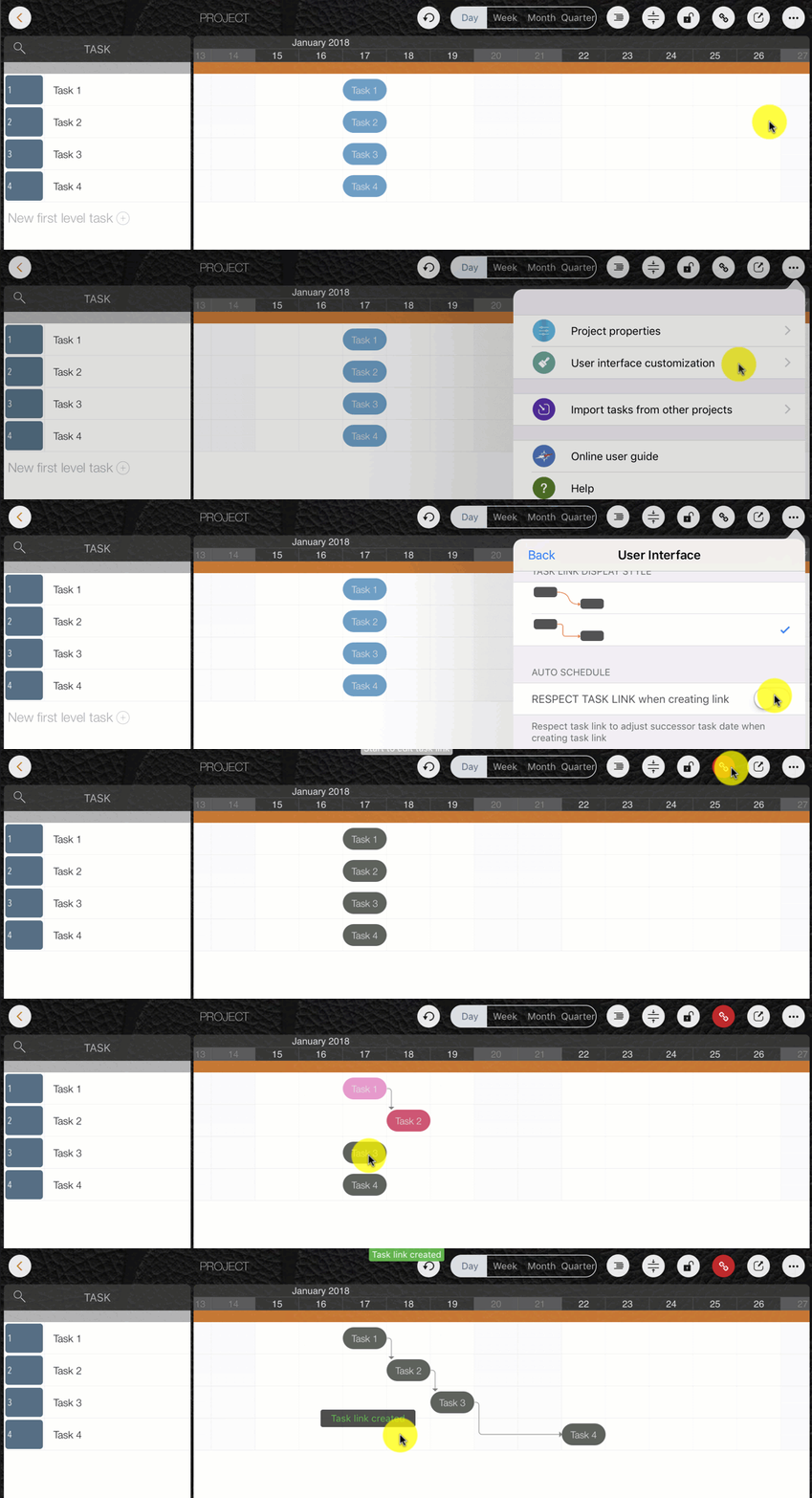
- When linking tasks, if the "Option" key is pressed, the successor task date may shift to respect the new link.
-
"Respect created task link" option: Controls whether to automatically adjust the successor's date when creating a new task link.
Direct Task Links Creation
QuickPlan 11 introduces a method to link tasks directly, without needing to enter "Task Linking State" via the toolbar button.
- Tap to select a task as the predecessor.
- Press "Command" and tap another task to link (or unlink) them. If "Option" is also pressed, the successor task date may change to respect the new link (auto-schedule).
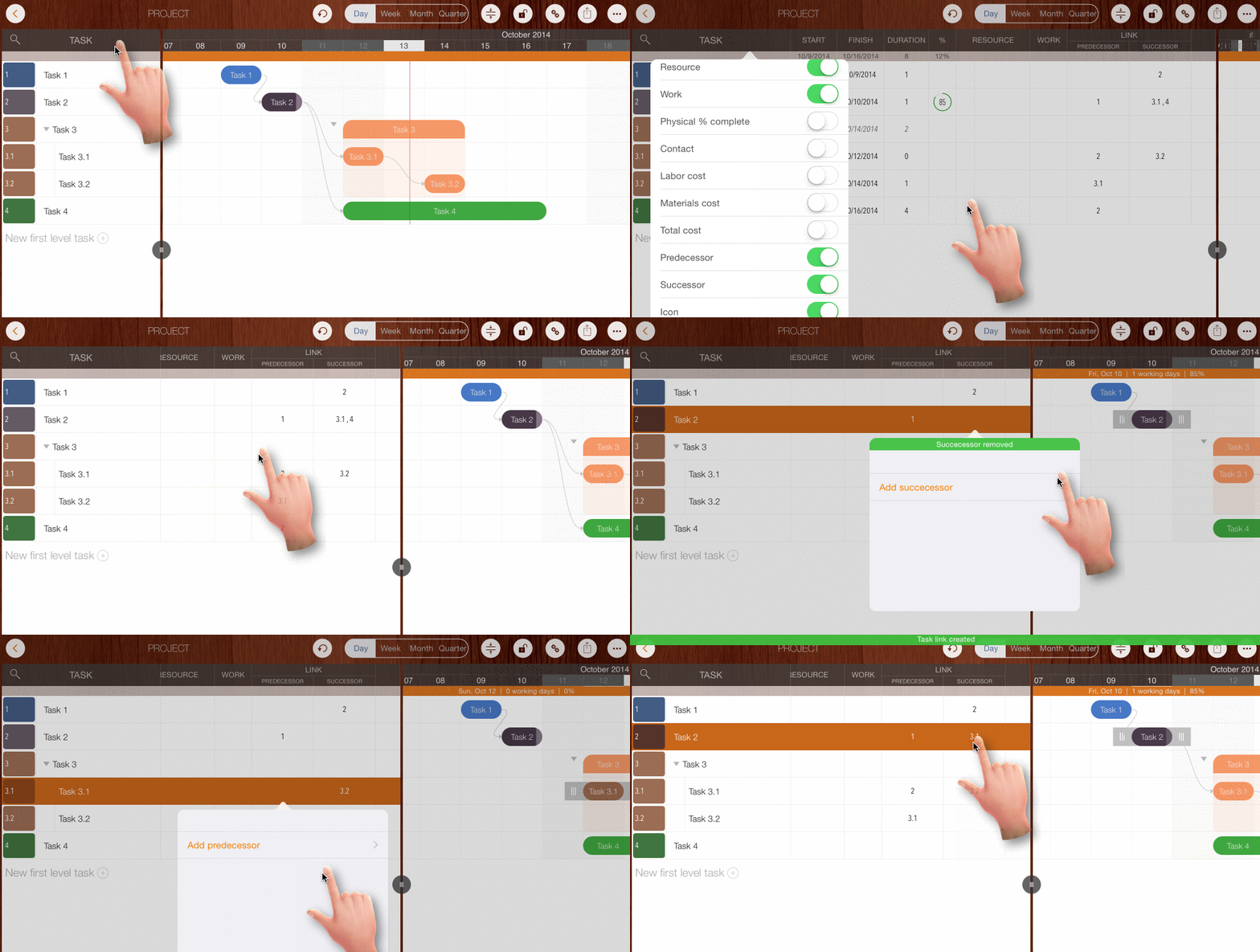
Maintain Task Links in the Outline View
Only available on iPad.
Best Practice
Using constraints from a mathematical perspective is precise, but is it comprehensive for large numbers of links? We have an article on how to organize tasks effectively.
Projects Maintenance
Project Properties
Task Maintenance
Gestures & Keyboard Shortcuts
Customization
Synchronization
Team Collaboration
Project Sharing
- Sharing Project from iPad
- Import Project on iPad
- Sharing Project from iPhone
- Import Project on iPhone
- Sharing Project via AirDrop
- Sharing Project via Email
- Sharing Project via Dropbox
- Sharing Project via Google Drive
- Sharing Project via OneDrive
- Sharing Project via Box Cloud
- Sharing Project via 3rd Apps
Integrations
Others