
QuickPlan organizes tasks into task groups and subprojects. Date, work, and costs for task groups and subprojects are automatically calculated based on their children's data.
Task Group
Task groups in QuickPlan are actual entities. A task group is displayed as a group box in the Gantt Chart, allowing you to move the group and its children simultaneously to change dates.
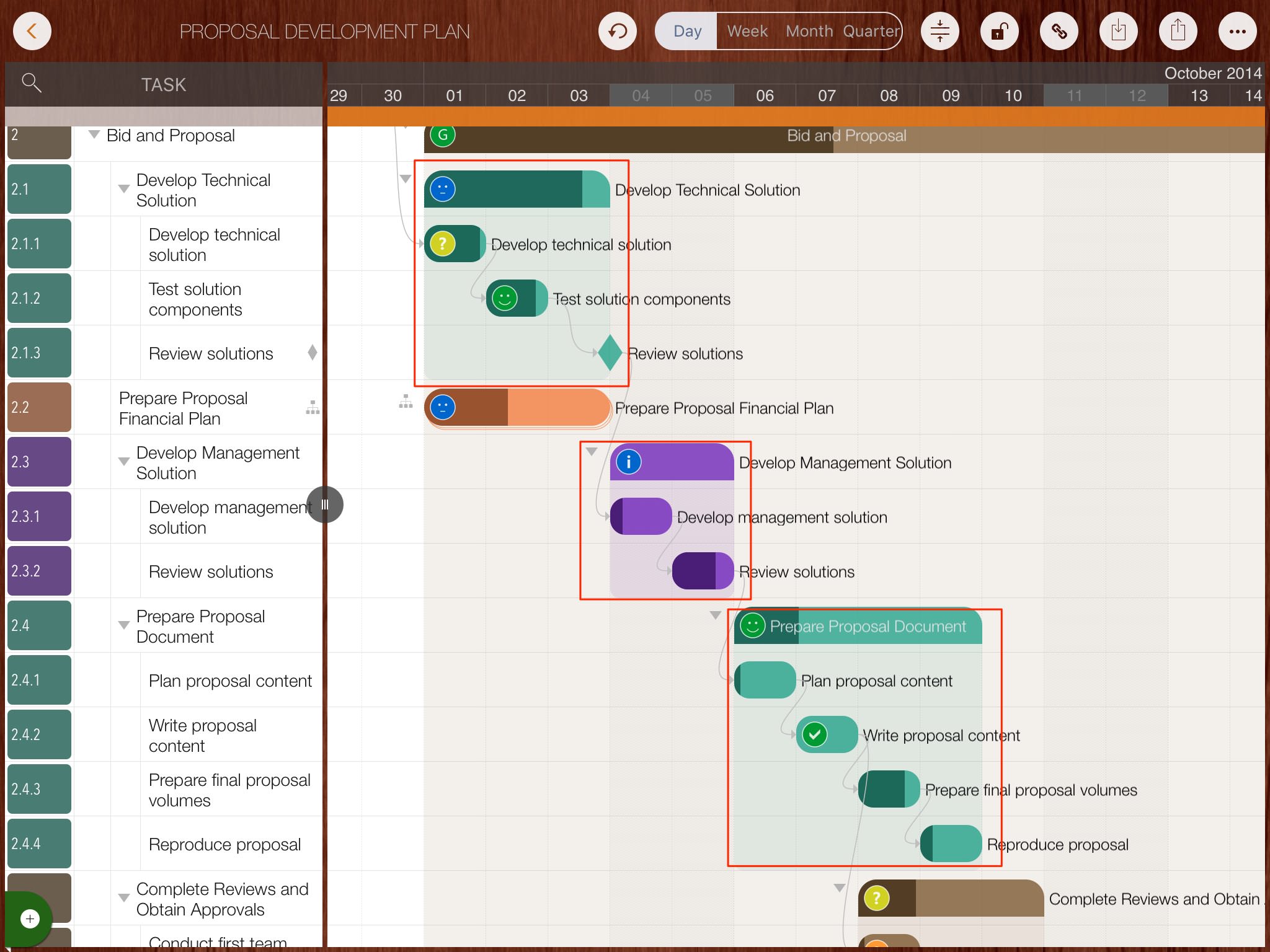
Two intuitive gestures make it easy to change a task's outline level (organizing tasks into groups).
- Swipe left on the Task Name column in the Outline Panel to indent the task.
- Swipe right on the Task Name column in the Outline Panel to outdent the task.
Sub-Project
A well-organized project plan streamlines team communication, tracking, and rescheduling. Sub-projects are excellent for structuring large projects or those involving multiple sub-teams. It can also be beneficial to organize several smaller projects as sub-projects within a main project, such as when planning personal tasks.
1. Create a subproject
-
Tap a task and select the menu to convert it into a subproject.
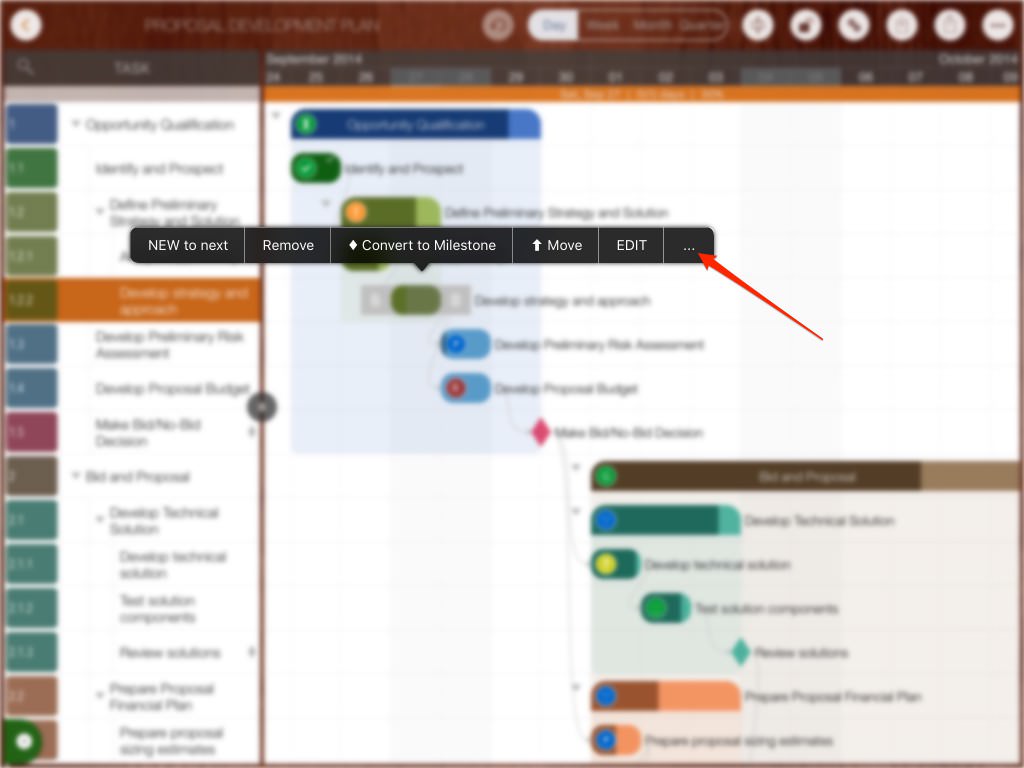
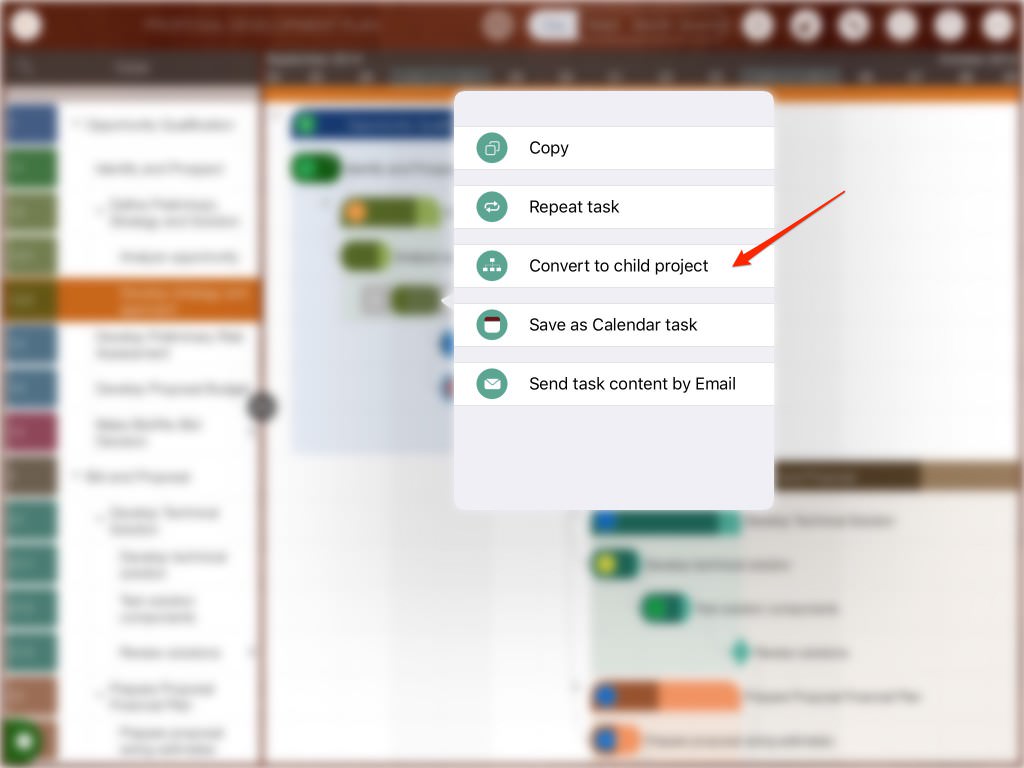
-
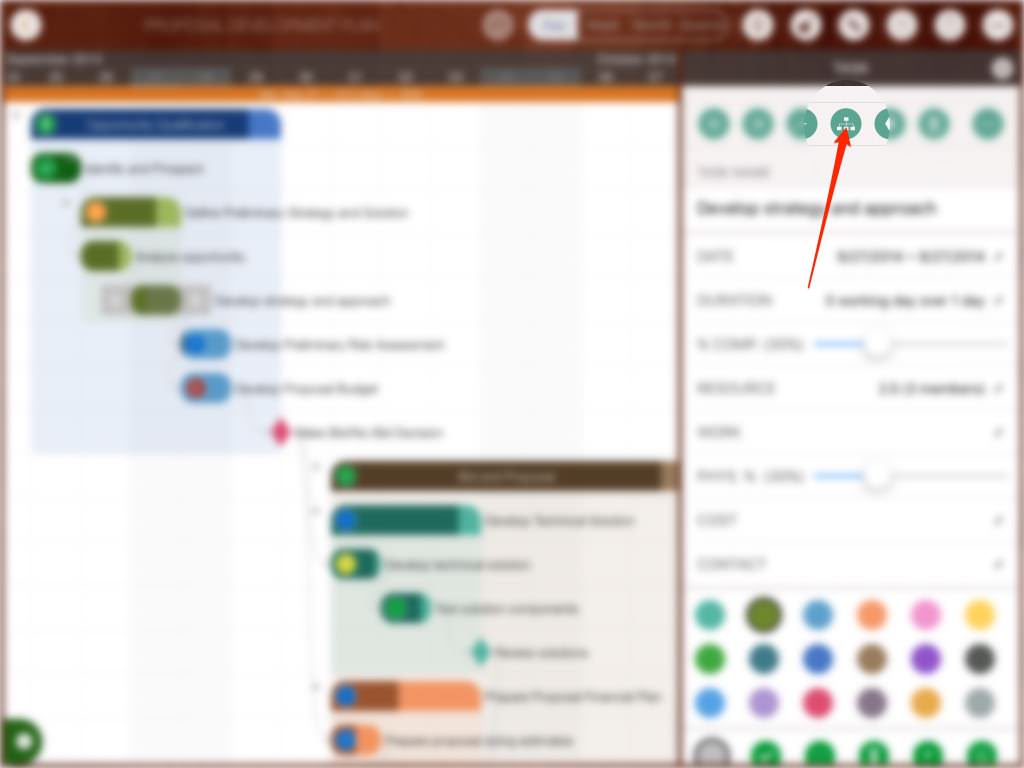
Alternatively, convert a task into a subproject by tapping the update field.
2. Convert a subproject to a task group
A subproject can be converted into a task group (provided the conversion does not exceed the main project's maximum outline levels).
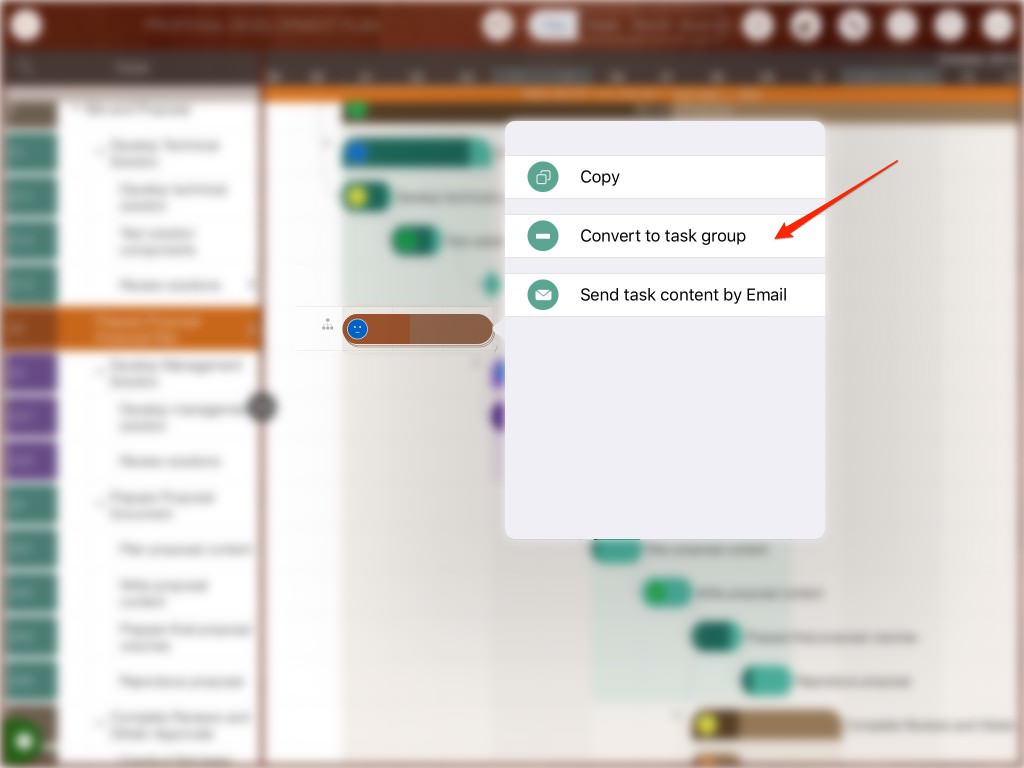
3. Open a subproject
-
Via the menu.
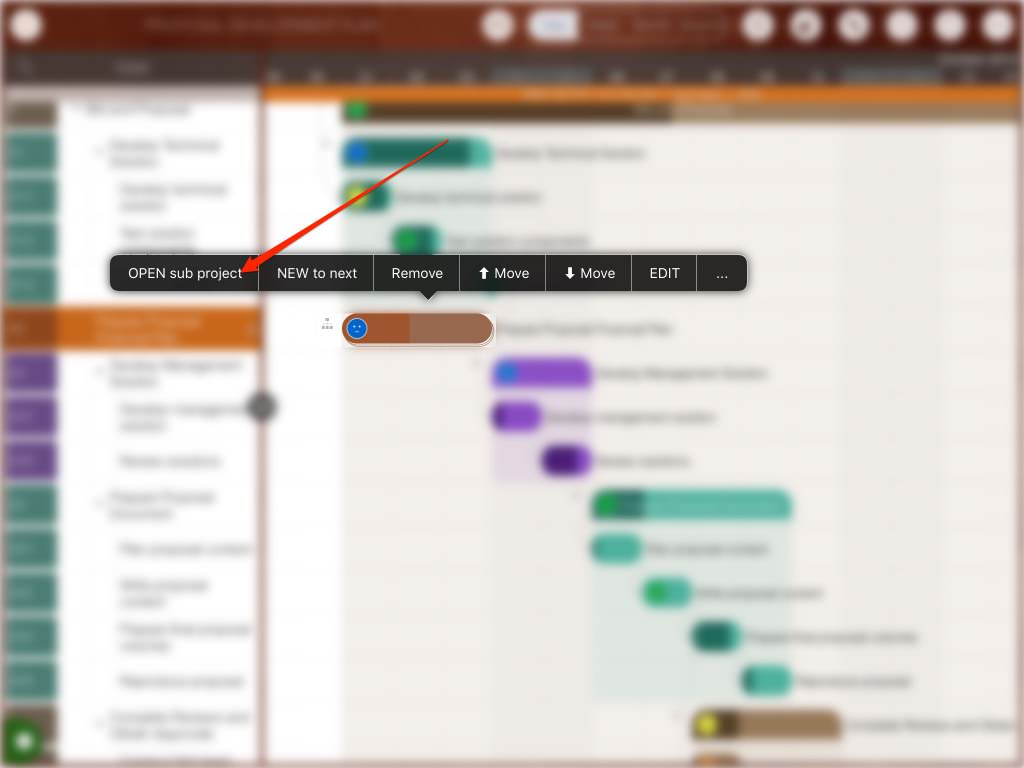
- Or using the keyboard shortcut "Command + Return".
Best practice
We have a best practice article on how to organize tasks effectively.
Projects Maintenance
Project Properties
Task Maintenance
Gestures & Keyboard Shortcuts
Customization
Synchronization
Team Collaboration
Project Sharing
- Sharing Project from iPad
- Import Project on iPad
- Sharing Project from iPhone
- Import Project on iPhone
- Sharing Project via AirDrop
- Sharing Project via Email
- Sharing Project via Dropbox
- Sharing Project via Google Drive
- Sharing Project via OneDrive
- Sharing Project via Box Cloud
- Sharing Project via 3rd Apps
Integrations
Others