
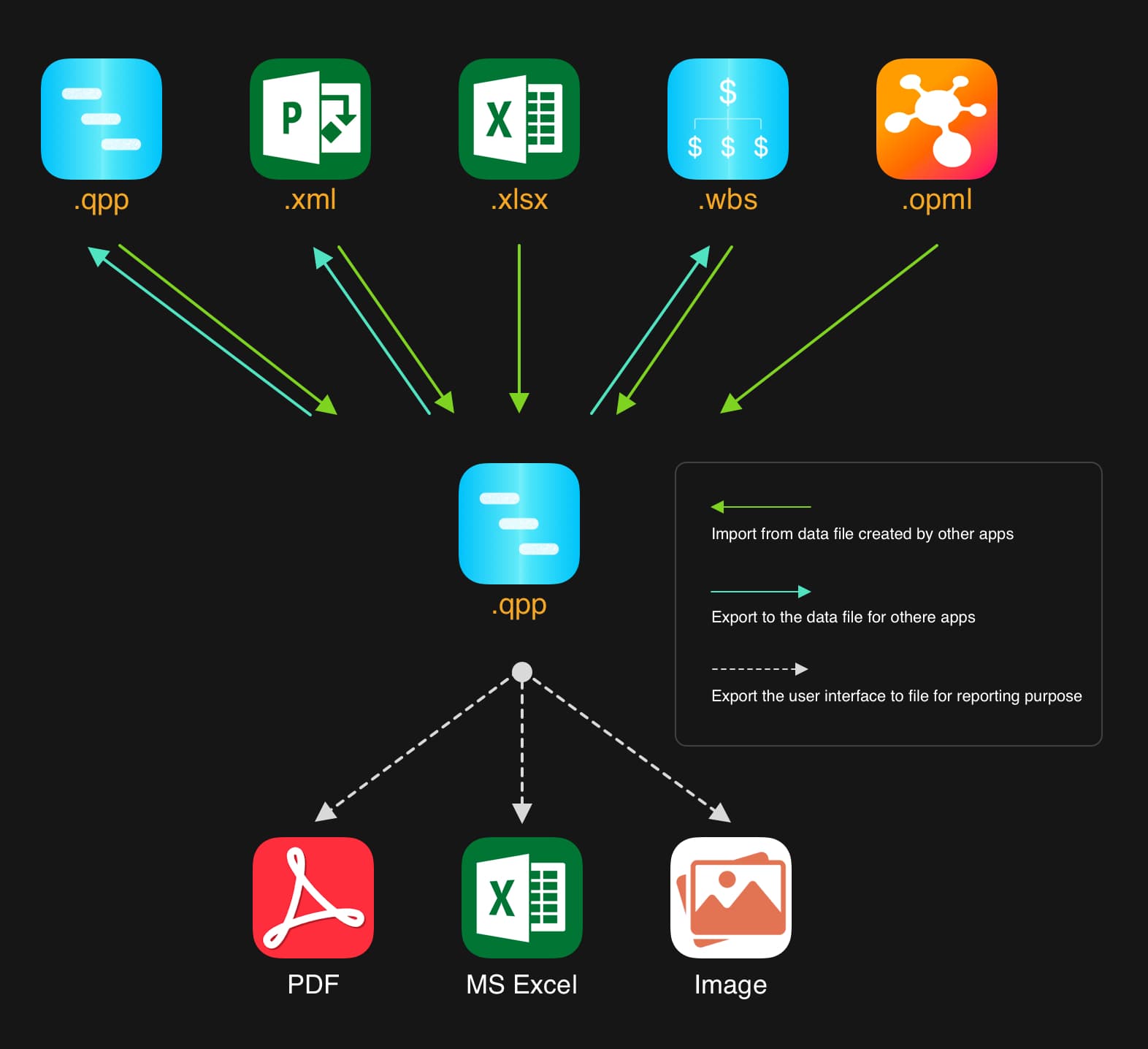
Diagram of QuickPlan importing & exporting
-
Importing involves
- Copying the QuickPlan project file (.qpp) from another location to the QuickPlan app.
- Alternatively, converting a data file created by another app to a QuickPlan project file (.qpp) and copying it to the QuickPlan app.
- Importing does NOT mean opening the .qpp file directly from another location.
What types of files can be imported?
- QuickPlan project file with .qpp file extension, generated by QuickPlan apps for the iPad, iPhone, and Mac.
-
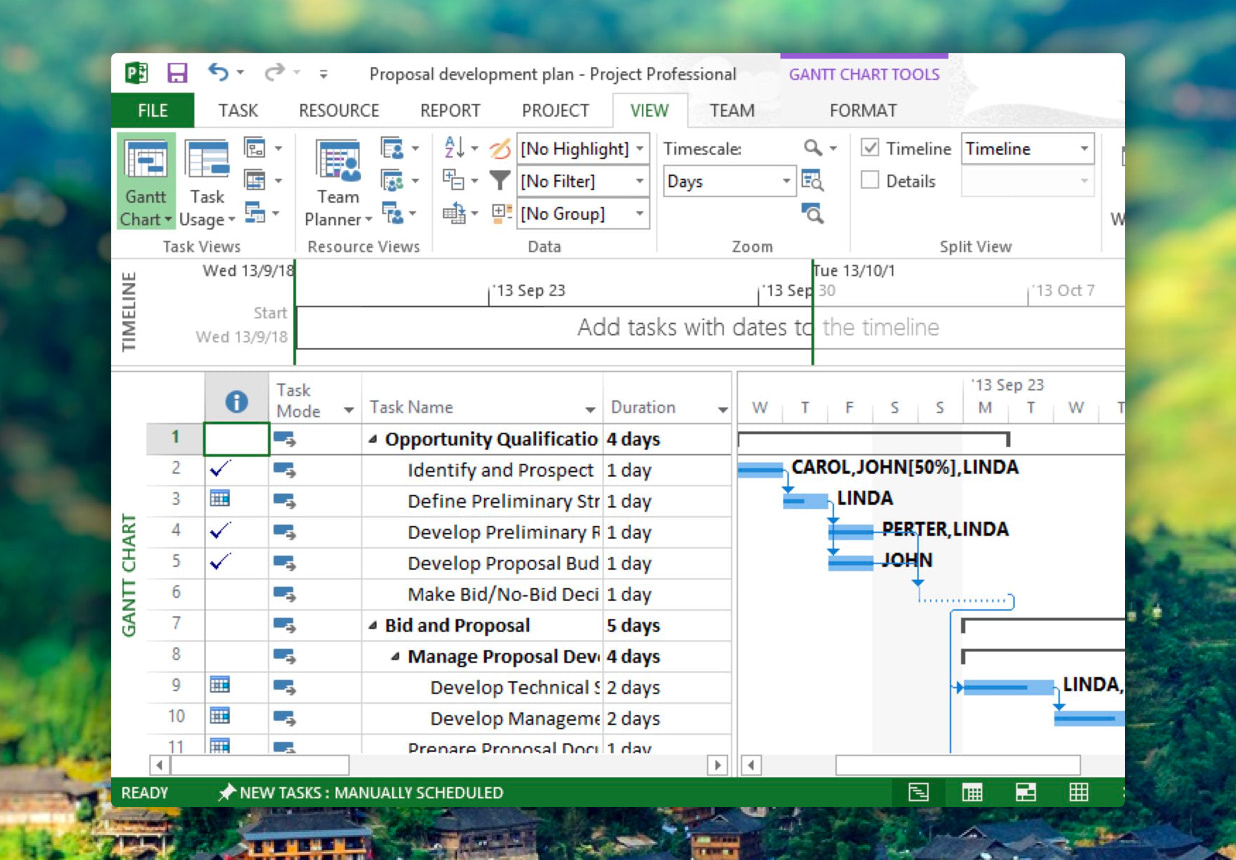
MS Project file in XML format, with .xml file extension. Learn more ...
-
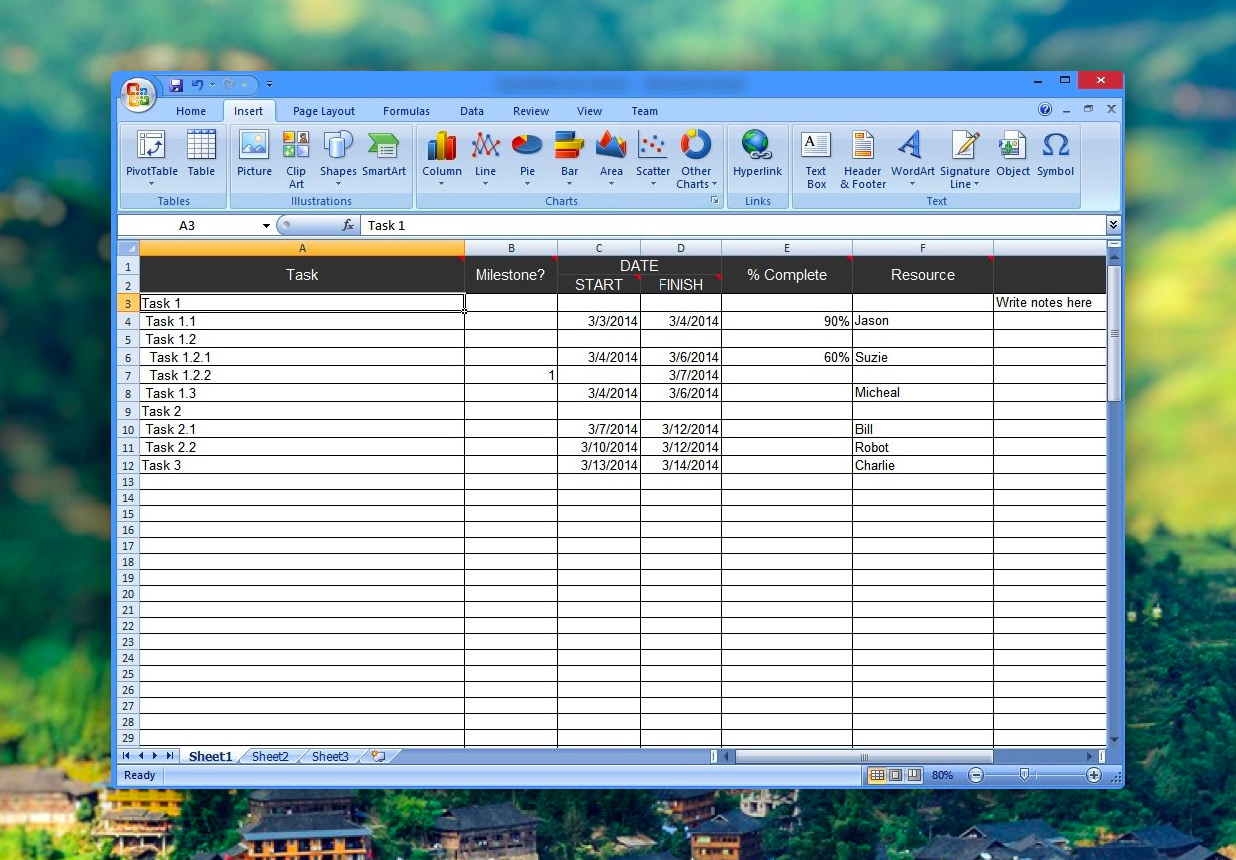
MS Excel file generated based on the "QuickPlan importing template," with .xlsx file format. Learn more ...
-
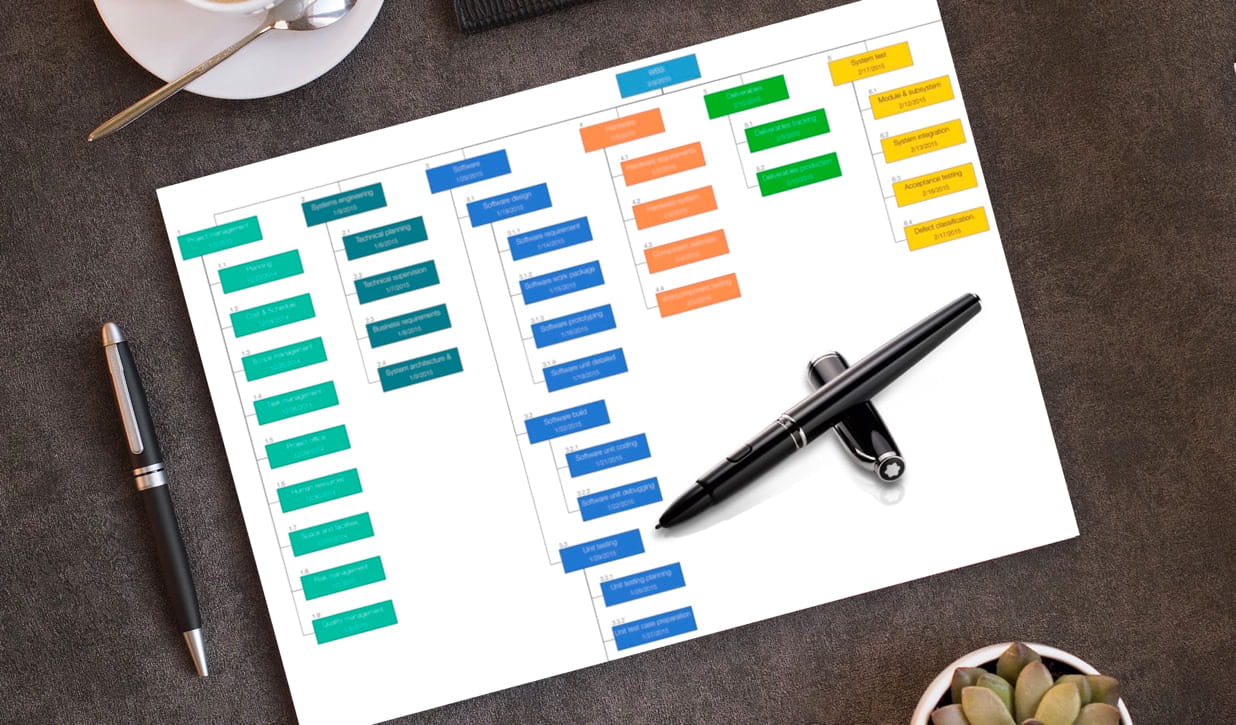
"Work Breakdown Structure" file generated by the Swift Apps WBS app for the iPad, with .wbs file extension.
Learn more ...
-
Mindmap file in OPML format generated by the Mindmap apps, with .opml file extension. Learn more ...
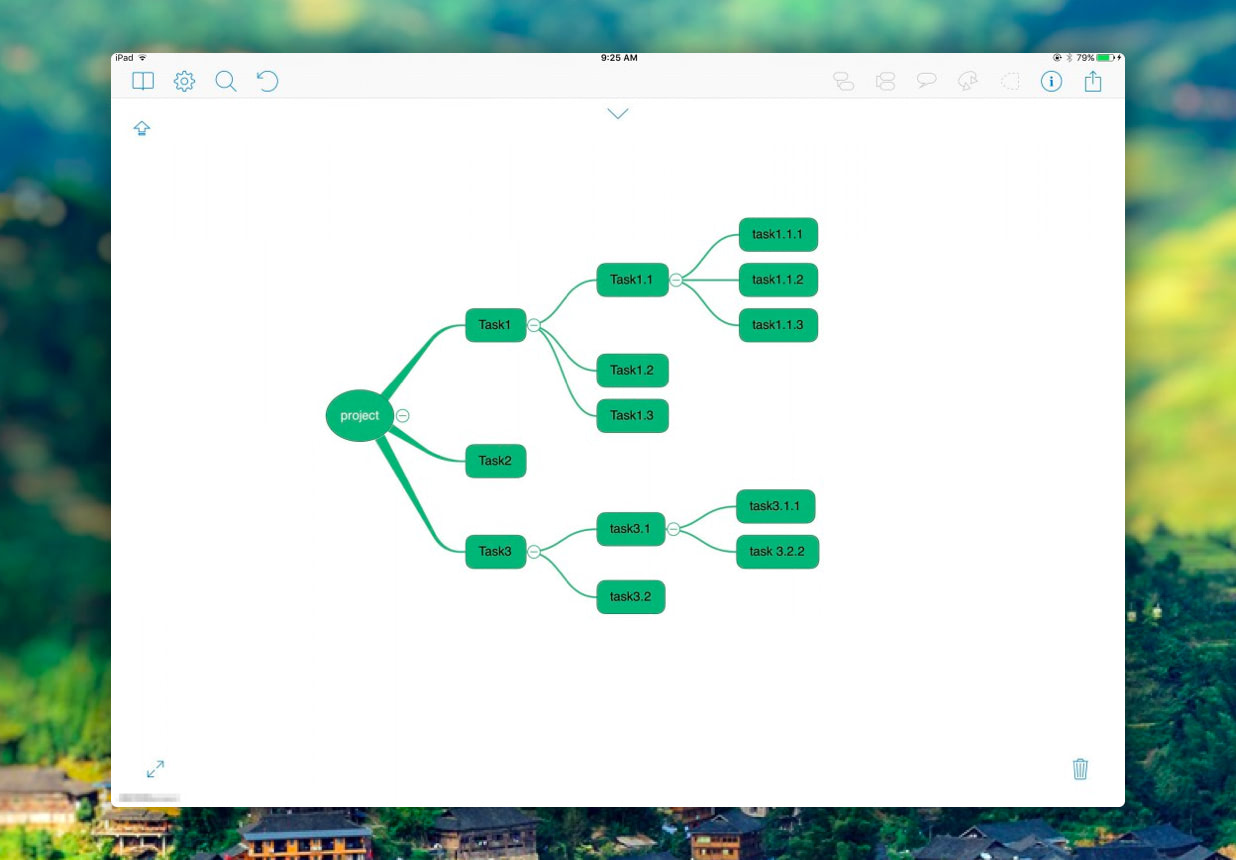
Data source files generated on other devices should be transferred to the device where you intend to import them into QuickPlan. iOS offers several convenient transfer methods, including AirDrop, Email, Dropbox, and third-party cloud apps.
How can I import a project from preceding files?
QuickPlan for iPhone supports importing the above files from within or outside the app.
-
Importing from within QuickPlan via the iOS Files app.
QuickPlan for iPhone supports importing these files via the iOS Files app directly from the Home View.
(If you cannot access the video on YouTube, please view the video file directly.)
-
Importing from outside QuickPlan using the iOS "Open In" function.
You can also copy the file to QuickPlan to import it, using the iOS "Open In QuickPlan" (or "Copy to QuickPlan") function:
- From Dropbox, Google Drive, OneDrive, and other third-party apps.
- Via AirDrop and Email.
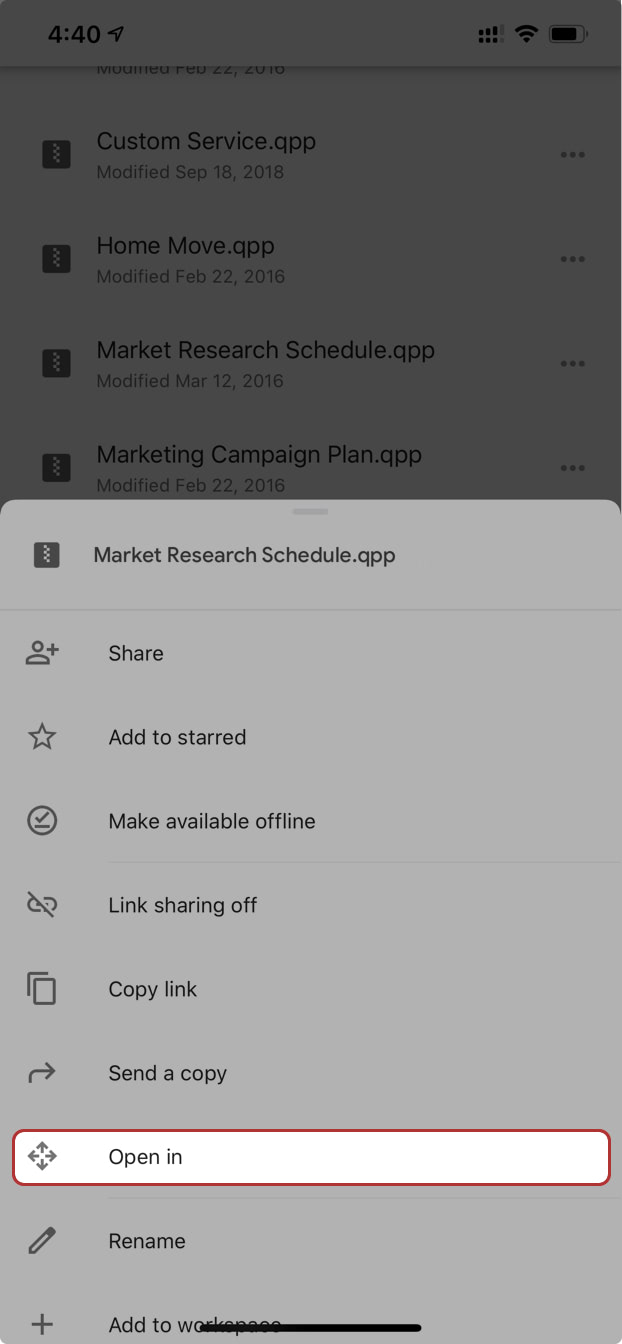
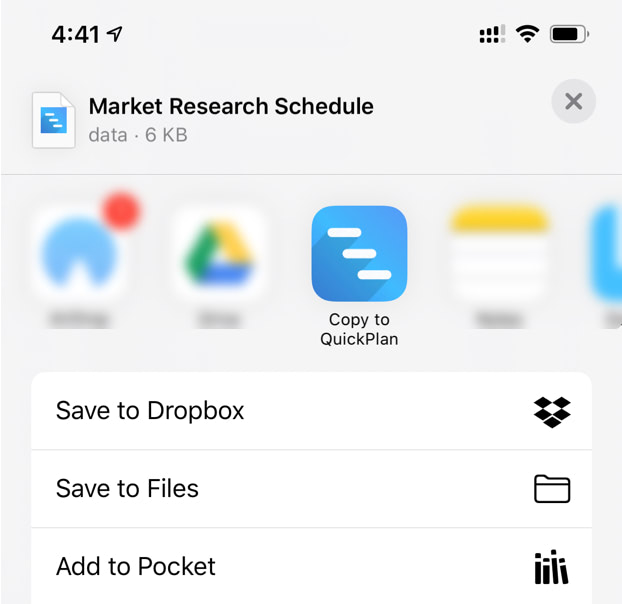
Below is an example of importing from Google Drive by selecting "Copy to QuickPlan".
-
Navigate to select a supported file and share via the "Open in" menu.
-
Then select the "Copy to QuickPlan" activity from the activity panel.
Projects Maintenance
Project Properties
Task Maintenance
Gestures & Keyboard Shortcuts
Customization
Synchronization
Team Collaboration
Project Sharing
- Sharing Project from iPad
- Import Project on iPad
- Sharing Project from iPhone
- Import Project on iPhone
- Sharing Project via AirDrop
- Sharing Project via Email
- Sharing Project via Dropbox
- Sharing Project via Google Drive
- Sharing Project via OneDrive
- Sharing Project via Box Cloud
- Sharing Project via 3rd Apps
Integrations
Others