
Access your project files on iCloud Drive with iOS Files integration, allowing QuickPlan to manage your files seamlessly across your devices.
Enable iOS Files integration for older versions of QuickPlan. If you are using a version prior to 17.1 on iOS, you must manually enable iOS Files integration as shown in the video.
If you are using a version prior to 17.1 and have disabled iOS Files integration, you can still access your project files on iCloud Drive directly within the app.
If you cannot access the Youtube website, please download the video to watch.
- We recommend copying projects from iCloud Drive to your local device as an additional backup.
- On a Mac, the "QuickPlan" iCloud Drive folder is created by macOS. As QuickPlan runs in a sandboxed environment, it does not have permission to create this folder directly. If you cannot find the folder on your Mac, please create a project on iCloud Drive using QuickPlan on an iOS device.
- Do NOT edit the same project on multiple devices simultaneously.
Troubleshooting
File transfer is managed by iOS, macOS, and the iCloud server; the app has no control over when or how project files are transferred.
You might wonder why QuickPlan doesn't control syncing; this is due to the design of iCloud Drive.
iCloud Drive typically works well with fast file syncing. However, synchronization may sometimes be delayed.
- Ensure you are using the SAME iCloud account on all devices and that iCloud Drive is enabled.
- Go to iCloud.com to verify that the project files have been transferred to the iCloud server.
-
To verify that project files have finished syncing, check them in the "Files" app on your iOS device.
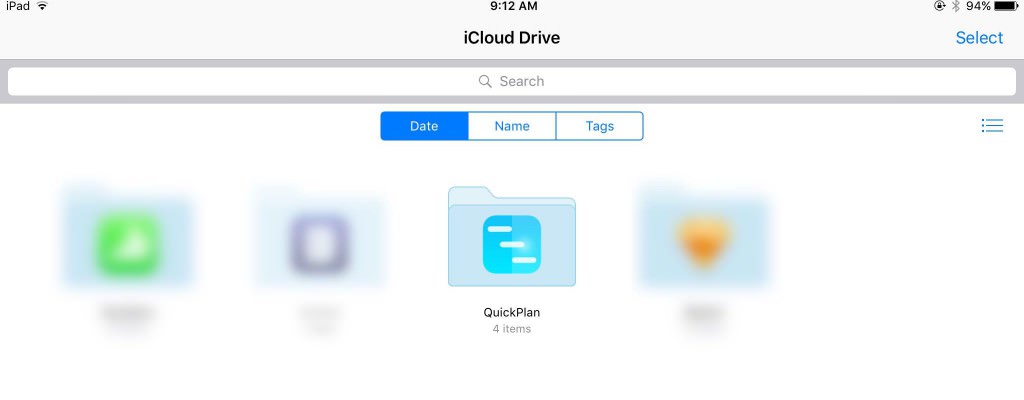
- Check the file's last modification time on the device to ensure synchronization is complete.
Notes:
Some users expect to edit the same project (opened from iCloud Drive) on multiple devices simultaneously, with changes automatically transferring. We emphasize that simultaneous editing on multiple devices via iCloud Drive is not possible.
Tasks in a project plan follow a tree structure with complex relationships, such as date constraints (links) and parent-child hierarchies.
Simultaneous editing of multiple tasks causes significant logical conflicts. Examples of potential issues include:
- (Device A): Add a task to a group; (Device B): Remove the same group.
- (Device A): Assign a member to a task; (Device B): Remove that member from project resources.
- (Device A): Change a task's date; (Device B): Move a successor to that task.
- (Device A): You see data change unexpectedly (e.g., task work updates "automatically"), assuming it's an error; (Device B): Another user is actively changing that data.
Sync across team members?
Please read the article on team collaboration.
Projects Maintenance
Project Properties
Task Maintenance
Gestures & Keyboard Shortcuts
Customization
Synchronization
- Sync via iCloud Drive
- Sync via OneDrive
Team Collaboration
Project Sharing
- Sharing Project from iPad
- Import Project on iPad
- Sharing Project from iPhone
- Import Project on iPhone
- Sharing Project via AirDrop
- Sharing Project via Email
- Sharing Project via Dropbox
- Sharing Project via Google Drive
- Sharing Project via OneDrive
- Sharing Project via Box Cloud
- Sharing Project via 3rd Apps
Integrations
Others