
Projects can be exported as PDF, MS Excel, and Image files for reporting and communication. Tap to learn more about this feature.
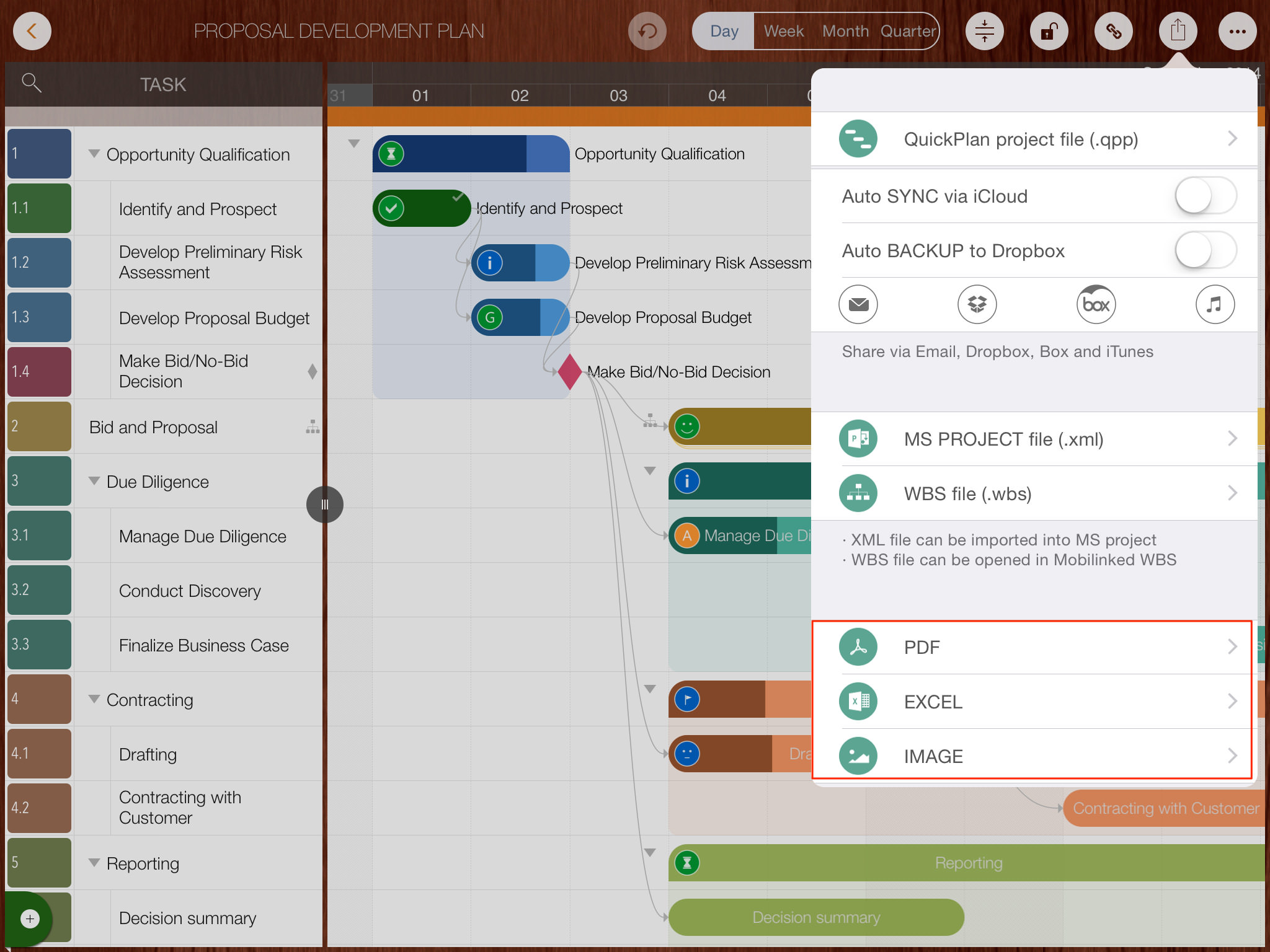
Several options are available to customize the content exported to the PDF file.
- Author Name - The author's name is displayed in the header of the first PDF page.
- Banner - The banner image is displayed in the header on the right side of the first PDF page.
- For Black & White Printers - Export the PDF in black and white for printing on low DPI or monochrome printers
- Include "QuickPlan" Info - By default, the PDF includes a line indicating it was created by QuickPlan. This option can be disabled.
- Include Task Links - Option to include or exclude task links in the PDF file
- Page Size - PDF page size. For printing, it is recommended to match the physical paper size with the PDF page size
- Page Content - Option to include the Outline, Gantt Chart, or both. At least one must be included.
- Task Link Line Width - Useful when exporting as a large PDF (e.g., A1) but printing on smaller paper (e.g., A4). If the line width is too thin, it may disappear when zoomed out.
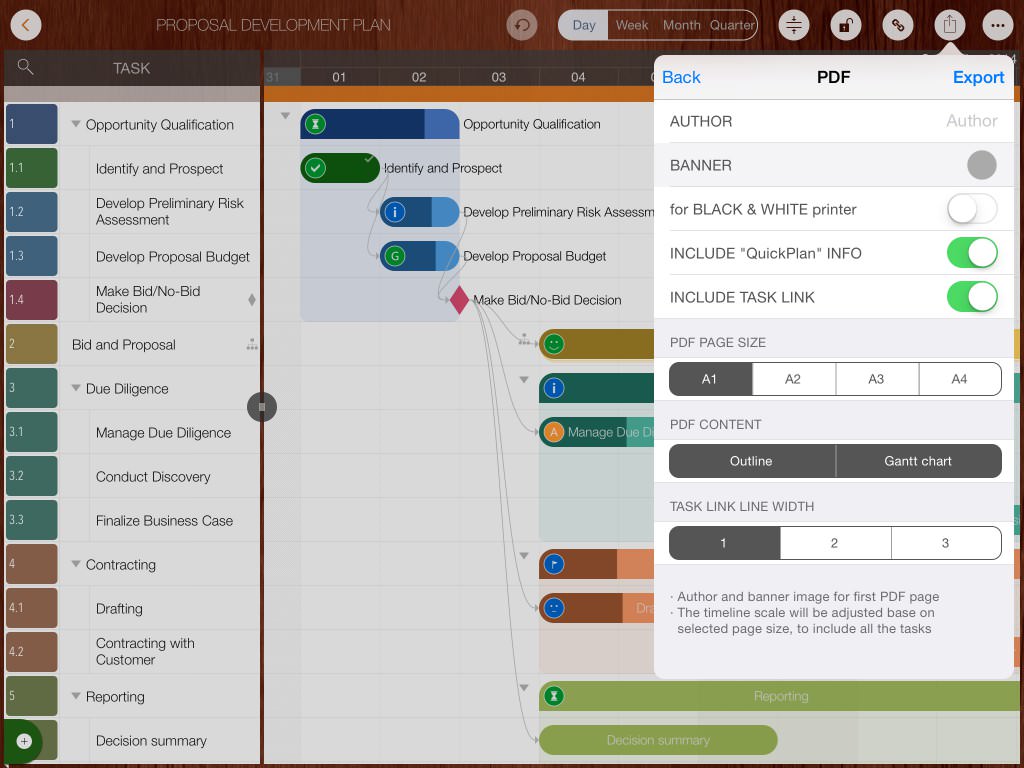
Update: A new option introduced in version 8.6 allows displaying two lines of text on taskbars in the PDF file
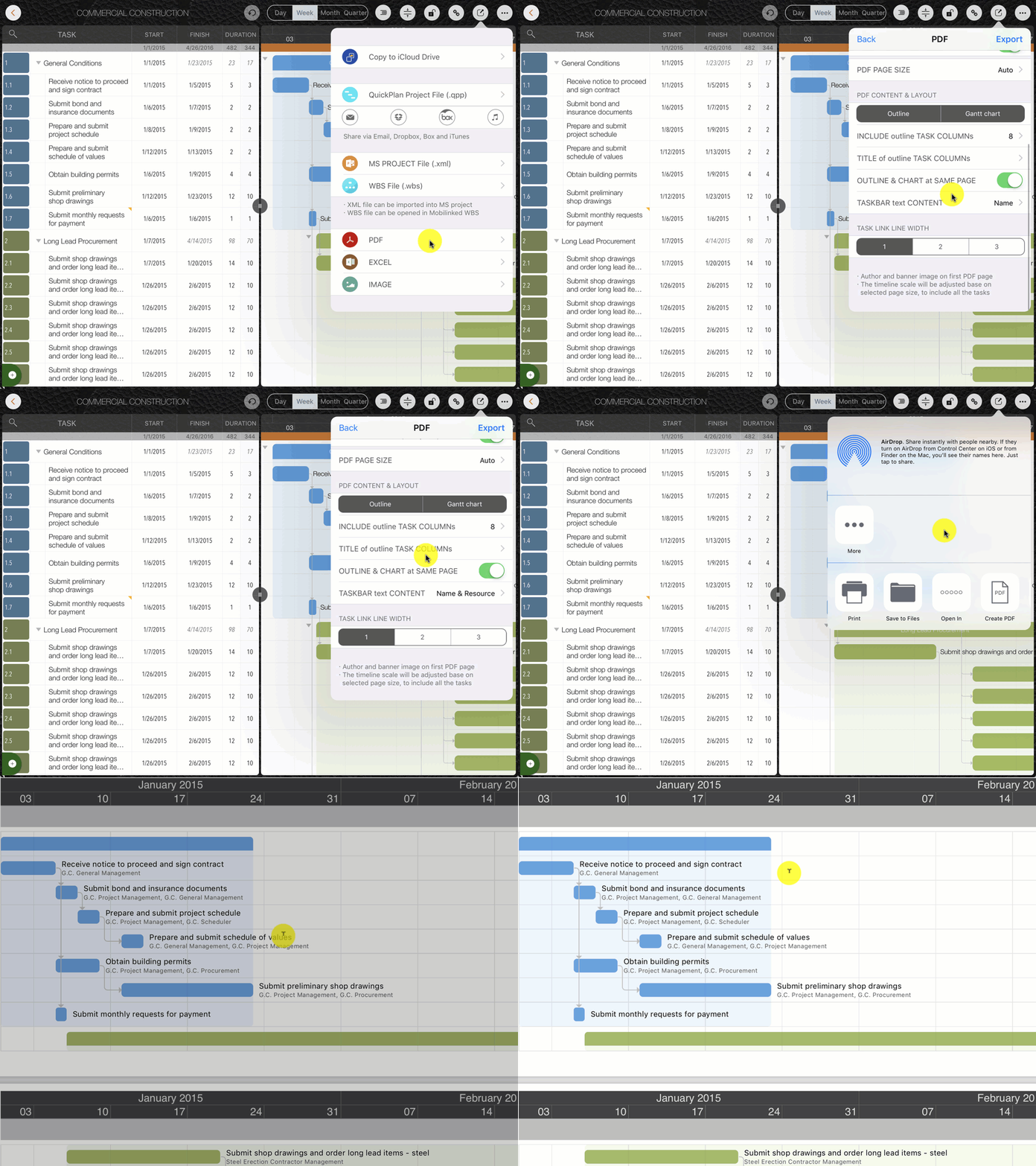
Update: A new option introduced in version 8.0 allows customizing task column titles
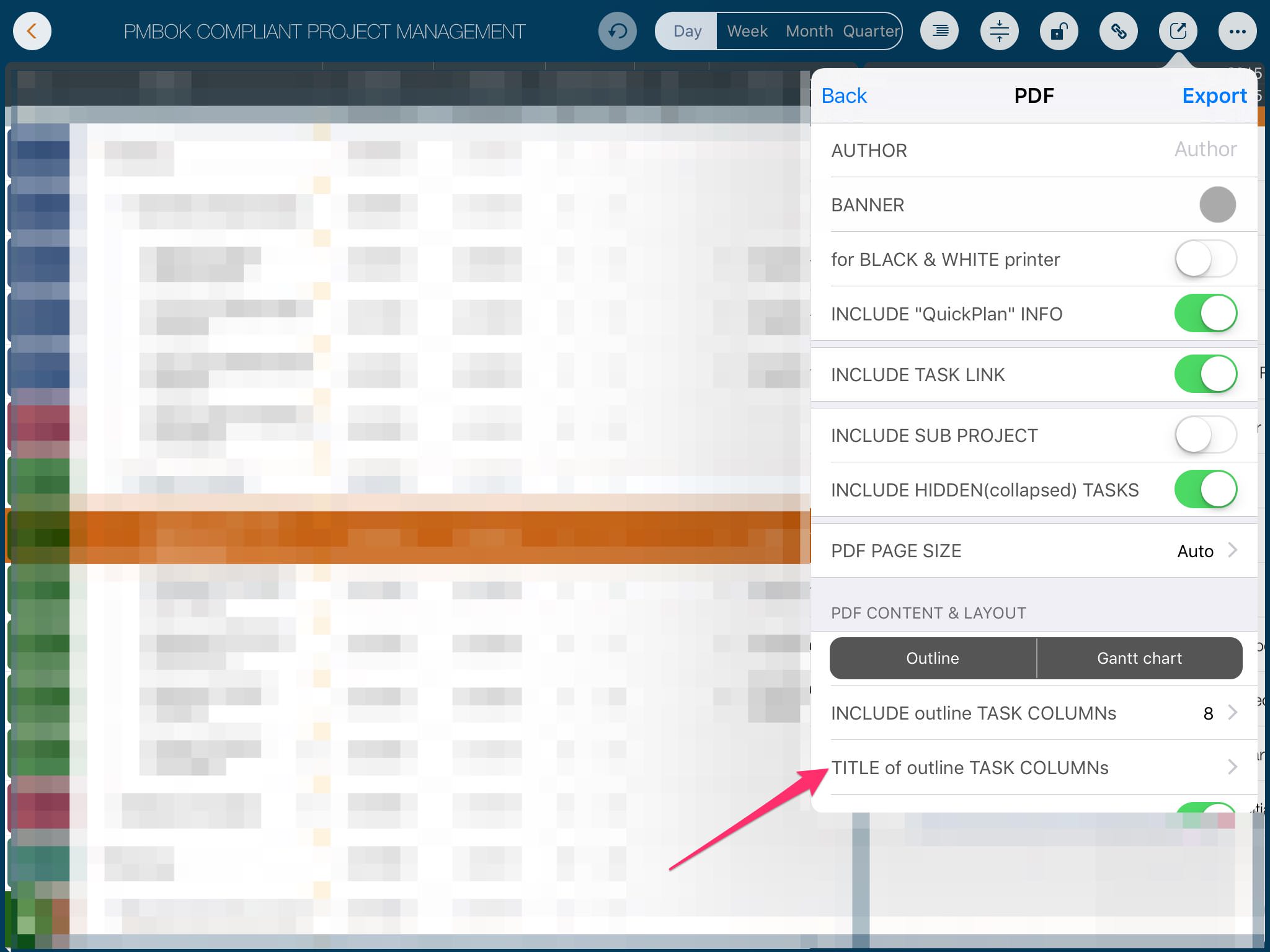
Best practices for the printing challenge
Project plans generated using QuickPlan may include many tasks or have a long duration. In such cases, the output may be much larger than a standard sheet of paper. Please check out our best practices for typical printing challenges
MS Excel
Several options are available to customize the content exported to the Excel file
- Excel Sheets - Option to include "Task Dispatch" and "Member Assignment" sheets. The "Task List" sheet is always included.
- Include Gantt Chart - Option to include the "Gantt Chart" in the "Task List" sheet
- Include "QuickPlan" Info - By default, the exported file includes a line indicating it was created by QuickPlan. This option can be disabled.
- Show "% Comp." in Gantt Chart - Option to display "% Complete" before the task name in the Gantt Chart on the first sheet.
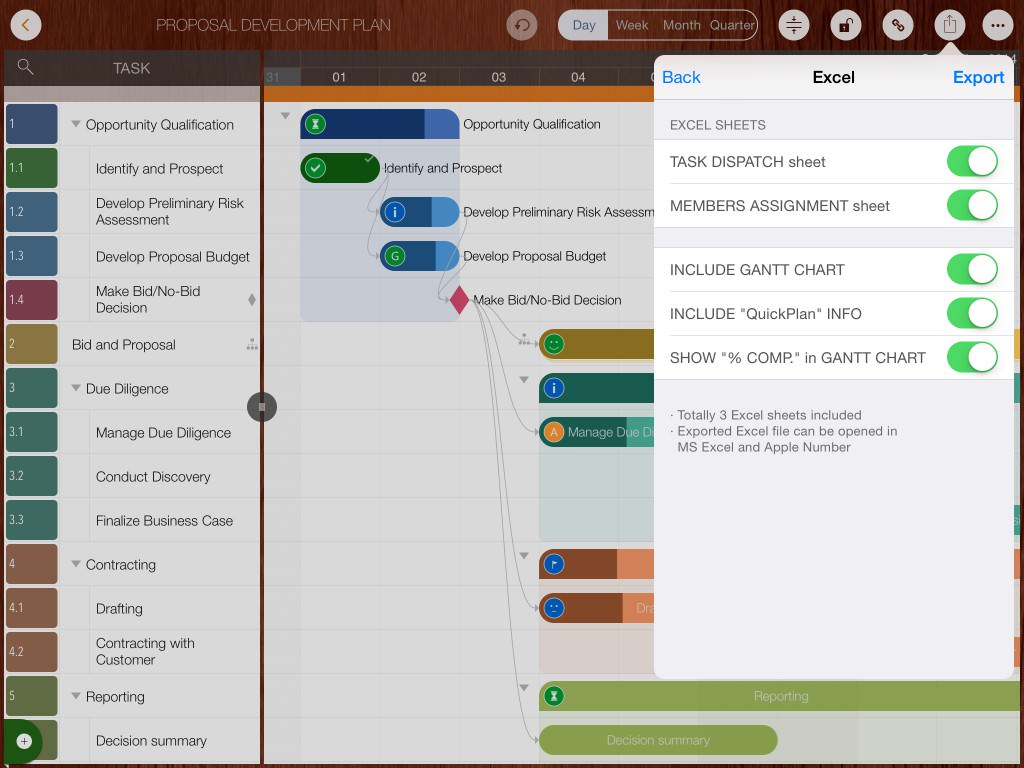
Notes
Many users appreciate the Gantt Chart in exported Excel files. QuickPlan uses one cell to simulate one day. Since the exported Excel file is compatible with Apple Numbers, which has a column limit (256 columns), long project durations may exceed this limit. In such cases, the Gantt Chart option will be disabled; please export the project as a PDF instead.
Image
There is an option to customize the content exported to the Image file
- Include Task Outline - Option to include or exclude the task outline in the image file.
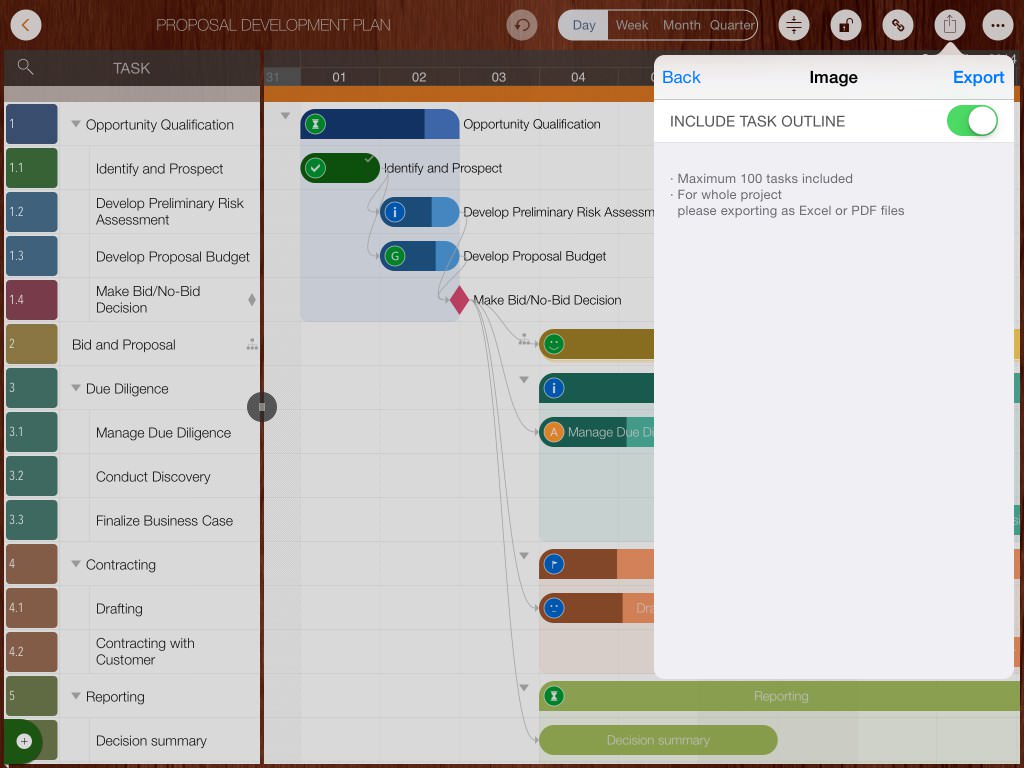
Notes
A maximum of 100 tasks will be included in the exported image. To include all tasks, please export the project as a PDF file
Projects Maintenance
Project Properties
Task Maintenance
Gestures & Keyboard Shortcuts
Customization
Reports
- MS Excel
- Image
Synchronization
Team Collaboration
Project Sharing
- Sharing Project from iPad
- Import Project on iPad
- Sharing Project from iPhone
- Import Project on iPhone
- Sharing Project via AirDrop
- Sharing Project via Email
- Sharing Project via Dropbox
- Sharing Project via Google Drive
- Sharing Project via OneDrive
- Sharing Project via Box Cloud
- Sharing Project via 3rd Apps
Integrations
Others